


Your playlist cover is the first thing people notice before they hear a single song. Whether you've created a relaxing study mix, an upbeat workout playlist, or a collection of your favourite road trip tracks, the artwork sets the mood and gives listeners a glimpse of what's inside.
A good Spotify playlist cover maker helps you create artwork that reflects your music and makes your playlists stand out. A custom cover not only gives your playlist a unique identity but also makes it easier to recognise, creates a consistent aesthetic across your Spotify profile, and encourages more people to click when you share it.
If you want to know how to create Spotify playlist covers easily, you have arrived at the right place. Let's learn how to create a Spotify playlist cover and how you can use Blend to generate unique, high-quality playlist covers that go beyond Spotify's built-in editor.
Why Your Spotify Playlist Cover Matters
Think about the last time you browsed Spotify. Before reading the playlist title, you probably noticed the artwork first.
A striking cover instantly communicates the mood of the playlist. Soft pastel colours suggest something calm and relaxing, while bold typography and vibrant colours hint at energetic music.
Your playlist cover can help you:
- Build a recognisable Spotify profile
- Match the visual style to your music
- Make playlists easier to organise
- Create a better first impression when sharing playlists
- Encourage more people to explore your collection
If you regularly create public playlists, unique artwork can also make your playlists feel more memorable than Spotify's default covers.
Spotify Playlist Cover Size and Image Requirements
Before creating your artwork, it's worth understanding Spotify's recommendations. Spotify accepts square images in JPG, JPEG, or PNG format, with a maximum file size of 4 MB.
Although 300 × 300 pixels is the minimum image size Spotify supports, it's no longer the best choice. Modern smartphones, Retina displays, and 4K monitors can make lower-resolution images appear soft or pixelated.
For the sharpest results, create your playlist cover at 1000 × 1000 pixels or even 3000 × 3000 pixels before exporting the final image. Starting with a larger canvas also gives you more flexibility if you decide to crop or reuse the artwork on other platforms.
Blend generates high-resolution artwork, helping your playlist covers stay crisp no matter where they're viewed.
What Makes a Great Spotify Playlist Cover?
A good playlist cover isn't about adding as many effects as possible. The best designs are simple, memorable, and instantly communicate the feeling of your music.
1. Match the mood
Your colours, imagery, and overall style should reflect what's inside the playlist. A lo-fi playlist might suit warm lighting, cosy interiors, or vintage textures. A gym playlist often works better with bold colours, geometric shapes, and dramatic lighting. When the artwork matches the music, listeners know what to expect before they even press play.
2. Keep the composition simple
Remember that Spotify usually displays playlist covers as small square thumbnails. Avoid filling every corner with graphics or text. Instead, focus on one strong visual element and leave enough space for the design to breathe.
3. Use colors intentionally
Colour has a huge influence on how people perceive your playlist. Soft blues and neutral tones create a calming atmosphere. Bright oranges and reds feel energetic. Dark backgrounds with neon highlights often work well for gaming or electronic playlists.
4. Don't overcrowd your design with text
Many of Spotify's most popular playlists don't include any text at all.If you do want to add a title, keep it short and use a bold font that's easy to read at smaller sizes.
RELATED READING: Wattpad Cover Maker: Create Wattpad Book Covers with Blend
How to create a Spotify Playlist Cover with Blend
If you already have an idea in mind but don't know how to bring it to life, Blend makes the process simple. Instead of building everything manually, you describe what you want, answer a few questions, and let AI generate original artwork based on your vision.
Step 1: Open DesignGPT in the Blend app
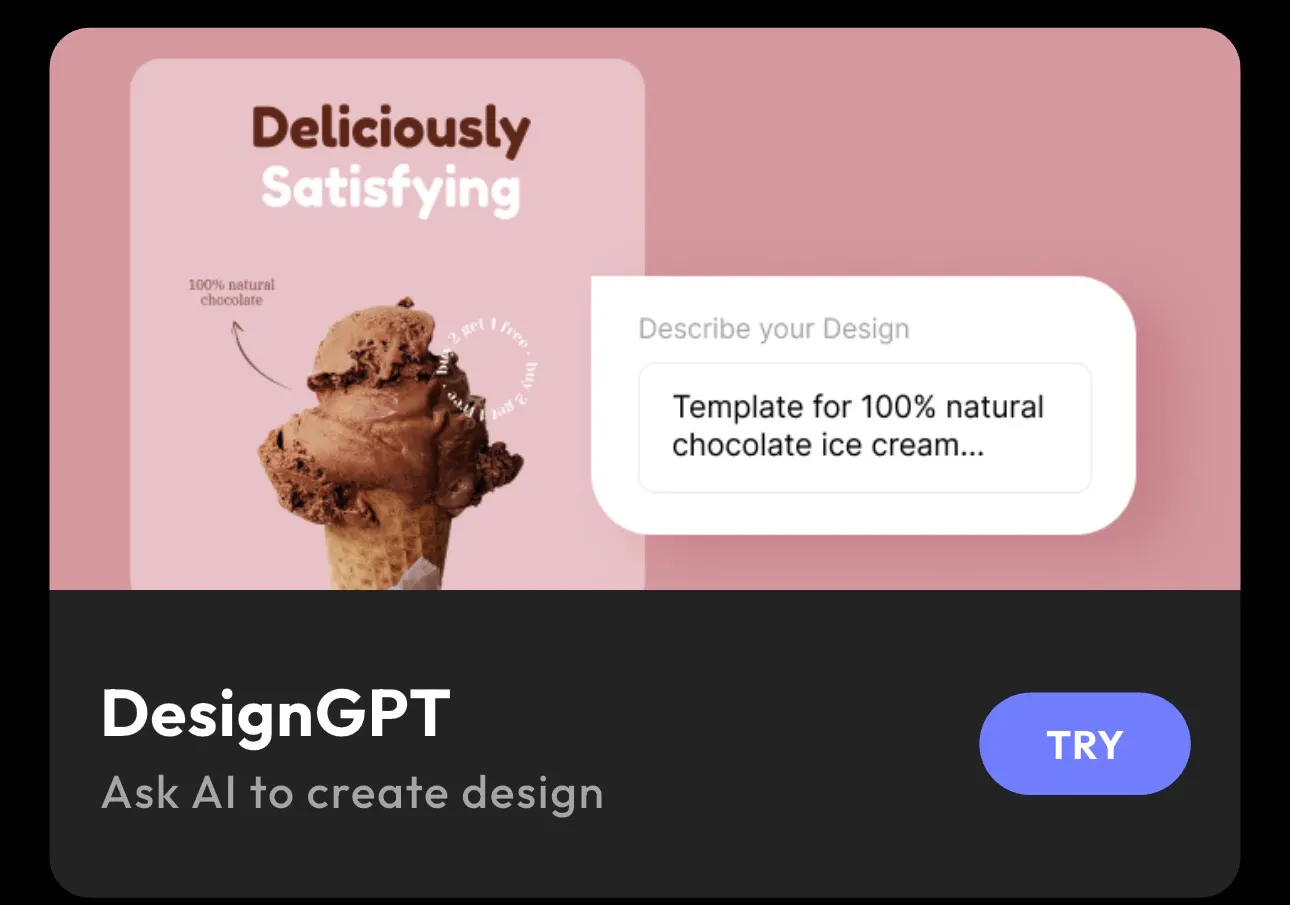
Open the Blend app and tap DesignGPT from the home screen. DesignGPT lets you create professional-quality designs using simple text prompts, so you don't need any graphic design experience.
Once you're inside DesignGPT, tap the Create anything prompt box to begin. For example, you could enter prompts like:
- Lo-fi bedroom with warm lighting, vintage cassette player, soft rain outside the window, muted colours and subtle film grain.
- Minimal black-and-white playlist cover with geometric shapes, clean typography and soft shadows.
- Neon cyberpunk city skyline at night with glowing signs, purple lighting and futuristic architecture.
- Pastel floral illustration with soft textures and dreamy lighting for a relaxing playlist.
If you need more inspiration, here are a few more prompts you can copy and customise:
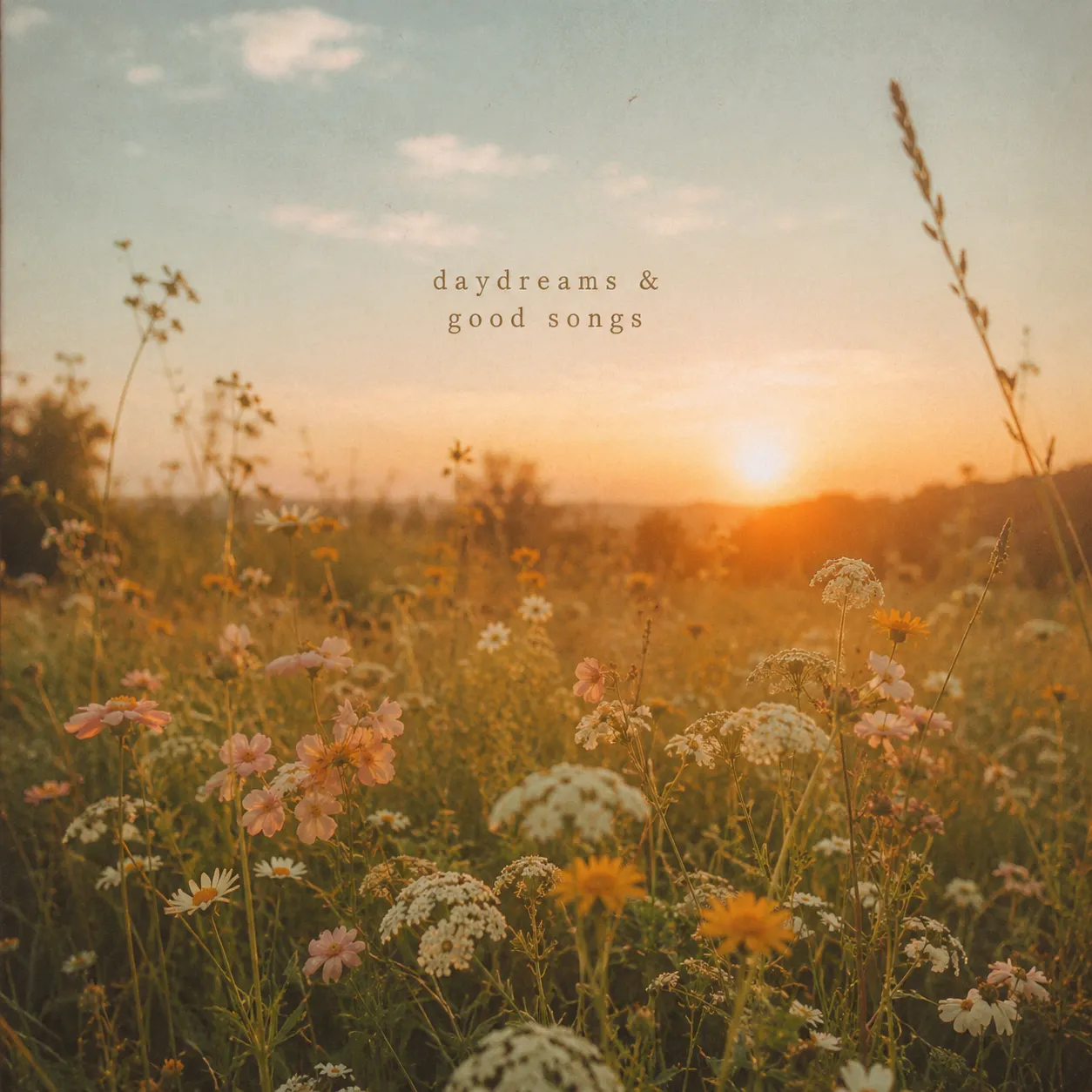
Dreamy indie playlist: Golden-hour meadow filled with wildflowers, vintage film photography, warm sunlight, soft pastel colours, subtle haze, minimal composition.
Night drive playlist: Rain-soaked city streets at midnight, glowing neon reflections, cinematic lighting, purple and blue colour palette, retro sports car, moody atmosphere.
Workout playlist: Abstract red and black energy waves, metallic textures, dramatic lighting, bold geometric shapes, high contrast, modern digital artwork.
The more detail you include, the closer the final artwork will match your vision.
Step 2: Describe your playlist cover
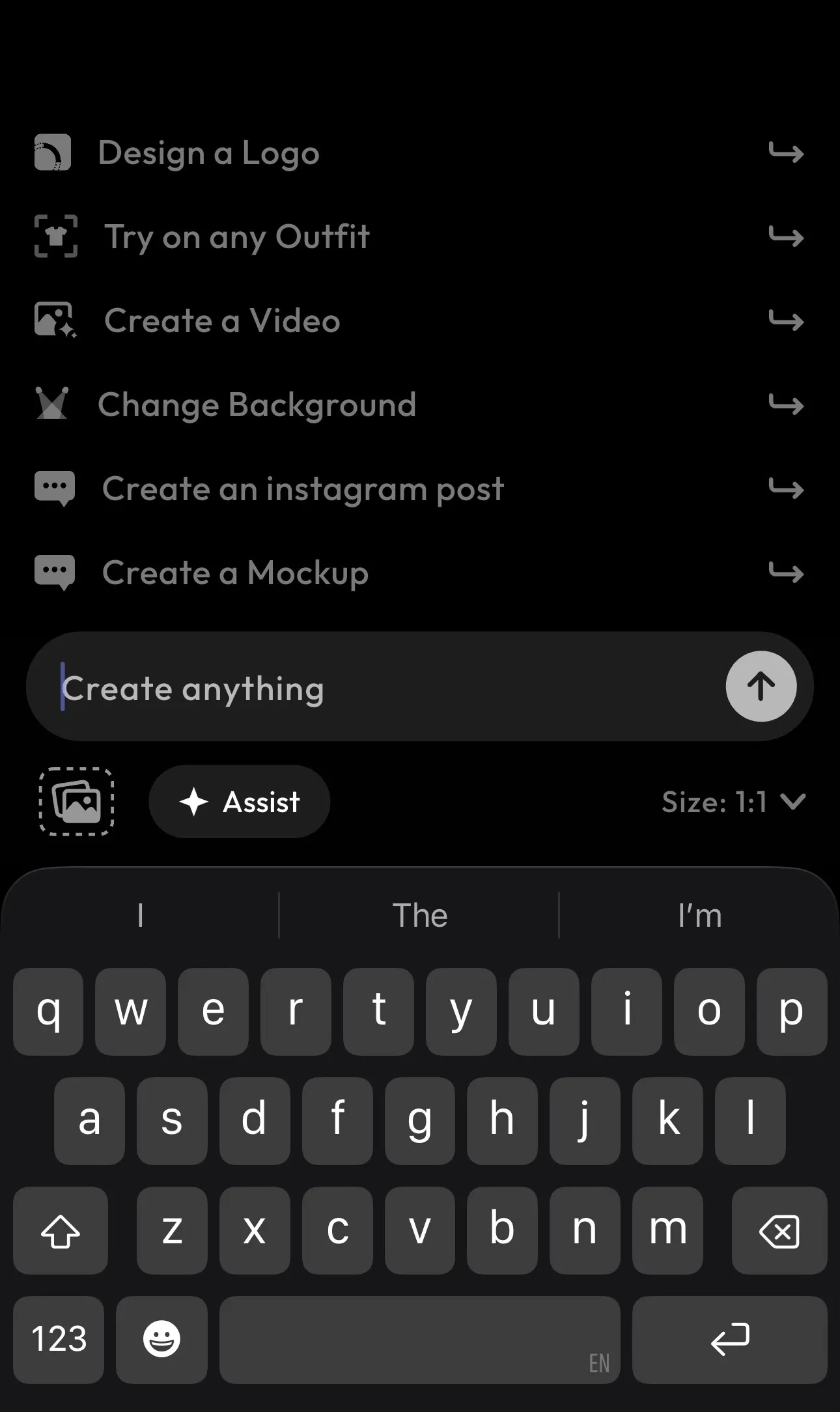
Tell DesignGPT exactly what you'd like to create. Instead of writing something generic like "Spotify playlist cover", include details about the mood, colours, lighting, style, and subject. The more descriptive your prompt is, the better your results will be.
For example:
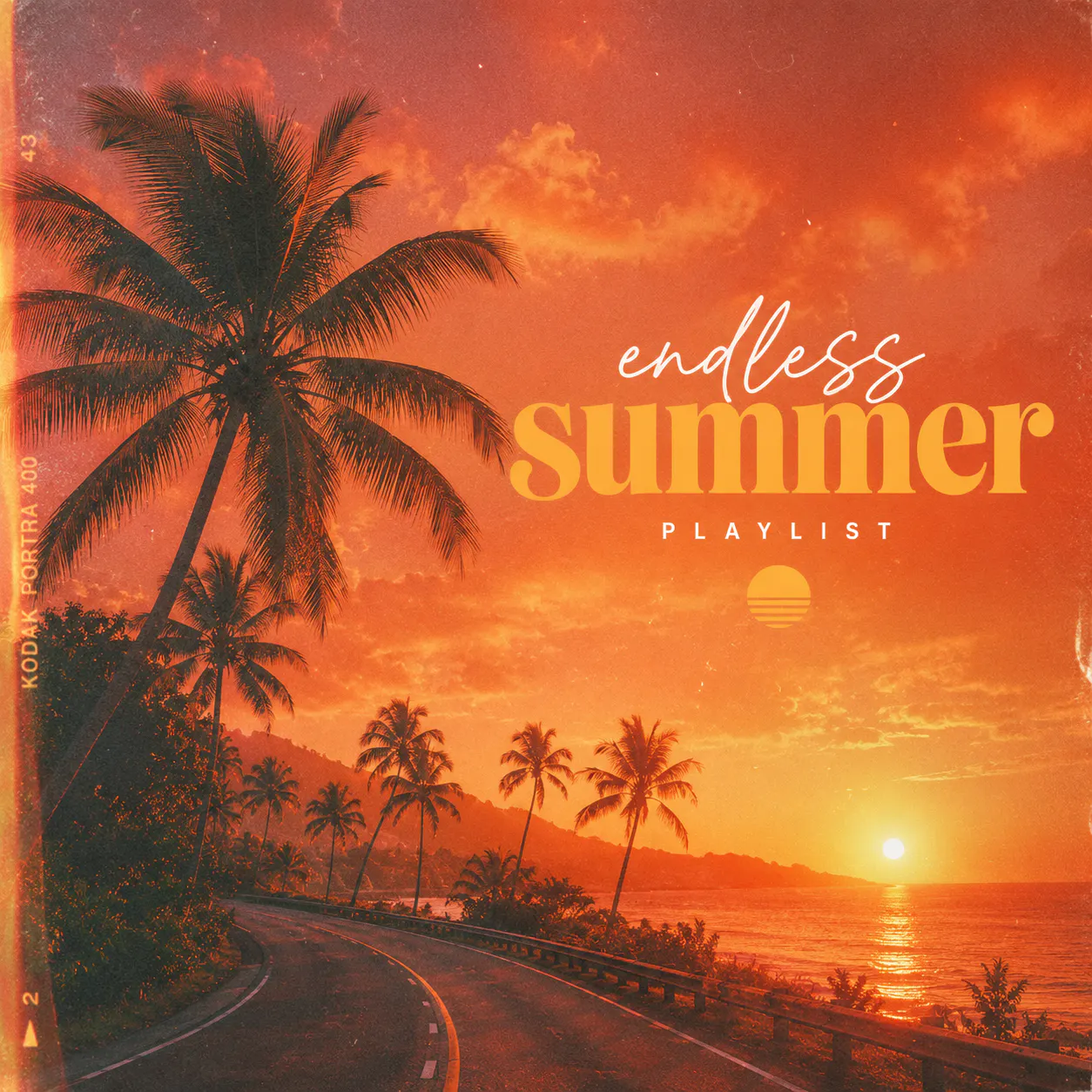
"Create an aesthetic playlist cover featuring orange skies, palm trees, retro film grain, warm sunset colours and a dreamy summer atmosphere."
Blend understands natural language, so you don't need to learn complex prompt-writing techniques. After entering your prompt, tap the arrow to generate your design.
Step 3: Edit your design and choose from smart editing options
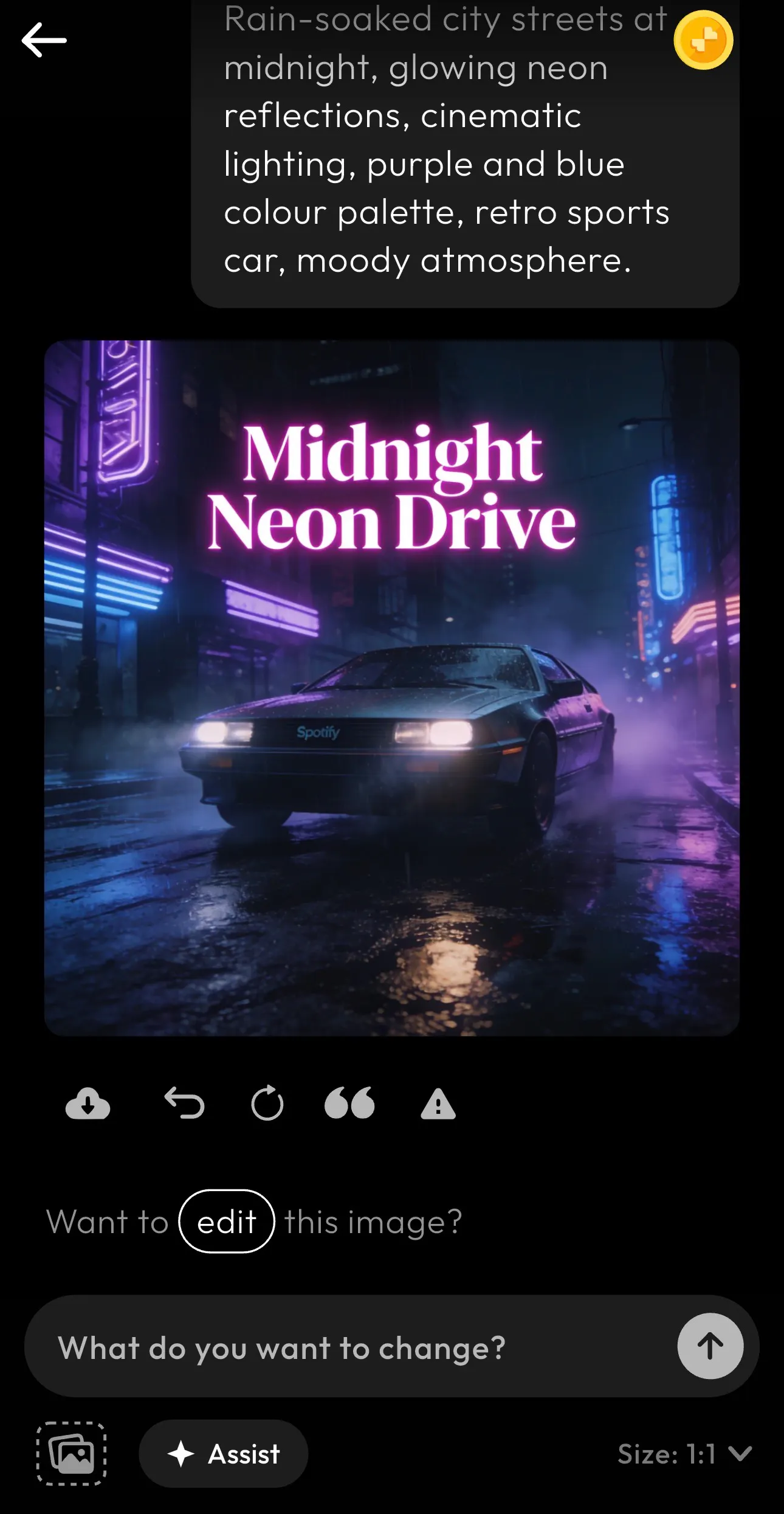
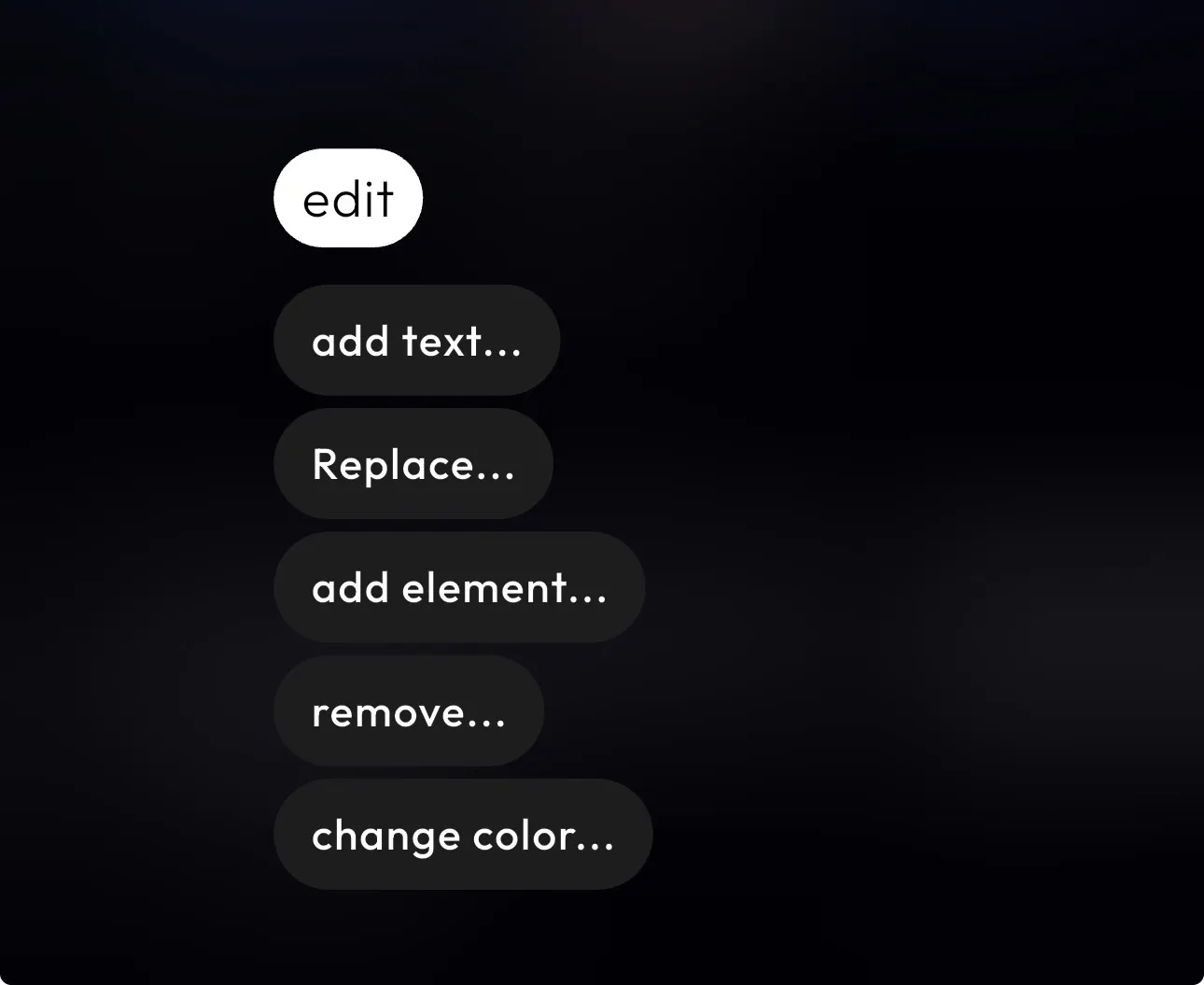
Once your playlist cover has been generated, you can fine-tune it without starting over. Tap Edit to access quick editing tools. You can:
- Add or edit text
- Replace text, objects, or elements
- Add new design elements
- Remove unwanted objects
- Change colours
These options make it easy to personalise your playlist cover until it looks exactly the way you imagined.
In its first image generation, Blend had given the album name “Midnight Neon Drive”. By using the “Replace” feature, I changed it to “Midnight Memories”.

Step 4: Make additional refinements with Assist
For even more control, use the Assist feature. Simply describe the changes you'd like to make in natural language, and Blend will update the design for you.
You can also use the built-in suggestions to quickly refine different parts of your artwork. With Assist, you can:
- Add a title, subtitle, or description
- Switch between themes like Minimal, Vintage, Bold Colourful, Hand Drawn, Futuristic, Professional, or Party
- Change the background to Nature, Urban, Studio, Abstract, Flat Colour, or Product Based
- Continue making edits by typing additional instructions until you're happy with the final result
Once everything looks perfect, download your playlist cover in high resolution and upload it to Spotify.
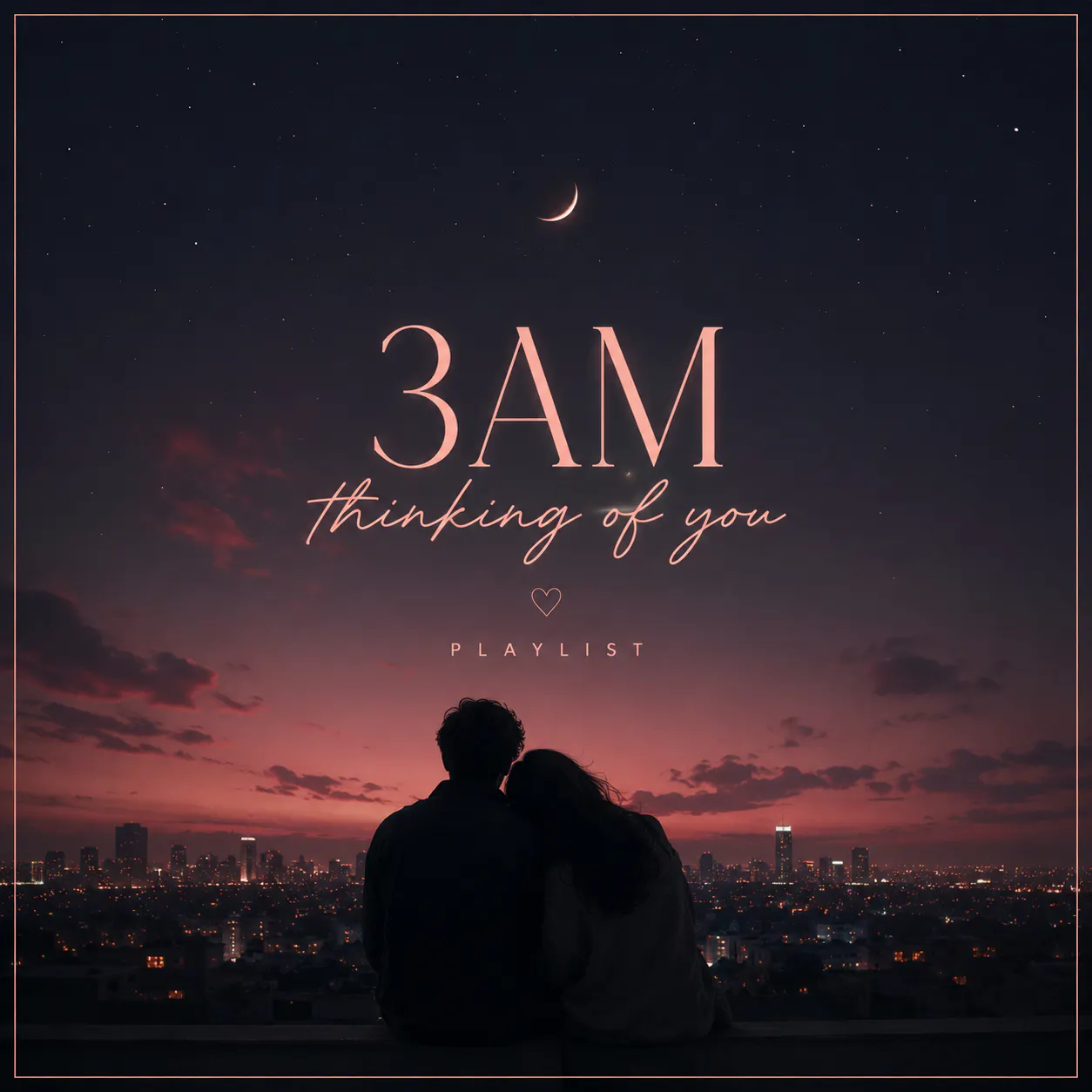
Take a look at these Spotify playlist cover images I created using Blend:
How to Upload Your New Cover to Spotify
Once your artwork is ready, updating your playlist only takes a minute.
- Open Spotify on your mobile device or desktop.
- Open the playlist you'd like to customise.
- Tap the three dots (...) and select Edit or Edit Details.
- Choose Change Image (or click the existing cover on desktop).
- Select the artwork you downloaded from Blend.
- Save your changes.
If you prefer, you can also use Spotify's native editor to add text, stickers, colours, or simple effects before saving your final cover.
RELATED READING: How to Create Stunning Quote Graphics for Social Media
Playlist Cover Ideas by Music Genre
If you are unsure what direction to take, start with the mood of your playlist. The artwork should give listeners a visual hint about the music before they even read the title. The table below can help you choose a style and even inspire your AI prompt.
Playlist vibe | Recommended aesthetic | Example prompt |
Lo-fi / Chill | Dreamy pastel, cosy | Warm bedroom lighting, vintage cassette player, soft rain on the window, muted colours, film grain. |
Workout | Futuristic, energetic | Bold red and black gradients, metallic textures, glowing light streaks, high contrast, dynamic composition. |
Synthwave / Gaming | Cyberpunk | Neon purple city skyline at night, holograms, glowing signs, futuristic streets, cinematic lighting. |
Indie | Cottagecore | Golden meadow, wildflowers, vintage camera, handwritten notes, warm earthy tones, soft sunlight. |
Classic Rock | Retro vinyl | Electric guitar silhouette, distressed textures, smoky lighting, vinyl records, vintage typography. |
Hip-Hop | Urban grunge | Concrete walls, graffiti textures, dramatic shadows, bold colours, modern street photography. |
Pop | Bright and playful | Colourful gradients, glossy shapes, vibrant lighting, playful geometric patterns. |
Sleep | Minimal | Soft blue gradient, moonlight, clouds, gentle glow, calming atmosphere. |
Don't be afraid to experiment with different combinations. You might discover that an unexpected style suits your playlist even better than the idea you originally had.
Tips to Create a Playlist Cover that Stands Out
A beautiful playlist cover doesn't need to be complicated. In fact, the most memorable designs are often the simplest. Here are some tips to keep in mind when you are trying to make your own spotify playlist:
- Choose one clear focal point such as a landscape, illustration, geometric shape, or abstract design to make your cover instantly recognisable.
- Keep your color palette consistent by using two or three dominant colours for a clean and cohesive look.
- Use lighting to match the mood. Warm lighting creates a calm vibe, while dramatic shadows and highlights add energy.
- Keep text minimal by using one or two words in a large, bold font that's easy to read, even as a small thumbnail.
- Create multiple variations by tweaking your prompt, such as changing the colours, camera angle, or art style, to find the perfect design.
RELATED READING: How to Create YouTube Thumbnail Quickly and Easily in 2026
Blend vs Spotify's Built-in Playlist Cover Editor
Spotify's built-in playlist cover editor is great for quick customisations. You can add text, change background colours, apply effects, and personalise your cover without leaving the app.
However, if you are looking for a completely original design, Blend gives you far more creative freedom by generating unique artwork from a simple text prompt. Here's a quick comparison of what each tool offers:
Feature | Blend | Spotify Playlist Cover Editor |
AI-generated artwork | Generate unique playlist covers from text prompts | Not available |
Creative styles | Unlimited styles, themes, and aesthetics | Limited colours, effects, and stickers |
Text customisation | Add text using an external editor if needed | Built-in text editor |
Editing options | Create entirely new artwork | Edit existing backgrounds with simple tools |
Best for | Original, standout playlist covers | Quick in-app customisation |
Conclusion
While Spotify's built-in editor makes it easy to personalise your playlists with simple text and effects, it has its limits when it comes to creating truly original artwork. That's where Blend’s Spotify playlist cover maker stands out. Instead of relying on templates or basic editing tools, you can generate unique visuals simply by describing your idea.