


When you scroll through your favorite online store and their social media accounts, you’ll find one subtle yet powerful thing in common. Every product photo looks like it belongs together. The same background tone. The same lighting mood. The same color atmosphere tying everything into one unmistakable brand identity. That cohesion isn’t accidental. It is actually strategic.
If you don’t want to create random AI images, then you can try generating product photos with consistent colors to stand out from your competitors. More than 2,00,000 users have trusted Blend for this particular task and Blend is catching brand owners’ attention quite quickly.
Blend has the right AI tools where you can design a repeatable brand-color system that scales across every SKU and every campaign. Let’s learn how to create consistent, studio-quality brand color product photos using Blend easily.
Define Your Brand/Product Color Palette
Choosing the right background color isn’t just about aesthetics. It’s about reinforcing what the product stands for. In the image below that I generated using Blend’s Lifestyle Shot feature, each product is placed against a background that amplifies its identity using intentional color psychology and tonal harmony.

For the green skincare product, I chose lush botanical greens to communicate freshness, natural ingredients, and hydration. Similarly, I chose the color palette for the candle based on what it evokes. Calm, luxury, and sensory indulgence.
I framed the red lipstick in deep crimson hues to symbolize a woman’s confidence, passion, and bold femininity.
In each case, the background doesn’t compete with the product. It strengthens the emotional message. Your brand palette should do the same: amplify identity, evoke feeling, and create instant recognition.
How to Create Consistent Brand Color Product Photos with Blend
If you want to learn how to you generate consistent brand color product photography, AI product videos, and on-brand visuals at scale without expensive hardware or software, keep reading and your pictures will look no less than realistic lifestyle shots.
1. Upload your product picture
Go to the Lifestyle Shot section of Blend and upload a picture. Ensure that you are uploading a clear image of your product into Blend. For best results, use a high-resolution photo with good lighting and minimal blur. If your product photo already has a background, don’t worry. Blend will immediately remove it as you can see from the image below.
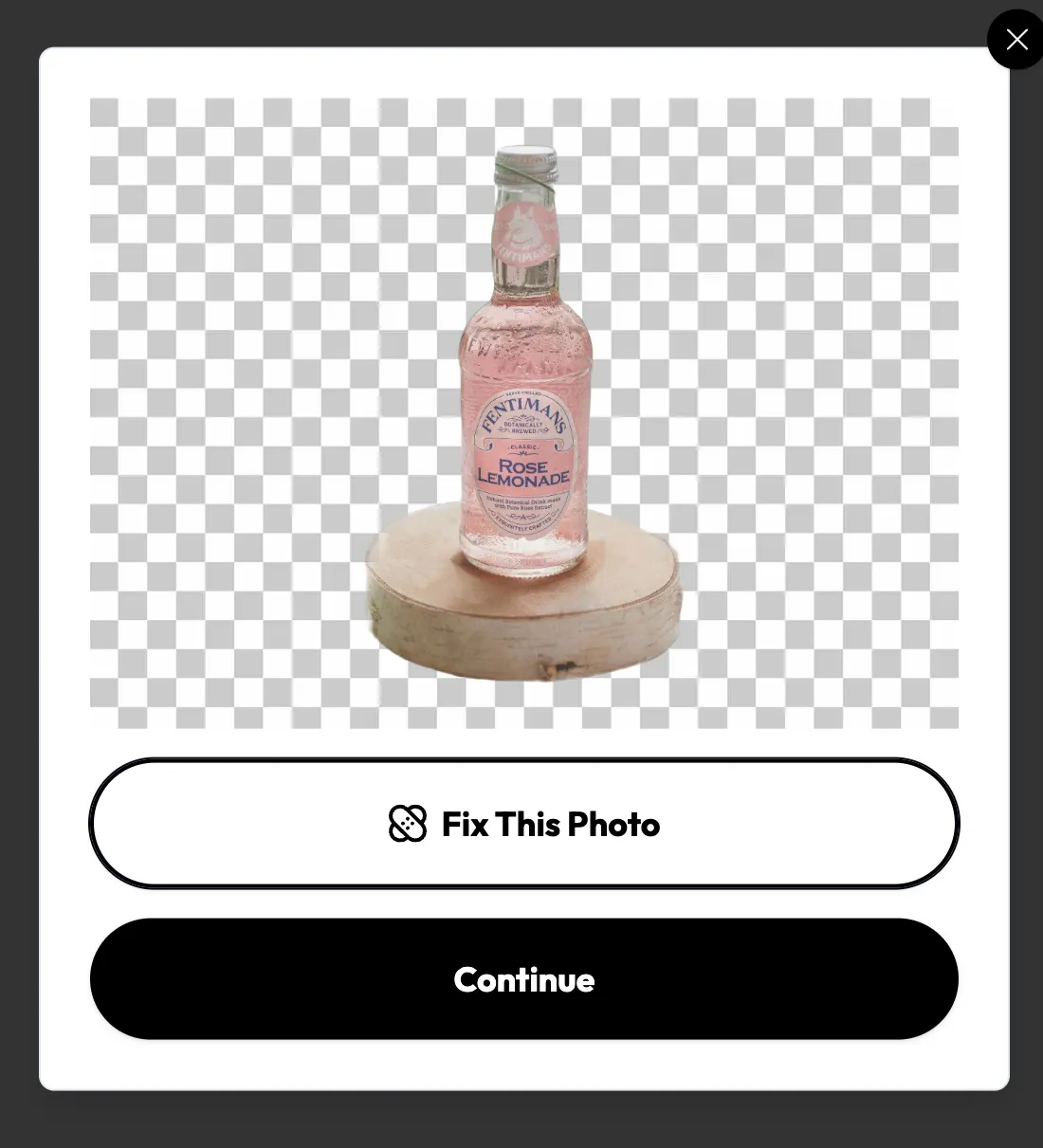
A clean cutout gives you full creative control. If you want to enhance the image, then you can click the “Fix This Photo” button and adjust the lighting, alignment, and shadows. Once you are done, click the continue button.
Your product will be isolated from its previous background, and it is ready to be used across multiple scenes, campaigns, and seasonal visuals without needing to reshoot. This is the foundation of scalable, consistent brand-color product photography.
2. Pick a Theme
Once your product is uploaded, choose a theme that aligns with your brand identity. Blend offers a variety of AI-generated themes that are ready for your use, from minimal studio setups and soft gradients to nature-inspired, luxury, or bold editorial environments.
This is where your brand color palette comes into play. Select a theme that supports your primary brand tone. For example:
- Botanical or fresh themes for skincare
- Deep monochrome studio tones for luxury products
- Soft pastel backgrounds for lifestyle or beauty brands
- Clean neutral studio setups for tech or minimalist brands
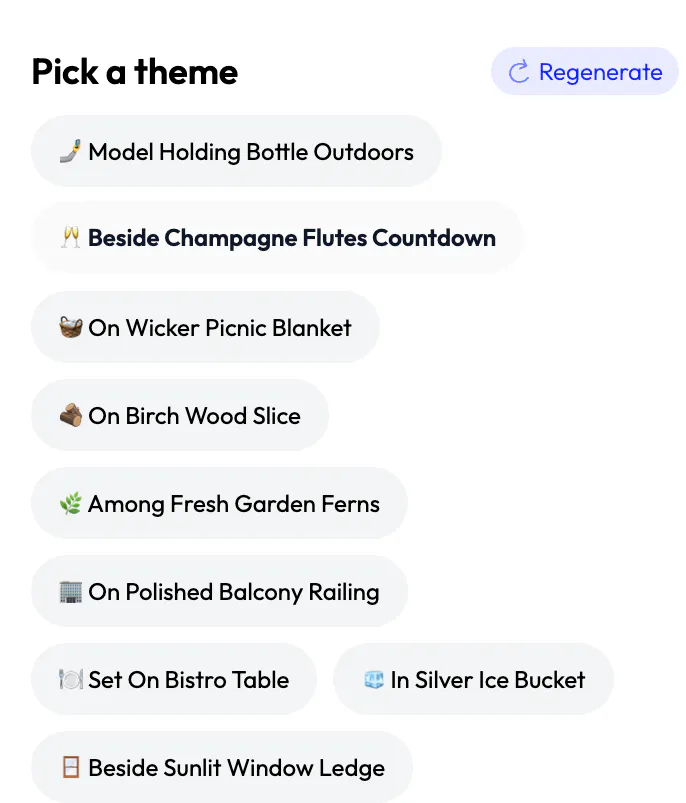
The key is consistency. Choose themes that stay within your brand’s color family, so your entire catalog feels unified. Here are some pictures I generated using Blend’s Lifestyle Shot. I first downloaded a high-quality picture from Pexels and let Blend work its magic.
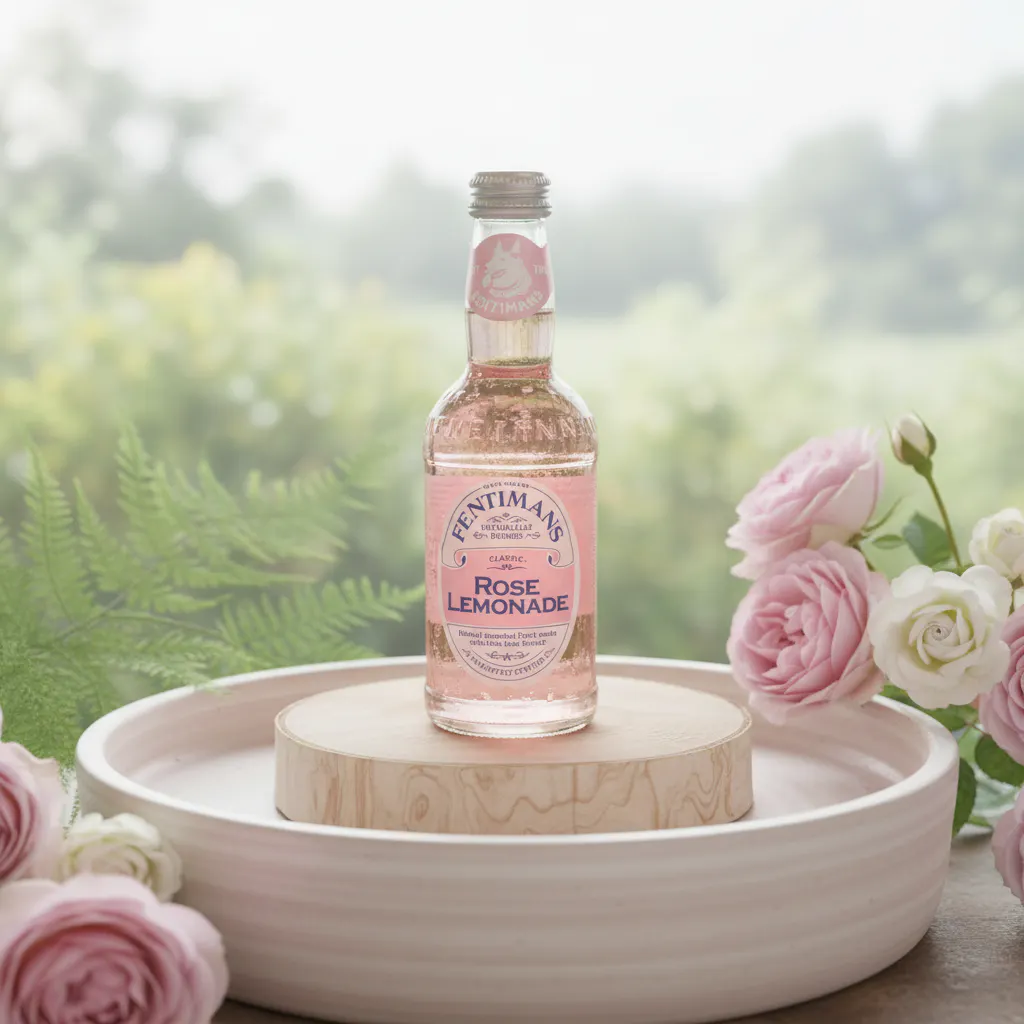
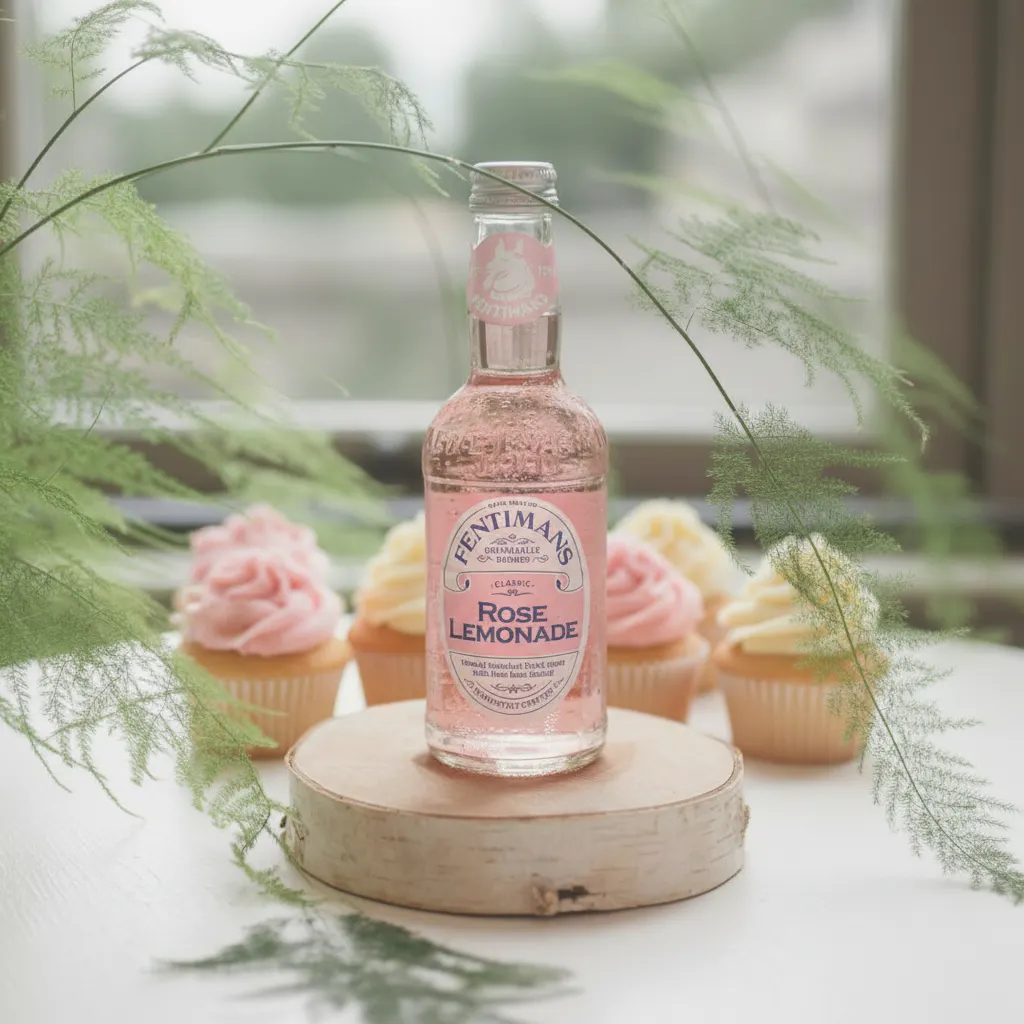
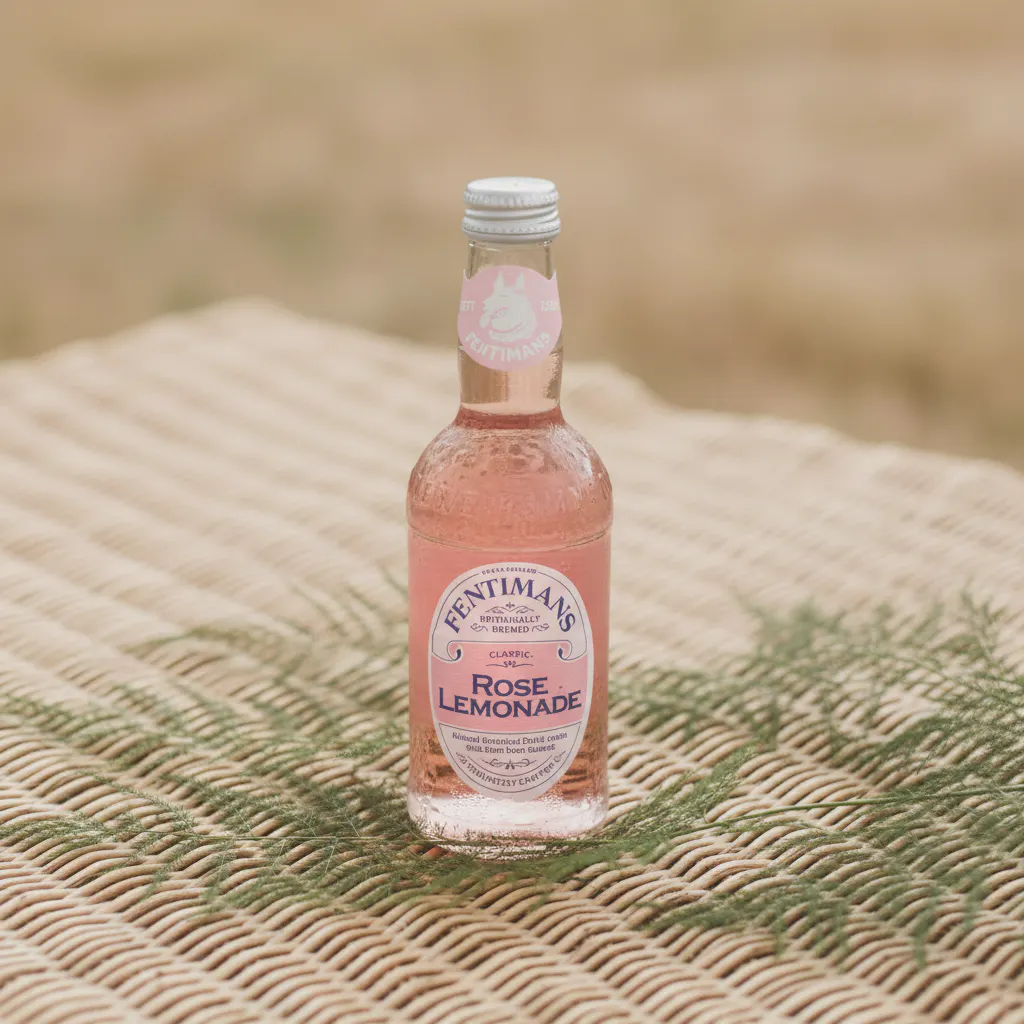
Tip: Upload the highest quality image you have. The sharper the original, the more polished your final images will look.
3. Describe Your Scene
If none of the already available themes fit your need and you want even more control, you can use Blend’s custom scene description feature. This allows you to guide the AI with specific details about lighting, mood, and background tone.
For example:
- “Minimal studio backdrop in matte sage green with soft side lighting.”
- “Luxury deep burgundy background with subtle spotlight and soft shadow.”
- “Soft lavender gradient with diffused overhead lighting.”
When you are being more descriptive, it helps Blend to generate visuals that match your exact brand aesthetic. Mention lighting direction, texture (matte, glossy, textured), and mood (bright, dramatic, soft, warm).
The more precise your description, the more consistent your results will be, especially if you are creating multiple product images across a collection.
For the image below, this is how I described my frame of reference to Blend, “Generate an image of this product being poured into a glass by hand, set in a home interior with the same soft pastel background.”
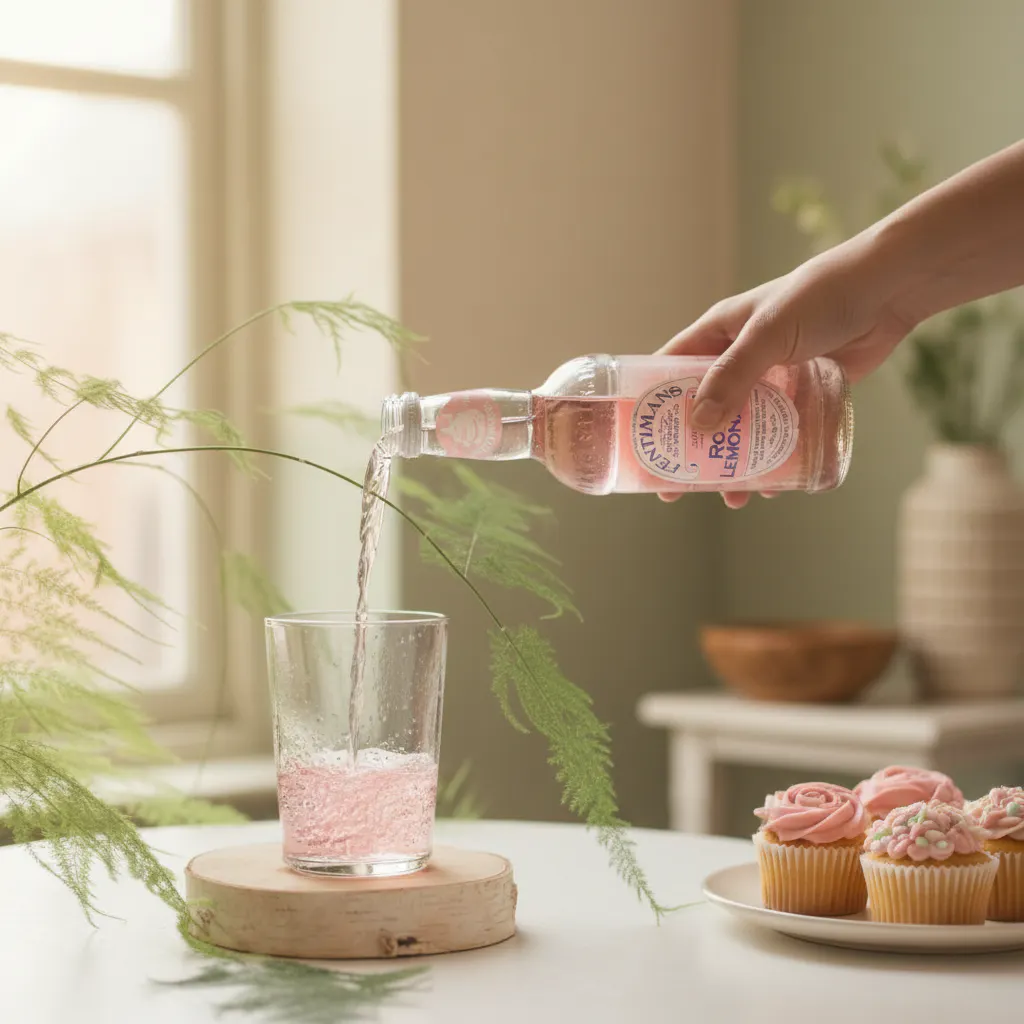
And look how perfectly Blend has delivered! Chef’s kiss.
Take a look at some more product images I generated using the Lifestyle Shot:

Conclusion
Using different backgrounds while keeping the same soft pastel color palette helps your product feel fresh yet consistent. Each setting adds variety and lifestyle appeal, but the shared tones keep everything visually connected. This is what makes a brand look polished instead of random.
When you keep the colors aligned, not only is it soothing to the eye but it also elevates simple product photography into intentional brand storytelling. And this is exactly where Blend becomes powerful.
With Blend’s AI Photoshoot, background generation, and editing tools, you can experiment with multiple environments while preserving your core brand palette without reshooting or redesigning from scratch.