




An AI video prompt is a text description that tells a video generator exactly what to create, covering the subject, camera movement, lighting, pacing, and audio. The difference between a prompt that produces a polished clip and one that produces an unusable mess is specificity. Vague prompts force the AI to guess, and those guesses almost never match what you had in mind. Blend's AI Videos tool removes prompt writing from the process entirely for product video, but if you're using Veo 3, Runway, Kling, or Sora, these 12 tips will cut your iteration time significantly.
1. Lead with the Camera, Not the Subject
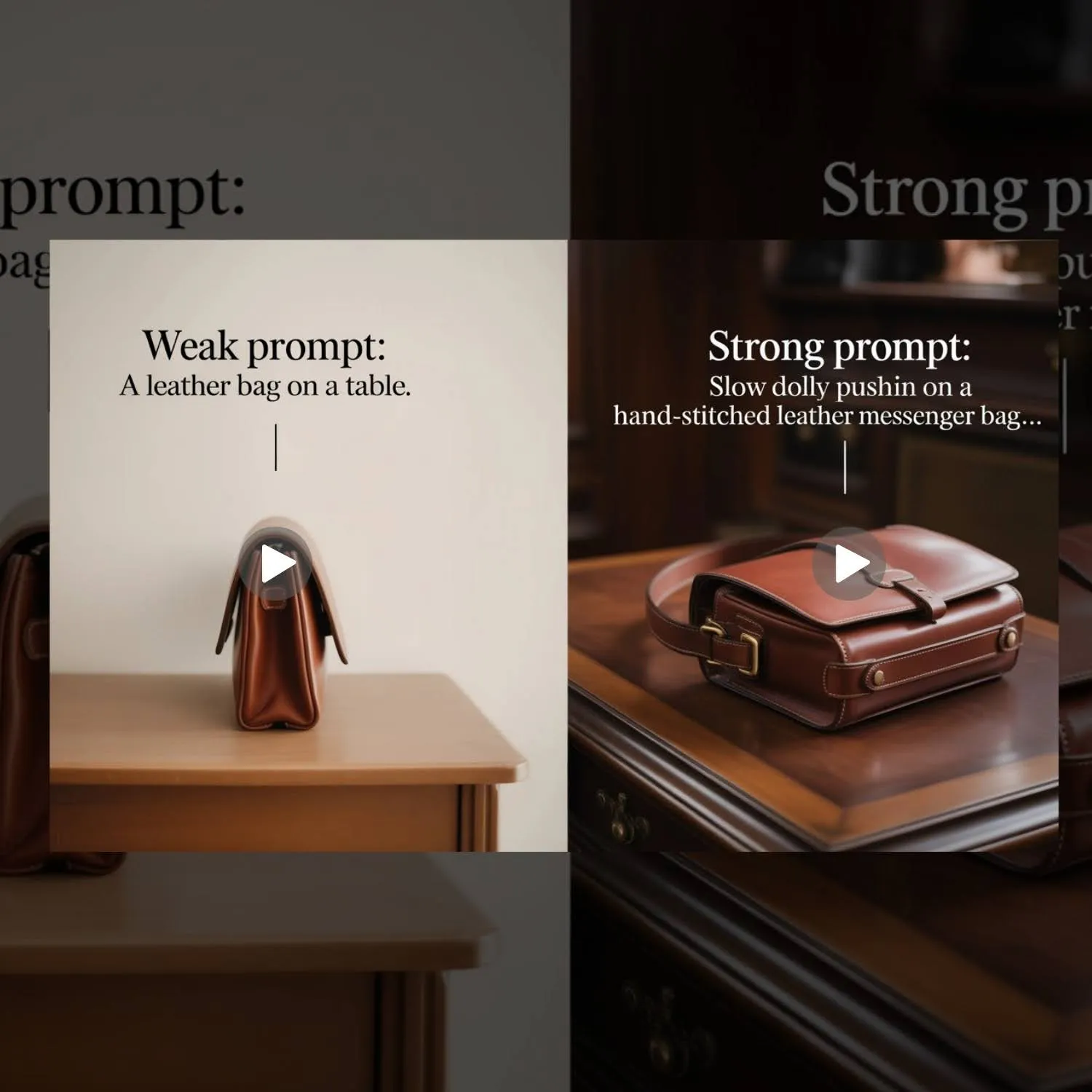
Most people start their prompt with what they want to see. Better results come from starting with how the camera sees it. Specifying the shot type and camera movement first gives the AI a compositional framework before it places anything in the scene.
- Weak: "A leather bag on a table."
- Strong: "Slow dolly push-in on a hand-stitched leather messenger bag resting on a dark walnut table. The camera starts at a wide shot and ends on a close-up of the brass buckle."
The camera direction shapes every other decision the AI makes about framing, lighting falloff, and depth of field.
RELATED READING: Top Mistakes to Avoid When Using AI Video Generators from Images
2. Specify Duration and Pacing Explicitly
AI video generators default to generic pacing when you don't specify timing. If your tool supports duration control (Veo 3.1 generates up to 8 seconds, Kling supports up to 15), include timing cues in your prompt.
- Weak: "Show a product being unboxed."
- Strong: "8-second clip. First 3 seconds: hands lifting the lid off a white magnetic box. Seconds 4-6: slow reveal of earbuds in a foam insert. Final 2 seconds: close-up hold on the charging case."
Breaking the clip into timed segments gives the AI a shot list instead of a single static instruction.
3. Name Materials, Not Just Objects
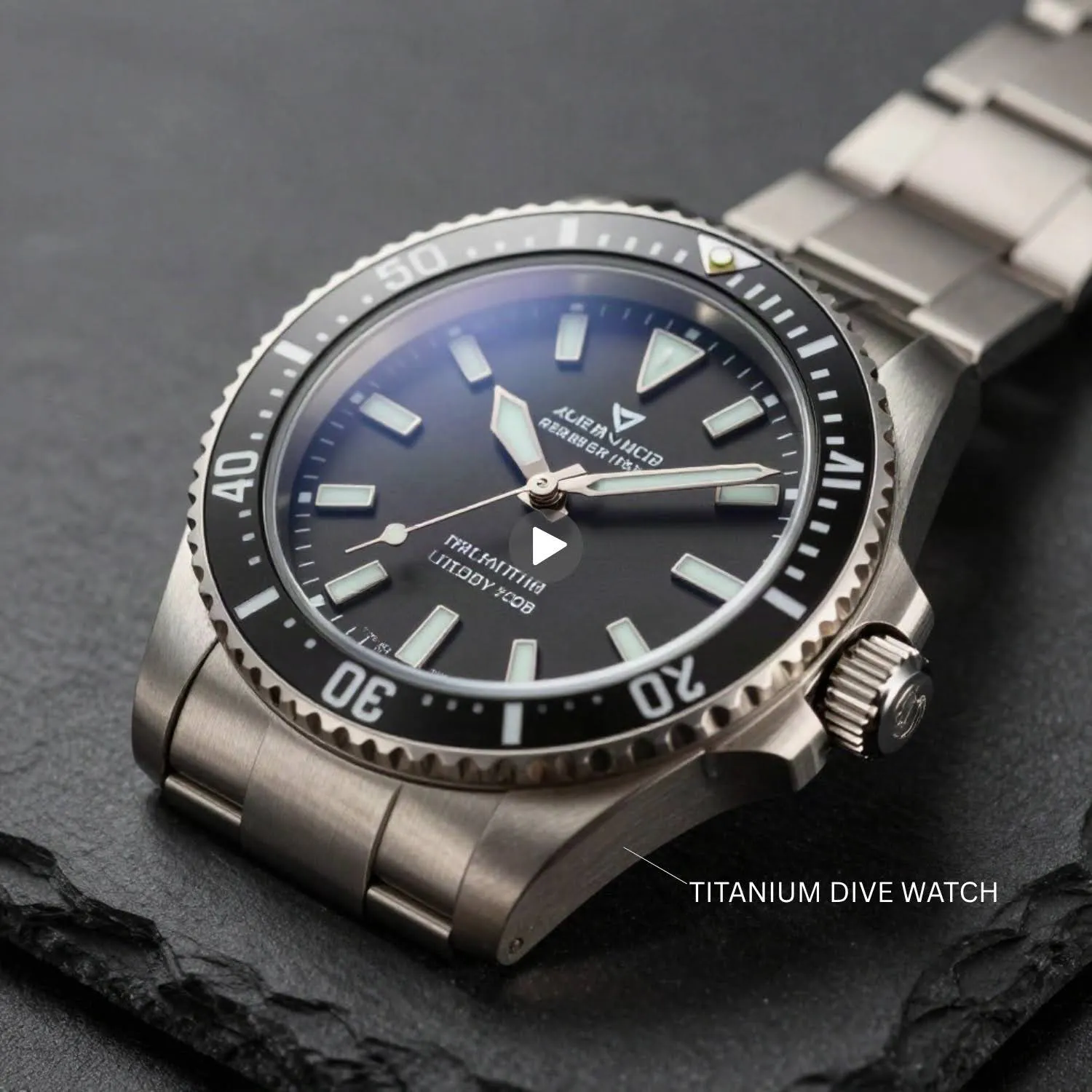
"A coffee mug" gives the AI almost nothing to work with. "A hand-thrown ceramic mug with a matte charcoal glaze and an uneven lip" gives it texture, finish, color, and shape. For product videos specifically, material descriptions drive the realism of the output.
- Weak: "A watch on a table."
- Strong: "A brushed titanium dive watch with a sapphire crystal face on a black slate surface. The second hand ticks smoothly."
4. Control Lighting with Specific Modifiers

Lighting makes or breaks video quality. "Good lighting" means nothing to an AI. Name the source, direction, color temperature, and intensity.
- Weak: "Well-lit product shot."
- Strong: "Single overhead softbox, warm 3200K color temperature, creating a soft shadow at the 5 o'clock position beneath the product. No fill light, slight vignette on the edges."
Lighting Term | What It Does | Best For |
Softbox overhead | Even, diffused illumination | Product showcase, catalog clips |
Rim light / backlight | Glowing edge separation | Silhouettes, dramatic reveals |
Golden hour side light | Warm, directional, long shadows | Lifestyle, outdoor scenes |
Hard spotlight | Sharp shadows, high contrast | Premium unboxings, luxury products |
Overcast / cloudy | Flat, even, no harsh shadows | Outdoor lifestyle, natural feel |
5. Write Audio Cues as a Separate Layer
Veo 3 and Kling 3.0 both generate native audio from prompts. If you don't specify audio, the AI either produces silence or generic ambient noise. Treat audio as its own prompt component.
- Weak: (no audio mentioned)
- Strong: "Audio: the soft click of the box lid opening, tissue paper crinkling, a quiet exhale, then silence as the product is revealed."
Separate your audio cues from your visual description so the AI processes them as distinct layers rather than mixing them into the scene description.
RELATED READING: 11 Best AI Visual Content Creation Tools in 2026
6. Use Reference Images When Available
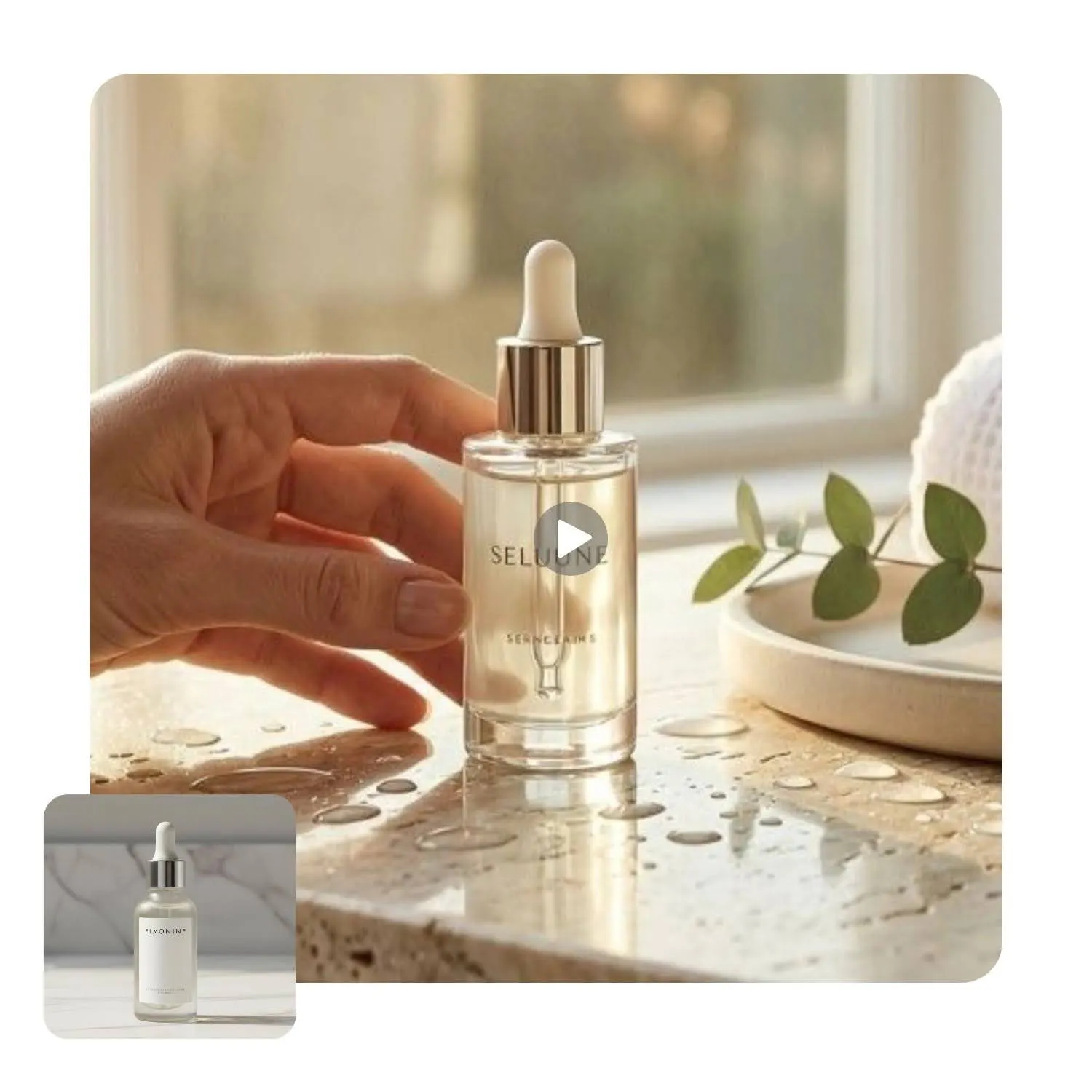
Most current video generators (Veo 3.1, Kling, Runway Gen-4) support image-to-video workflows where you upload a product photo and add motion instructions via text. For product videos, starting from your actual product photo produces more accurate results than generating the product from a text description alone.
Your prompt then focuses on motion and context rather than product appearance: "Camera slowly rotates 180 degrees around the product. Warm studio lighting. No background change."
7. Avoid Abstract Adjectives
Words like "beautiful," "amazing," "stunning," and "professional" carry no visual information. Replace them with concrete descriptors.
- Weak: "A beautiful skincare product video."
- Strong: "A frosted glass serum bottle with a gold dropper cap, placed on a marble surface. A single drop of amber serum falls from the dropper onto the marble. Macro lens, shallow depth of field."
Every adjective in your prompt should describe something the camera can see or the microphone can hear.
8. Specify What Stays Still
AI video generators tend to add motion to everything in the frame unless told otherwise. If you want a static background or a product that doesn't move, say so explicitly.
- Strong: "Camera pans left to right across the product lineup. Products remain completely stationary. Only the camera moves. Background is a fixed dark gray seamless."
Constraining unwanted motion is just as valuable as describing desired motion.
9. Match Aspect Ratio to Platform
Different platforms need different video formats. Specify the ratio in your prompt or tool settings so the AI frames the composition correctly from the start.
- 16:9 landscape: YouTube, website hero banners, Amazon product video
- 9:16 portrait: TikTok, Instagram Reels, YouTube Shorts
- 1:1 square: Instagram feed, Facebook feed ads
- 4:5 vertical: Instagram feed (maximum real estate)
Cropping a landscape clip into portrait always looks worse than generating natively in the right ratio.
RELATED READING: 50+ AI Photography Prompts for High-Converting Images
10. Build a Prompt Template for Batch Production

If you're generating product videos across dozens of SKUs, write one strong prompt template and swap the product-specific variables. A template saves you from rewriting the camera, lighting, and audio setup for every clip.
Template example: "Slow 360-degree turntable rotation of [PRODUCT] on a white seamless backdrop. Soft overhead studio lighting with a subtle shadow beneath the product. Camera static at eye level. Duration: 8 seconds. Audio: quiet ambient hum, no music."
Swap [PRODUCT] for each SKU: "matte black wireless earbuds case," "brushed steel water bottle," "hand-poured soy candle in amber glass jar."
For sellers processing full catalogs, Blend's AI Videos removes even this step by generating formatted product video from a single photo upload with no prompt at all.
11. Iterate on One Variable at a Time
When a generated clip doesn't work, resist the urge to rewrite the entire prompt. Change one element (camera angle, lighting, pacing, or audio) and regenerate. Changing everything at once makes it impossible to identify what improved the output.
Keep a simple log of prompt versions and their results. After 5-10 iterations, you'll have a reliable sense of which variables your chosen tool responds to most predictably.
12. Know When a Prompt-Free Tool Is Faster

Prompt-based video generation gives you maximum creative control. For cinematic brand films, social ad concepts, and narrative-driven content, writing a detailed prompt is worth the time.
For catalog-scale product video, where you need consistent, marketplace-formatted clips across 50 or 100 SKUs, writing and iterating on prompts for every product is the slowest part of the workflow. Template-based tools like Blend generate product video from a photo upload with no prompt input, which makes more sense when speed and consistency matter more than creative control.
- Blend Tool: AI Videos
- Product Type: Wireless earbuds
- Generation Brief: Two-column comparison. Left column: "Prompt-Based" workflow showing three steps (write prompt, generate, iterate). Right column: "Photo-Based" workflow showing two steps (upload photo, get video). Clean icons and arrows, minimal text. Blend logo on the right column.
- Visible UI Elements: Text input field on the left, photo upload button on the right
- Caption: Prompt-based tools give creative control. Photo-based tools like Blend give speed at catalog scale.
Start Building Complete Listings
Blend converts product photos into marketplace-ready video, studio shots, lifestyle scenes, and model imagery from one dashboard. No prompts, no iteration. Start creating for free at blendnow.com.
Frequently Asked Questions
What is the ideal length for an AI video prompt?
For most tools (Veo 3, Runway, Kling), prompts between 80 and 150 words produce the best results. Shorter prompts generate generic output. Prompts over 200 words tend to confuse the model on priority. Structure your prompt around five elements: camera, subject, action, environment, and audio.
Do AI video prompts work the same across all tools?
No. Each tool responds differently to prompt structure. Veo 3 handles full-sentence narrative prompts well. Runway Gen-4 responds better to concise, comma-separated descriptors. Kling 3.0 prefers detailed scene descriptions with explicit motion cues. Test your prompt format on the specific tool you're using.
Can I generate product videos without writing prompts?
Yes. Blend's AI Videos tool generates marketplace-formatted product video from a single photo upload without any prompt input. The tool handles motion, formatting, and platform specs automatically, which makes it faster for catalog-scale production than prompt-based generators.
How many iterations does a good AI video prompt usually need?
Most prompts need 2-5 iterations before producing a usable clip. The biggest time saver is changing one variable per iteration instead of rewriting the entire prompt. Camera angle, lighting, and pacing are the three variables that have the most impact on output quality.
What is the best free AI video prompt generator?
Veo 3 offers limited free access through the Gemini app. Kling AI provides a free tier with restricted credits. For free product video generation at scale, options are limited. Blend offers a free plan that includes product video alongside studio shots, lifestyle imagery, and model photography.