
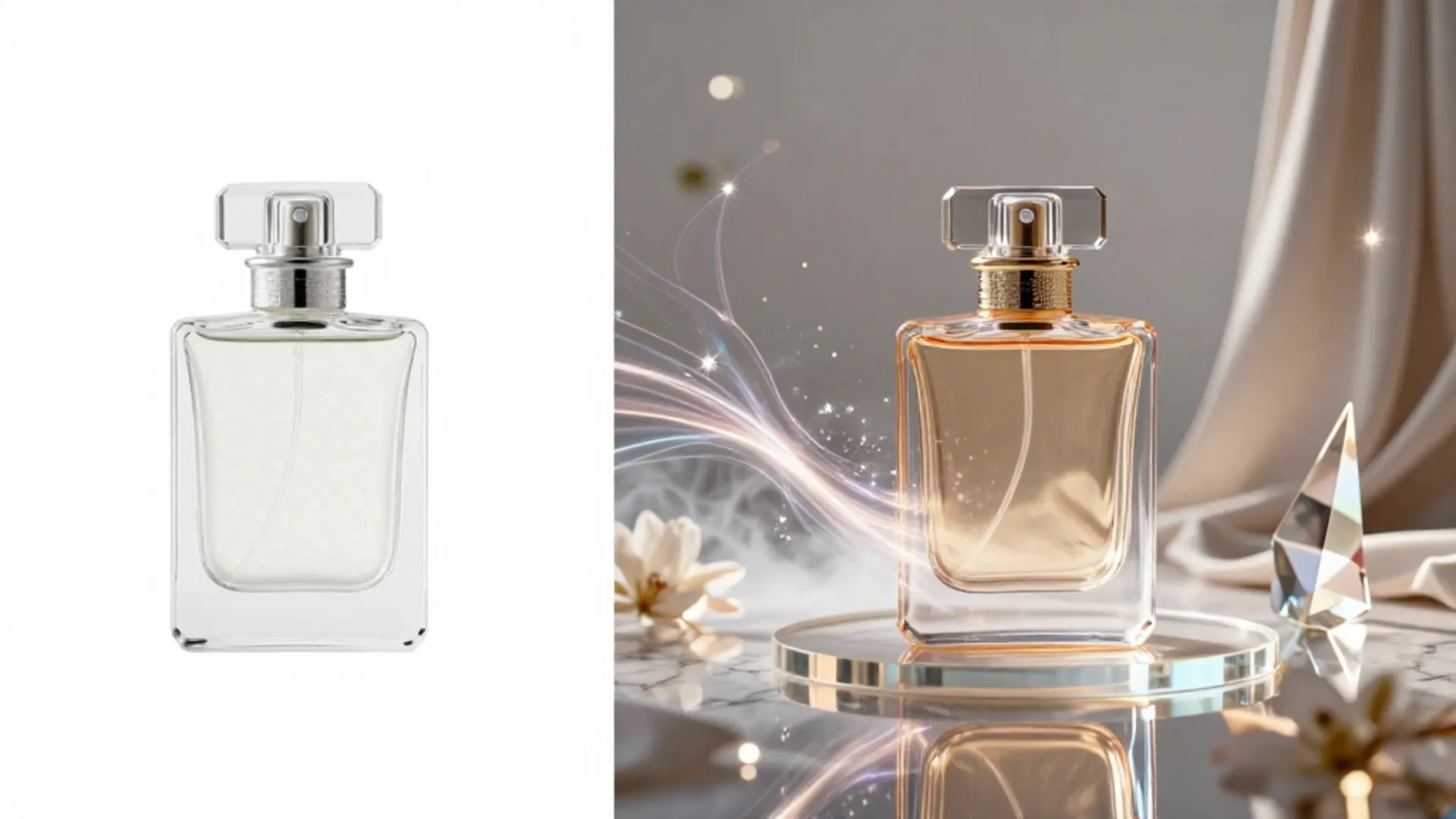


You snapped a product photo on your kitchen table, and now it is sitting in your camera roll looking flat, cluttered, and nowhere close to listing-ready. A year ago, your options were to hire a photographer or learn Photoshop. In 2026, AI product photo editing tools can take that same raw image and turn it into something that looks like it came out of a professional studio.
Here are seven steps to get there, no design skills required.
7 Steps to Get Studio-Quality Product Photos With AI
Each step builds on the one before it. You can stop at any point once your image is listing-ready, or run through the full workflow to create a complete visual set from a single photo.
Step 1. Start With the Best Raw Photo You Can Get
AI tools amplify what you give them, so the source image matters. You do not need a DSLR or a lightbox setup. A modern smartphone works fine as long as you follow a few basics.
- Shoot in natural, even light. A window with a sheer curtain gives you soft, diffused lighting without harsh shadows.
- Use a plain, uncluttered background. White paper, a clean table, or a solid wall works well.
- Make sure the entire product is in the frame with some breathing room around the edges. Cropping can happen later, but missing details cannot be added back.
A sharp, well-lit phone photo gives AI tools enough to work with. A blurry, dark image will produce blurry, dark results, no matter how advanced the software is.
Step 2. Remove the Background
The first thing any AI photo enhancement tool should do is isolate your product from whatever is behind it. One-tap background removal strips away the kitchen counter, the bedsheet, or the cluttered desk and gives you a clean cutout on a transparent background.
From here, you have options. You can drop the product onto a pure white background for Amazon, place it on a colored surface for your brand, or move on to the next step for something more polished.
Step 3. Drop Your Product Into a Studio Setting
A white background is table stakes. Studio-quality product photos go further with balanced lighting, natural shadows, and a clean composition that makes the product feel like it was shot in a professional studio.
Blend's AI Photoshoot feature handles exactly that. Upload your product image, and the AI generates backgrounds with realistic lighting and shadows tailored to your product category. You can choose from curated studio styles or write a custom description for something specific. The result looks like a $500 shoot, not a phone photo with a filter on it.
Step 4. Create Lifestyle Scenes That Sell the Story
Studio shots show what the product looks like. Lifestyle scenes show what it feels like to own it. Industry data from eMarketer suggests product pages that pair lifestyle and studio photography see around a 30% uplift in conversions, so skipping this step means leaving money on the table.
Blend's Lifestyle Shots feature analyzes your product and suggests tailored scenes, things like "modern desk setup," "cozy bedroom shelf," or "outdoor picnic." You pick a scene, customize it if needed, and the AI generates a realistic product-in-context photo in seconds.
Step 5. Generate On-Model Shots for Apparel and Jewelry
If you sell wearable products, on-model photos are a must. Shoppers need to see how a garment drapes, how a necklace sits, or how sunglasses look on a face. AI model photography makes that possible without hiring anyone.
Blend's AI Models feature lets you select:
- Gender, ethnicity, age range, and body type
- Pose, hair style, and skin tone
- Background setting to match the rest of your catalog
Upload a flat-lay image of your product, and the AI generates an on-model shot in seconds. For jewelry, that means on-hand, on-neck, or on-ear photos that give shoppers the scale a flat image never can.
Step 6. Clean Up Distractions With an Eraser Tool
Sometimes your image is 95% perfect, but there is a stray thread, a small smudge, or a piece of tape that slipped into the frame. A product photo retouching tool with an AI eraser should handle these small fixes without forcing you to reshoot or open a separate editing app.
Blend's Magic Eraser lets you scribble over any unwanted object, and the AI fills in the space naturally. Quick fixes like these save real time when you are processing a full catalog.
Step 7. Turn Your Best Still Into a Product Video
Your photos are polished. Now go one step further. Short-form video outperforms static images on almost every platform, and listings without video are increasingly getting outpaced by those that have it. Amazon, Instagram, and TikTok all reward video content with more visibility.
Blend's AI Videos feature turns a single product image into a polished video clip in three steps: upload the photo, choose a video preset, and pick your starting frame. No filming, no editing timeline, no production team.
RELATED READING: AI Product Photography for Skincare: How to Get Studio Results
From Phone Photo to Full Listing in Minutes
Getting studio-quality product photos used to mean studios, photographers, and days of back-and-forth. Now it takes one raw image and a few minutes with the right AI tools.
Blend puts the entire workflow in one place: Remove Background, AI Photoshoot, Lifestyle Shots, AI Models, Magic Eraser, and AI Videos. Upload once, and walk away with a complete visual set ready for any marketplace. Try it free and see how far one product photo can go.
Frequently Asked Questions
Can I really get studio-quality results from a phone photo?
Yes. A well-lit, sharp smartphone photo gives AI tools enough data to generate professional-looking backgrounds, lighting, and shadows. Better input leads to better output, but you do not need professional equipment.
What types of products work best with AI photo editing?
Most product categories work well, including apparel, jewelry, beauty, home goods, electronics, and food packaging. Wearable items benefit especially from AI model photography.
How many images should a product listing have?
Most marketplaces recommend 5 to 7 images per listing. A strong set includes a white-background hero shot, 1 to 2 lifestyle scenes, an on-model image (if applicable), and a detail or feature close-up.
Will AI-edited product photos look fake or over-processed?
The best tools in 2026 produce photorealistic results that are very hard to distinguish from traditional photography, especially for standard e-commerce categories. Starting with a clean, well-lit source photo helps the most.
How long does it take to edit a product photo with AI?
Most individual edits take seconds. A full workflow, from background removal to lifestyle scenes to video, can be completed in under 10 minutes per product.
Do marketplaces like Amazon accept AI-generated product images?
Yes. Amazon and other major marketplaces accept AI-generated images as long as they meet the platform's image quality and formatting guidelines. Images must be accurate, clear, and not misleading.