


Imagine editing 150 photos one by one. Adjusting lighting, adding background, cropping, resizing, and repeating the same steps again and again.Not exactly the most exciting way to spend your afternoon. That’s why a batch photo editor is a savior.
A batch photo editor is a tool that applies the same edits, such as cropping, resizing, color correction, background removal, or AI enhancements, to multiple photos simultaneously instead of editing each image one by one. Editing photos in bulk saves hours of repetitive work while ensuring every image maintains a consistent and professional look.
Blend's AI powered batch image editor lets you upload multiple photos and apply edits across all of them at once directly in your browser. No software installation is required. Whether you are preparing product photos for an ecommerce store, resizing images for social media, or enhancing an entire event gallery, Blend helps you edit dozens or even hundreds of images in just a few clicks.
Instead of manually repeating the same edits on every image, you can automate your workflow with AI while maintaining consistent backgrounds, lighting, sizing, and branding across your entire image library. This makes batch editing ideal for ecommerce sellers, photographers, agencies, marketplaces, and content creators managing large volumes of images.
What Is Batch Photo Editing?
In simple words, batch photo editing is the process of applying the same edits to multiple images simultaneously. Instead of manually editing each photo, a batch photo editor automates the process by applying preset adjustments to an entire group of images.
Common edits performed during batch editing include:
- Resizing multiple images
- Cropping photos to the same dimensions
- Adjusting brightness and contrast
- Applying filters or presets
- Adding watermarks
- Converting file formats
- Compressing images for web use
This makes bulk photo editing extremely useful for professionals who manage large image collections.
How to Use Blend to Bulk Edit Photos: 3 Easy Steps
Here’s how you can use Blend to bulk edit photos in just three simple steps.
Step 1: Go to the Studio Shot Feature
Open the Blend app and navigate to the Studio Shot feature. This tool allows you to create professional product-style photos automatically.
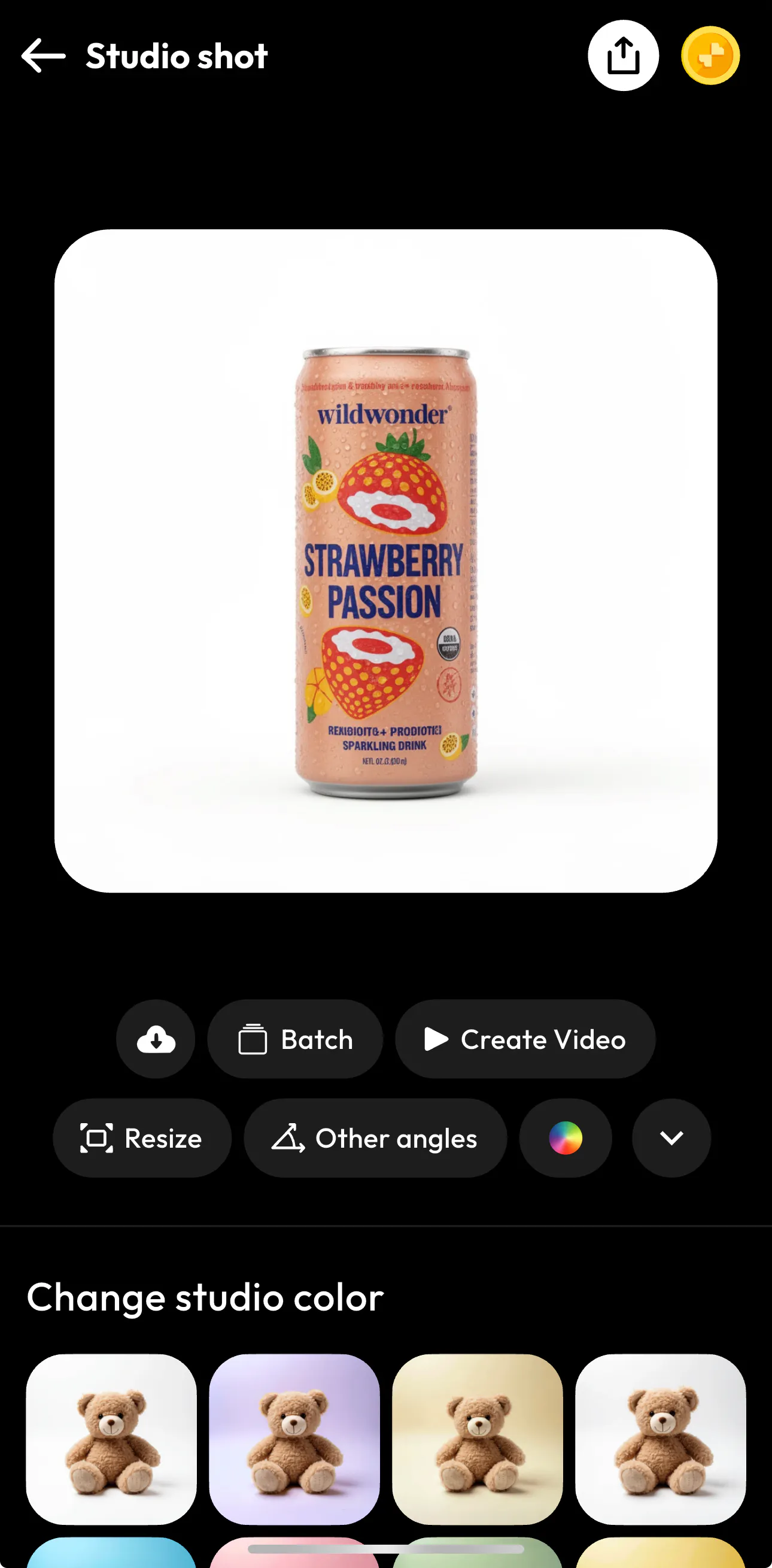
Once you are in the Studio Shot screen:
- Upload the product photo you want to edit
- The AI will automatically generate a clean studio-style image
- You’ll see options like Resize, Batch, Create Video, and Other Angles
The Studio Shot feature helps turn simple product photos into polished, professional images that look like they were taken in a studio.
Step 2: Customize Your Studio Photo
After generating the studio shot, you can customize the look of your image. Some available options include:
- Change studio background color
- Resize images for different platforms
- Generate additional angles
- Adjust lighting and color styles
For example, you can quickly switch between different background colors to match your brand or create multiple variations of the same product image.
This step helps ensure your product photos look consistent and professional across all platforms.
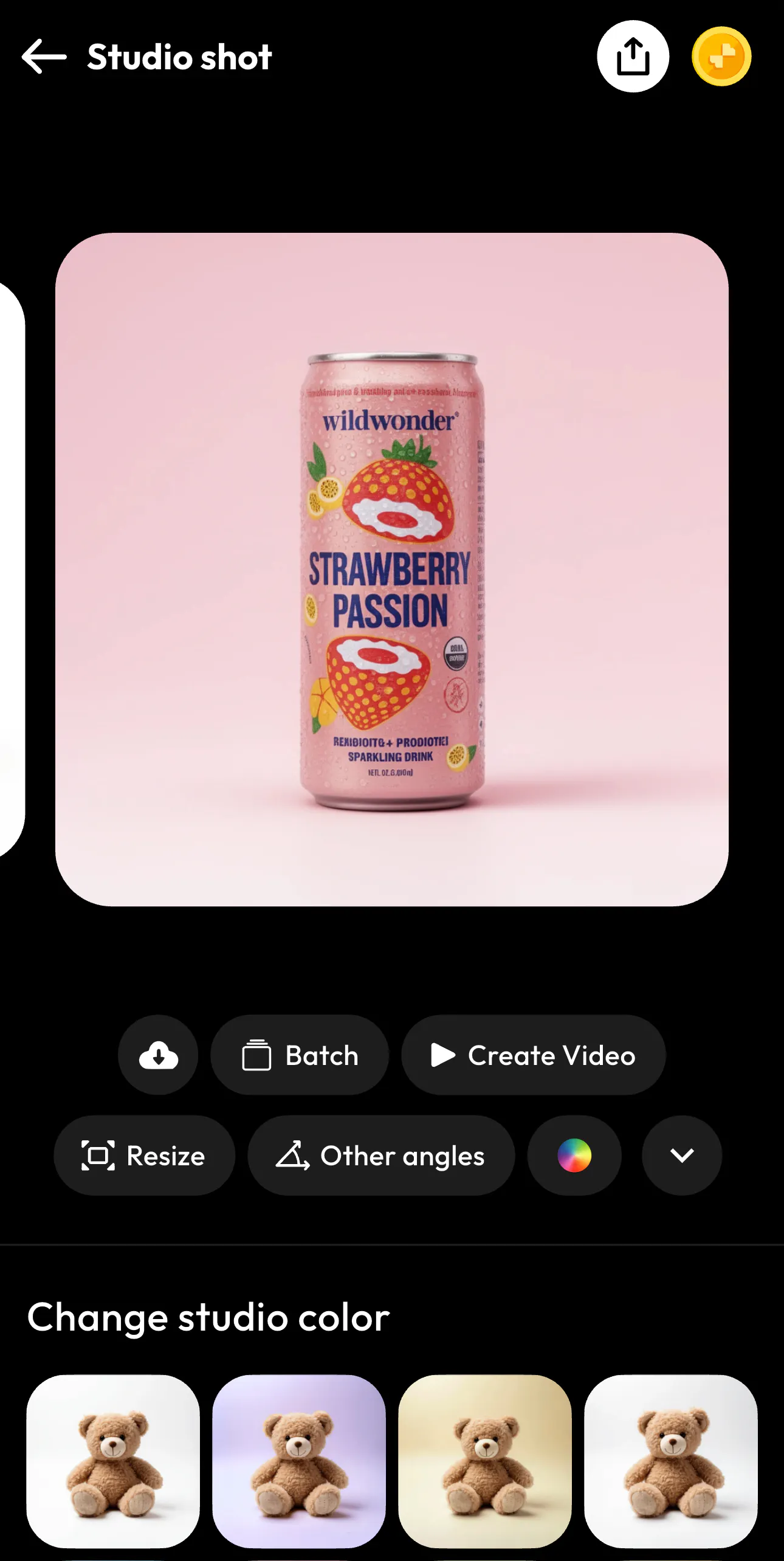
I changed the background color from white to pink to match my brand’s aesthetics.
Step 3: Use the Batch Feature to Bulk Edit Photos
Once you are happy with your settings, you can use the Batch option. You can select all the pictures from your gallery that you want to edit like this:
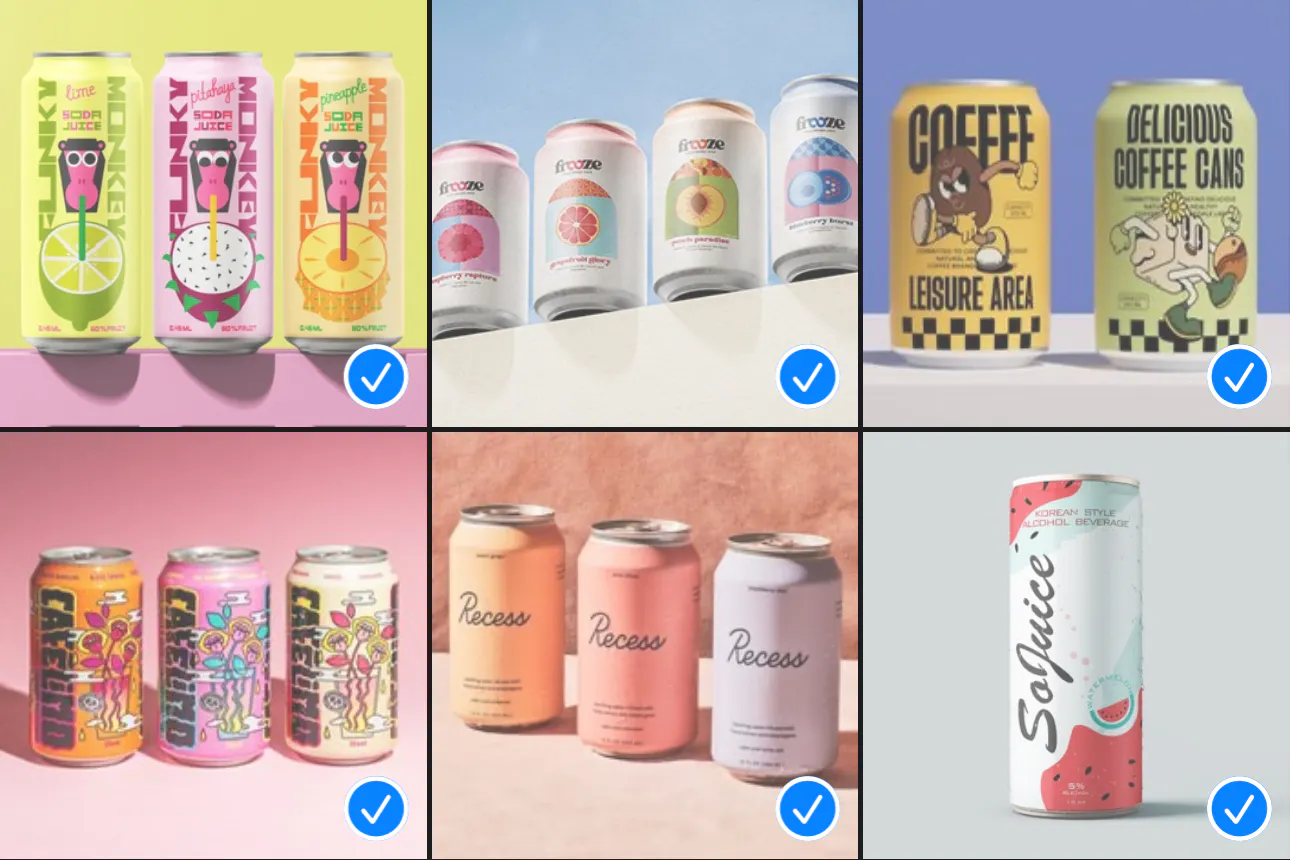
Within minutes, you will have a full set of professionally edited images without repeating the editing process for each photo.
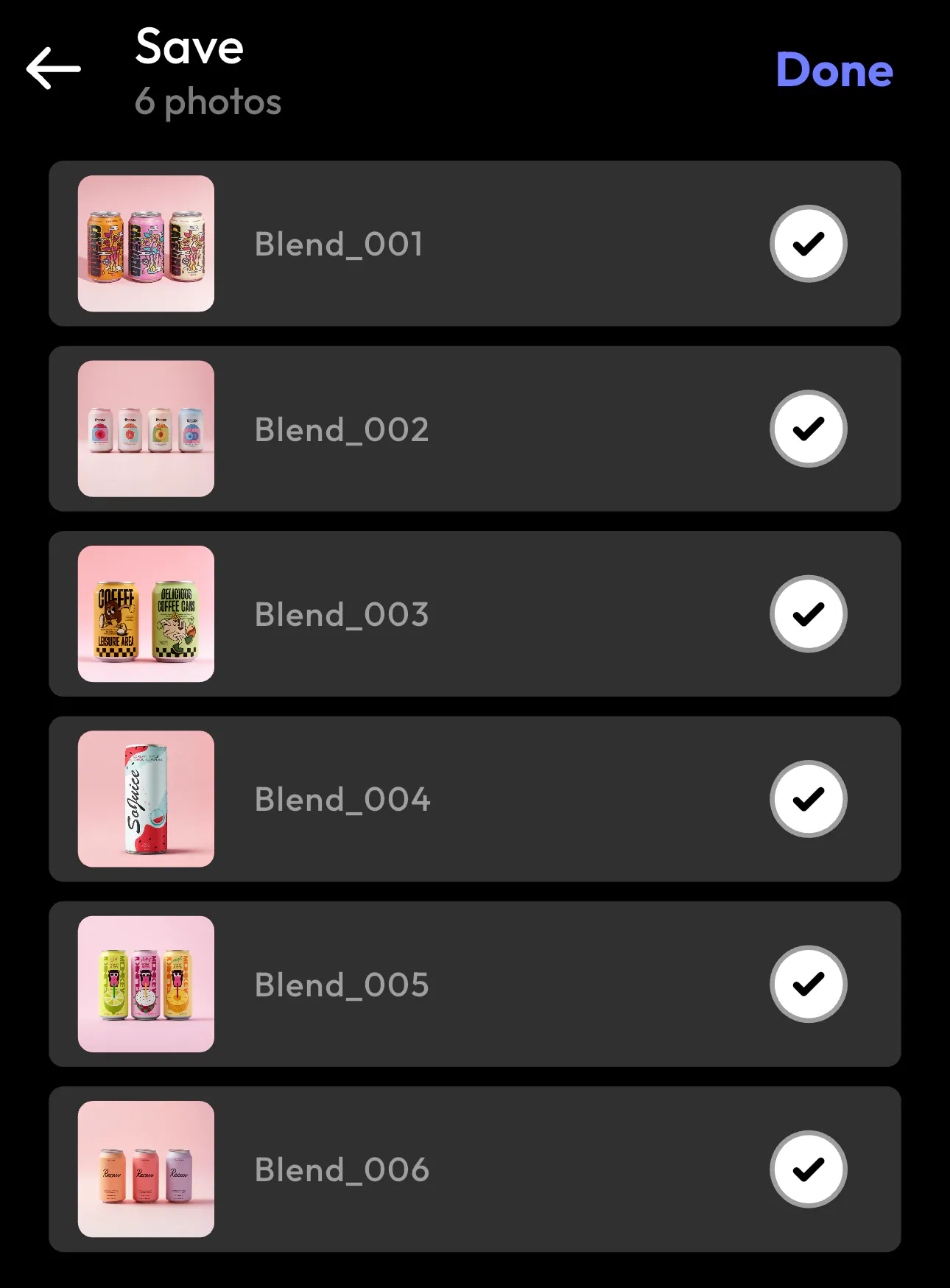
Take a closer look at how seamlessly Blend has generated these images. Even though the original photos may have been taken from different angles, the final outputs maintain a consistent studio background and lighting across every image.
What’s impressive is how the tool preserves the unique perspective of each shot while still producing a uniform, polished look. The result is a set of images that feel cohesive and professionally styled. It looks like they were all captured in the same studio setup.
This is especially useful for e-commerce product listings, marketplace catalogs, social media product posts, and bulk product photography.
Tips for Optimizing Batch Photo Editing Workflows
- Use Presets: Create presets and save it for commonly used edits like color correction or exposure.
- Organize Images First: Sort out the images you want to batch edit into folders before batch editing to avoid mistakes.
- Use AI Tools: Use AI-based editors like Blend that can automate tasks, such as background removal and enhancement.
- Check a Sample Image: Always preview edits on one image before applying them to the entire batch.
Conclusion
Using Blend’s Studio Shot and batch editing features, you can transform large sets of product photos quickly and efficiently. Instead of spending hours editing each image individually, you can create polished, professional visuals in just a few clicks.
If you regularly work with product images, learning how to bulk edit photos with Blend can definitely speed up your workflow while keeping your visuals consistent and high quality.
FAQs
What is a batch photo editor?
A batch photo editor is a tool that allows you to apply the same edits to multiple images simultaneously instead of editing each image individually.
Can I edit photos in bulk online?
Yes, several apps like Blend allow you to edit photos in bulk without installing software. These editors work directly in your browser.
Is batch photo editing useful for photographers?
Yes. Photographers often use batch editing to process large photo sets quickly while maintaining consistent color and exposure.
What edits can be done with batch editing?
Common batch editing tasks include resizing images, cropping photos, adding watermarks, applying filters, and converting image formats.