



You just shot 200 new products. Each one needs at least five listing images: a clean white-background hero, two lifestyle shots, one on-model photo, and a detail close-up. That is 1,000 images to edit, resize, and export before your next product drop goes live.
If your workflow is still one photo at a time in Photoshop or Lightroom, that math becomes a full-time job. Background removal alone takes 3-5 minutes per image manually. Multiply that by a thousand, and you are looking at weeks of editing before a single product hits your store.
AI batch editing tools solve this by processing your entire catalog in the time it used to take to finish one SKU. With Blend, you can remove backgrounds in bulk, generate consistent studio shots, and create lifestyle visuals across hundreds of products without touching a single Photoshop layer. Here is the step-by-step workflow.
Why One-at-a-Time Editing Breaks Down at Scale
Before jumping into the how-to, it helps to understand exactly where manual photo editing falls apart when product volume goes up.
The Math Makes Manual Editing Unsustainable
A solo seller editing 50 photos per week can get by with manual tools. A growing brand uploading 200+ SKUs per season cannot. At $2-5 per image for outsourced editing or 5 minutes per image in-house, the costs and timelines scale linearly with every new product. AI batch processing breaks that linear relationship by applying the same edit to hundreds of images simultaneously.
Inconsistency Is the Hidden Problem
When you edit photos one at a time over days or weeks, subtle differences creep in. Background whites shift slightly between sessions. Shadow angles change. Cropping ratios drift. Buyers notice this inconsistency even if they cannot name it, and it erodes trust. Batch editing applies the same settings across every image in a single pass, keeping your catalog visually unified.
How to Batch-Edit Product Photos with Blend
Here is the step-by-step process for turning a folder of raw product photos into a full set of listing-ready visuals.
Upload and Remove Backgrounds in Bulk
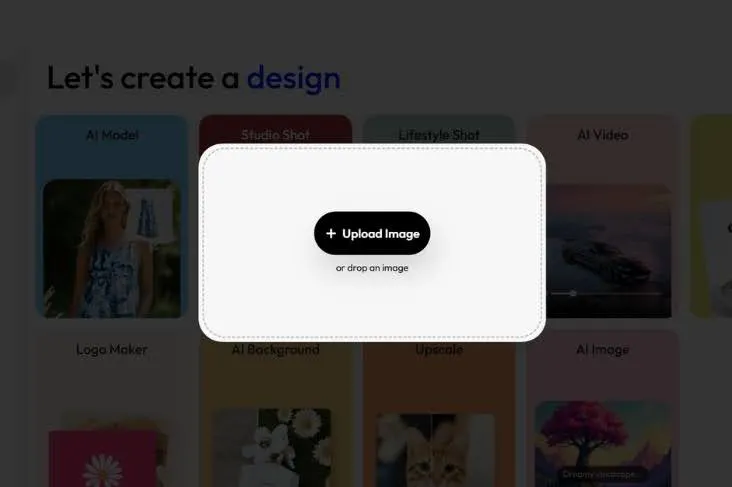
Start by uploading your product images to Blend. Use the background removal tool to isolate every product in the batch. AI detects the product edges automatically, so you do not need to draw masks or refine selections manually.
For images with tags, dust, or stray props in the frame, run them through the magic eraser to clean up distractions before generating new scenes.
- Upload your full photo set at once
- AI detects and isolates each product automatically
- Clean up any remaining distractions with one-tap removal
Once every product is isolated on a transparent or white background, you have a clean foundation for generating any type of listing image.
Generate Consistent Studio Shots Across Your Catalog

With your backgrounds removed, use Blend's AI product photography tool to generate studio-style shots with consistent lighting, shadows, and framing across every product. Select a background style (white, light grey, or gradient), and the AI applies the same visual treatment to every image in the batch.
Consistency is the key advantage here. Every product gets the same shadow direction, the same lighting quality, and the same composition. Your catalog pages look like they were all shot in the same studio session, even if the original photos were taken weeks apart with different cameras.
- White background with soft drop shadow for marketplace hero images
- Light grey with directional lighting for brand website PDPs
- Gradient backgrounds for social media and ad creatives
Create Lifestyle and On-Model Variations at Scale
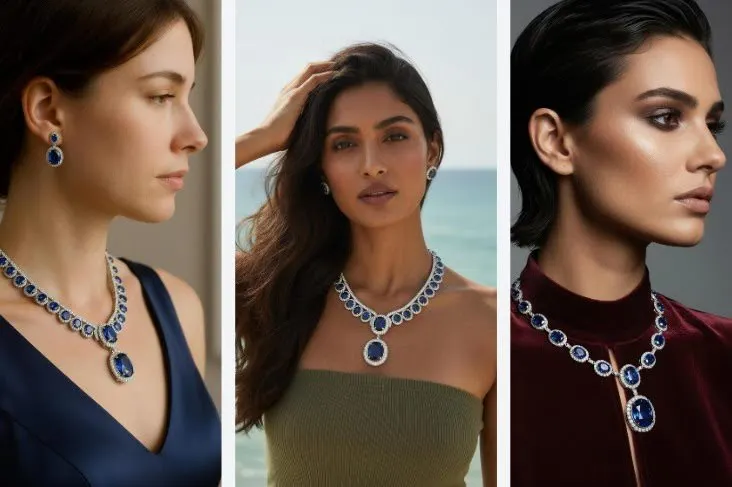
For lifestyle and model imagery, Blend scales the same way. Generate lifestyle product photos for your entire catalog by selecting a scene type, and the AI places each product into the same style of environment with matched lighting and surface interactions.
For apparel and accessories, Blend's AI model photography tool generates on-model shots across your full product range. Select a model, a pose style, and a backdrop, and the same visual identity carries through every garment in the batch.
- Generate lifestyle scenes for home, beauty, food, and electronics categories
- Create on-model shots for apparel with consistent model identity across SKUs
- Produce 3-5 image variations per product from a single upload
Resize and Export for Every Marketplace
Different platforms require different image sizes and aspect ratios. Blend lets you resize and export your entire batch for each destination without manually adjusting dimensions one photo at a time.
- 1000x1000 (1:1) for Amazon and marketplace grids
- 2048x2048 for Shopify zoom-enabled images
- 1080x1350 (4:5) for Instagram feed posts
- 1080x1920 (9:16) for Stories, Reels, and TikTok
You can also turn your batch-edited product photos into short-form product videos for social and marketplace listings, adding another content format without additional production.
What to Batch-Edit First

If you are new to AI batch editing, start with the two tasks that deliver the biggest time savings.
Background Removal and Cleanup
Background removal is the single most time-consuming step in ecommerce product photo editing. Moving this to a batch AI workflow saves more hours per week than any other edit. Once every product has a clean cutout, every downstream task (studio shots, lifestyle scenes, resizing) becomes faster and more consistent.
Scene and Model Generation
After background removal, the next highest-impact batch task is generating consistent scene or model imagery across your catalog. Instead of shooting each product individually in different environments, generate the same lifestyle scene or model setup for every SKU in one pass.
Stop Editing Product Photos One at a Time
Every hour spent manually editing a single product photo is an hour that could have been spent on pricing, marketing, or launching new products. AI batch editing tools like Blend process your entire catalog with the consistency of a studio session and the speed of an automated pipeline.
Upload your product photos, remove backgrounds in bulk, and generate studio shots, lifestyle scenes, and on-model imagery at scale. Your catalog will look like it was shot by one team, in one studio, on one day, no matter how many SKUs you are managing.
Ready to batch-edit your product photos? Start creating for free with Blend and process your entire catalog in minutes.
Frequently Asked Questions
What is batch photo editing for e-commerce?
Batch photo editing is the process of applying the same edits (background removal, resizing, color correction, shadow generation) to hundreds of product images simultaneously instead of editing each one individually.
How many photos can I batch-edit at once with AI tools?
Volume varies by tool. Blend processes multiple images per session, and the workflow is designed for sellers managing catalogs of 50 to 500+ SKUs. Higher-tier plans support larger batch volumes.
Will batch editing make all my product photos look the same?
Batch editing applies consistent settings (backgrounds, lighting, shadows, crops) across your catalog, which is the goal. Each product still looks distinct because the AI adapts to the shape, color, and material of each item within the shared visual framework.
What file format works best for uploading product photos?
JPG and PNG both work well. PNG with a transparent background is ideal if you have already removed backgrounds. For raw product photos, a clean JPG shot on a plain background gives the AI the best starting point.
Can I batch-generate lifestyle photos for different product categories?
Yes. You can apply the same lifestyle scene style across a category (all kitchen products in the same kitchen scene, all apparel on the same model type) while switching scenes between categories. The result is consistency within each group and appropriate context across your full catalog.
Does batch editing reduce image quality?
No. AI batch editors process each image at full resolution. Export at the resolution your platform requires and compress for the web without visible quality loss.