
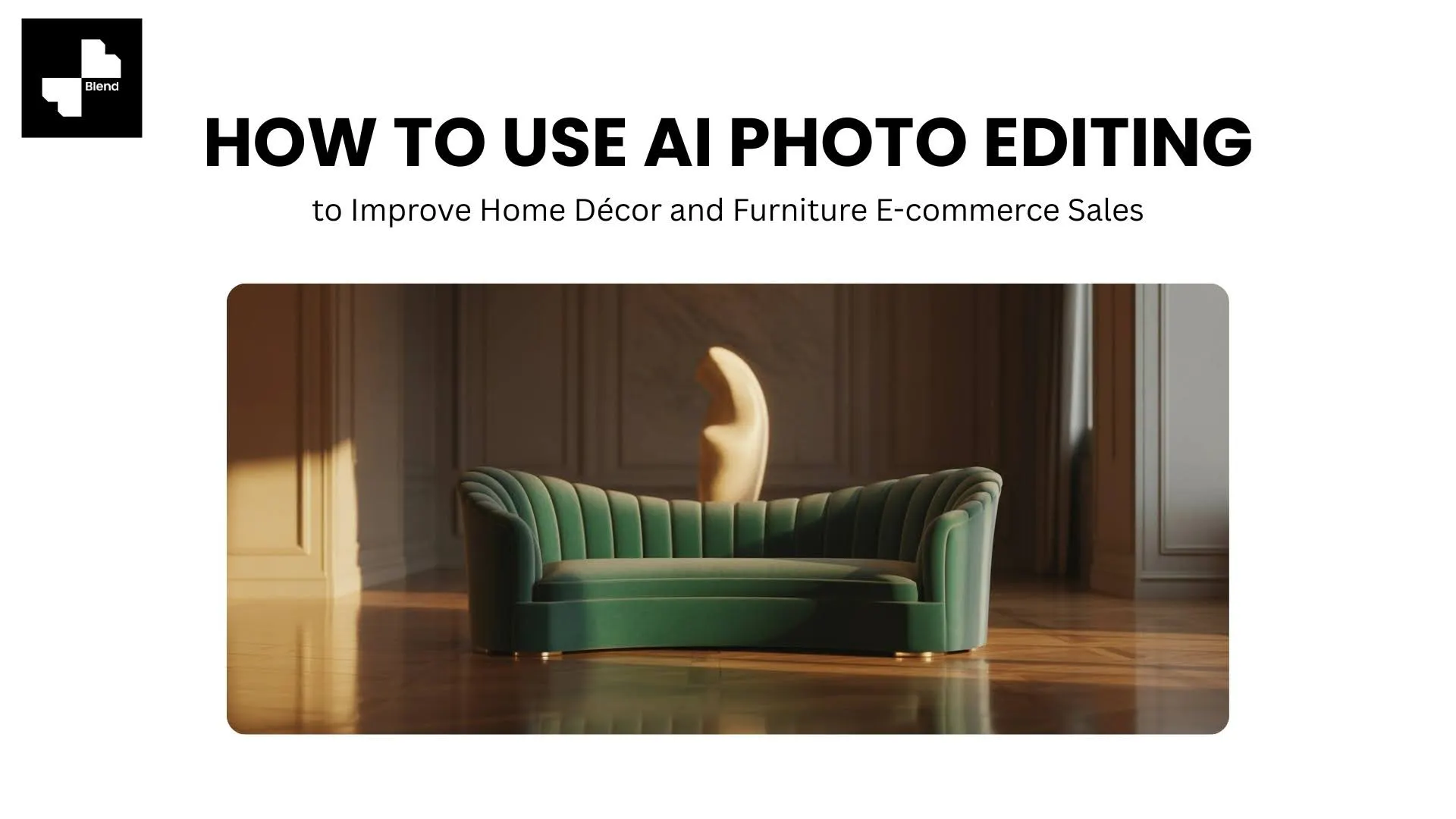



Furniture is one of the hardest product categories to photograph well. A dining table needs to be shown in a room to communicate its scale. A throw pillow only makes sense when it is styled on a couch. And a standing lamp on a white background tells shoppers almost nothing about how it would look in their living room.
The problem is that shooting furniture in styled room settings is expensive. Renting a staged space, hiring a photographer, and reshooting for different style variations can easily run $1,000 to $5,000 per product. For a small home décor brand managing 30 to 50 SKUs, that is not sustainable.
AI photo editing tools now let you skip most of that process. Start with a basic product shot, and the AI handles everything from background removal to placing your furniture in a realistic, styled room. Here is how to use it step by step to improve your listing images and drive more sales.
Start with Clean, Detail-Rich Product Photos
AI generates the environment around your product, but the product itself comes from your photo. For furniture and home décor, that means your starting image needs to show the materials, textures, and proportions clearly.
Step 1. Capture Textures and Materials Up Close
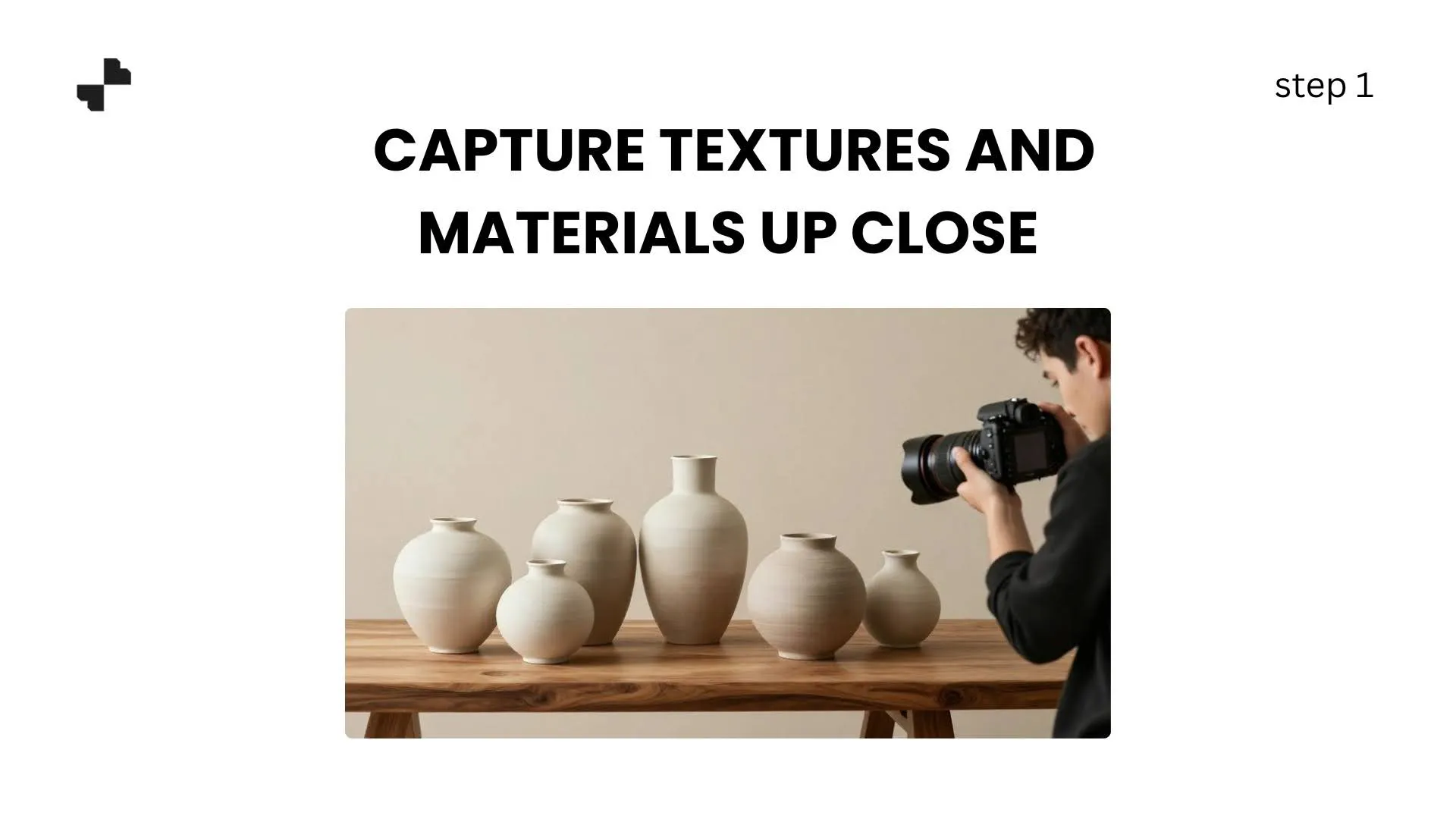
Wood grain, fabric weave, metal finish, and matte vs. gloss surfaces all matter in home décor. Shoppers cannot touch the product online, so your photos need to communicate texture visually.
A few practical tips:
- Shoot in natural daylight or with a large softbox to avoid harsh shadows that flatten surface texture
- Get a detail shot showing the grain or weave pattern alongside your full-product angle
- For upholstered furniture, make sure the fabric texture is sharp and visible, not blown out by overexposure
You do not need a professional studio. A well-lit garage, a room with large windows, or even an outdoor patio on an overcast day works well for furniture-sized items.
Step 2. Remove Cluttered Backgrounds
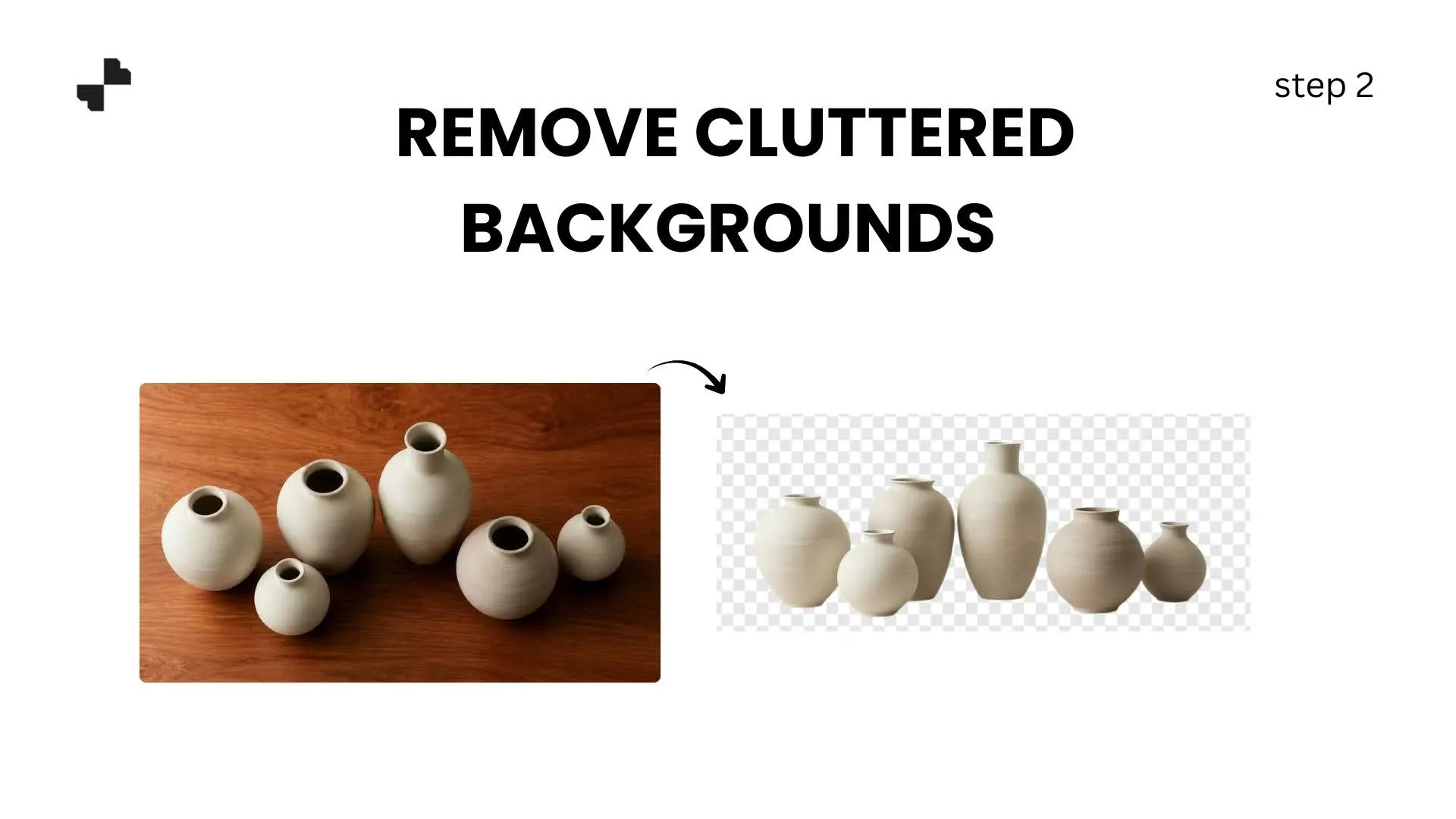
Most furniture sellers shoot products in warehouses, showrooms, or living spaces with other items in the frame. An AI background generator strips all of that away in one tap, leaving you with a clean cutout of just the product.
For furniture with complex shapes, like chairs with thin legs or open-shelf bookcases, zoom in on the cutout edges after removal. An AI image editing tool can clean up any small artifacts around legs, spindles, or decorative details in seconds.
[IMAGE: Before/after. Left: wooden accent chair photographed in a cluttered showroom. Right: same chair with background cleanly removed, transparent layer, all wood grain detail preserved.]
Place Your Products in Room Scenes That Sell
White-background shots are necessary for marketplace compliance, but they do not sell furniture. Shoppers need to see a nightstand next to a bed, a rug under a coffee table, a pendant light hanging over a kitchen island. Room context is what converts browsers into buyers in this category.
Step 3. Generate Lifestyle Room Settings with AI
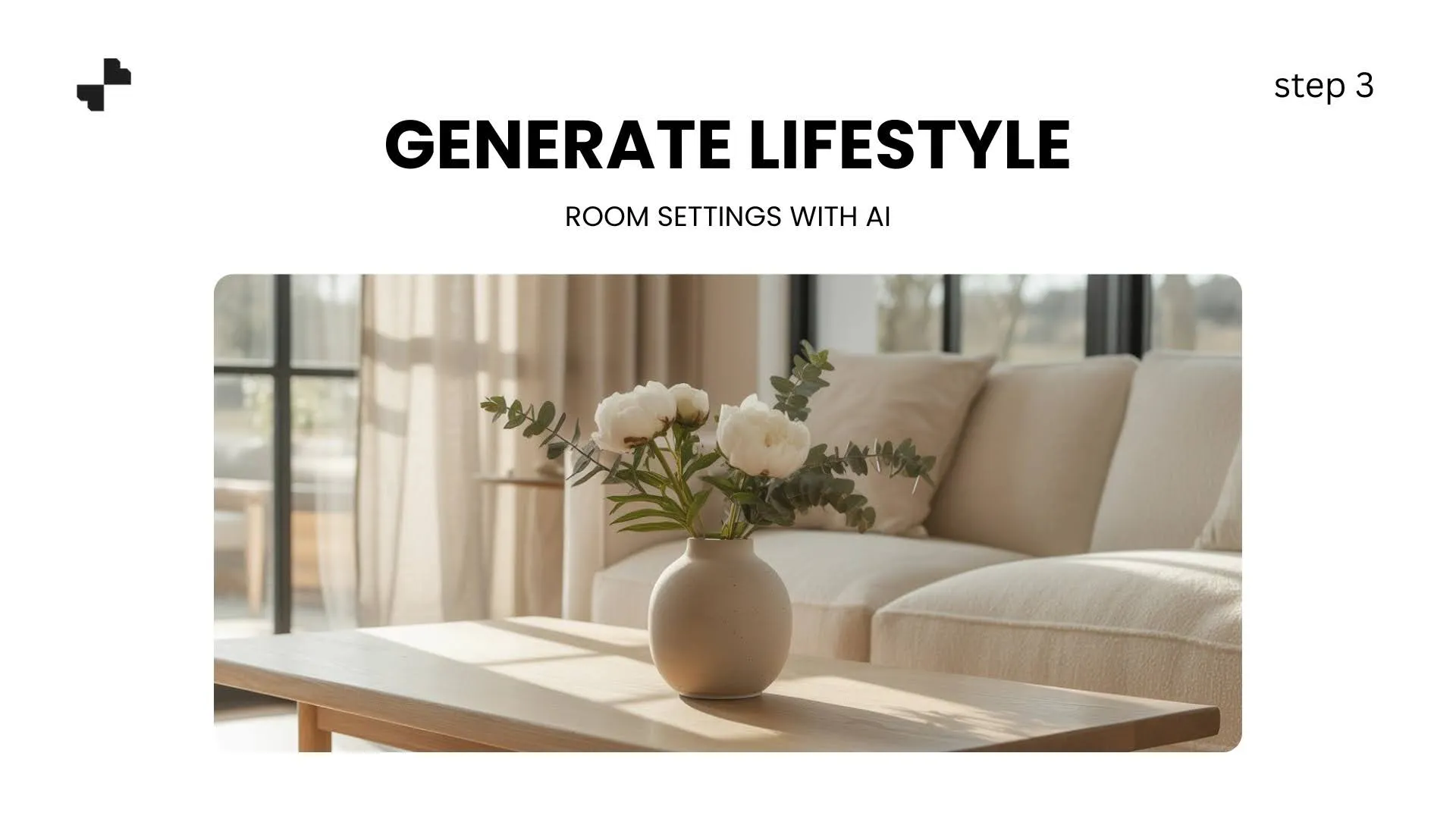
Lifestyle product photography tools let you describe a room scene and place your product directly into it. The AI generates the walls, flooring, complementary furniture, and lighting around your product while keeping the product pixels exactly as uploaded.
Strong scene prompts for home décor and furniture typically include:
- Room type: living room, bedroom, dining room, entryway, home office
- Design style: mid-century modern, Scandinavian minimalist, farmhouse rustic, coastal, industrial
- Lighting mood: warm evening glow, bright natural daylight, soft ambient light
- Flooring and walls: hardwood floors, white walls, exposed brick, neutral carpet
A credenza described as sitting "in a mid-century modern living room with warm oak flooring, a large window with afternoon light, and a textured area rug" will generate a much more convincing scene than just "nice living room."
[IMAGE: Before/after. Left: mid-century credenza on transparent background. Right: same credenza placed in an AI-generated living room with warm oak floors, a large window, a potted plant, and soft afternoon light.]
Step 4. Create Multiple Design Style Variations
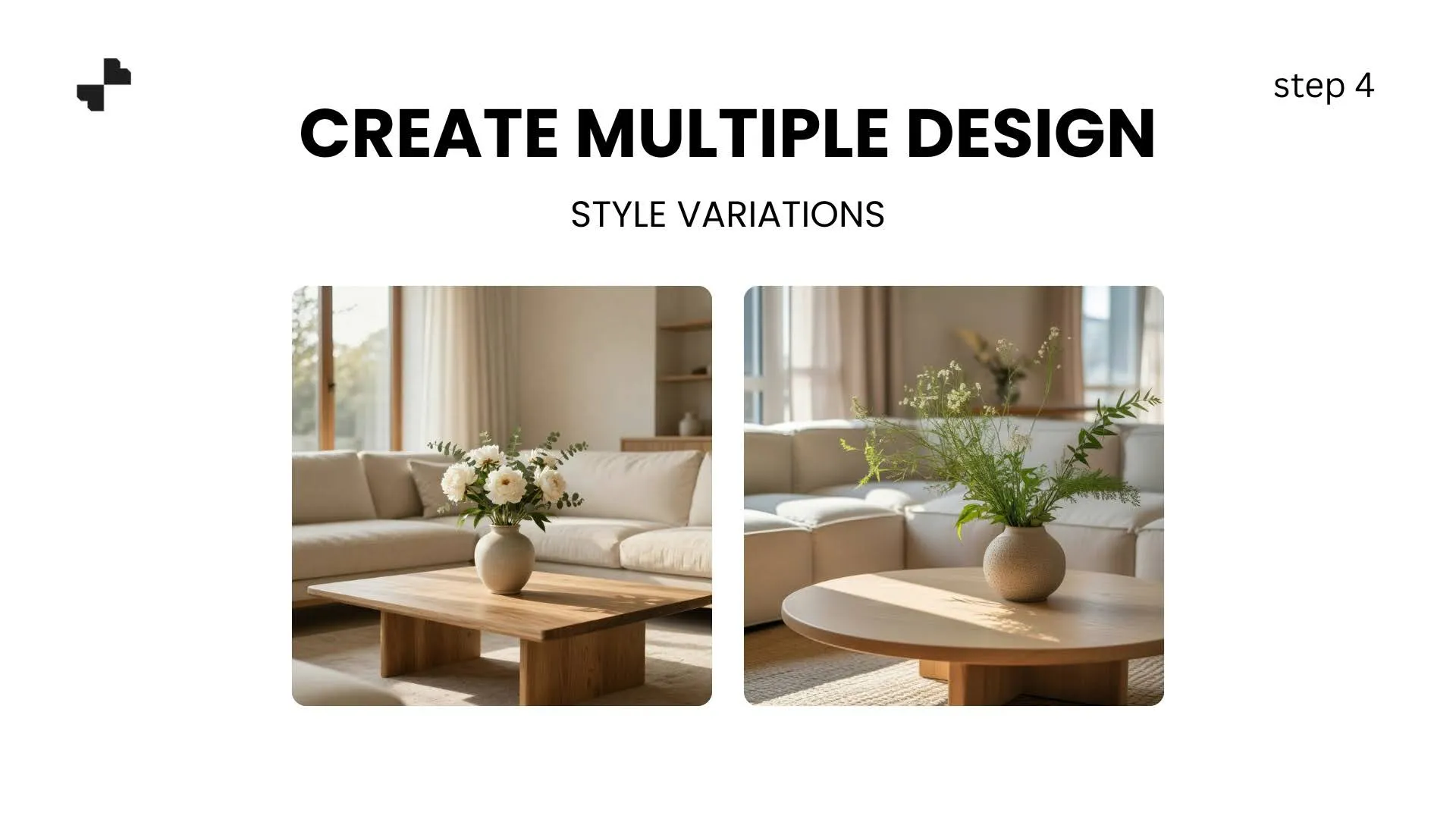
One of the biggest advantages of AI-generated room scenes is showing the same product in completely different settings. A single accent chair can appear in a minimalist Scandinavian apartment, a cozy farmhouse reading nook, and a modern urban loft, all from the same product photo.
Running 2 to 3 style variations per product helps reach different customer segments. Use the strongest-performing variation as your main lifestyle image and rotate others across social and ads.
Build a Consistent, Professional Catalog
Individual lifestyle shots are great for social media and ads. But your catalog page, where a customer browses 20 or 30 products at once, needs visual consistency. Mismatched lighting, different room styles, and varying image quality across your listings make your store look disjointed.
Step 5. Use Studio Backgrounds for Clean Listing Shots
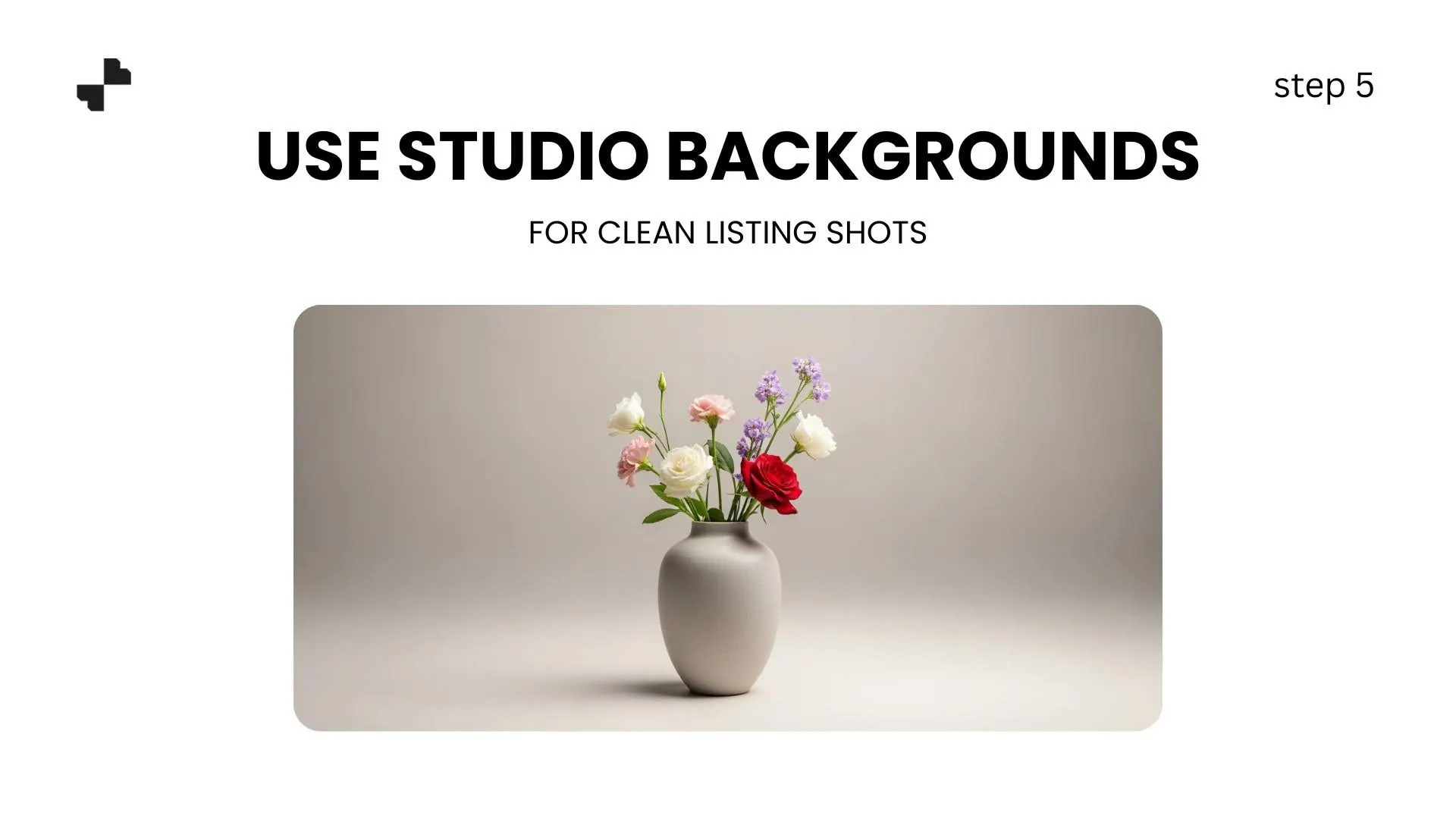
For your catalog grid view, clean studio backgrounds with consistent lighting, shadows, and framing make your store look polished and professional. Generate a consistent neutral backdrop, soft gray, warm white, or light linen, and apply it across every product in your catalog.
Consistent studio shots also meet the white or neutral background requirements for Amazon, Wayfair, and most home furnishing marketplaces. Running every product through the same AI product photography pipeline ensures uniform quality without reshooting anything.
Step 6. Batch-Edit for Catalog-Wide Consistency
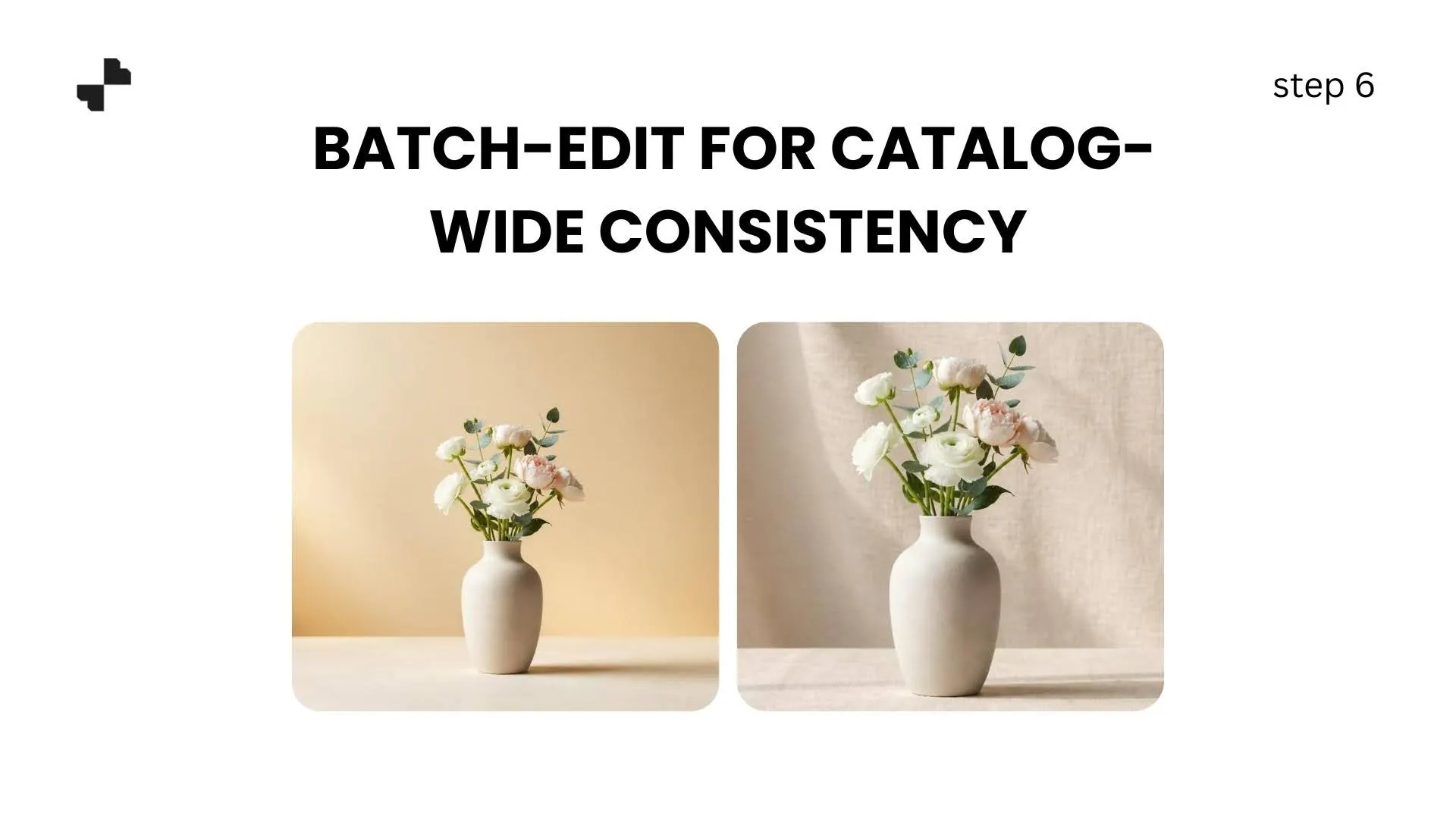
When you add new products, run them through the same background and lighting settings used for your existing catalog. For home décor brands selling product families, like a matching set of side tables, shelves, and a console, batch editing ensures every piece looks like it was photographed in the same session. That cohesion builds trust.
Turn Photos into Sales-Ready Content
Your product images are edited, and your room scenes are built. Now turn those assets into content that performs across every channel where you sell.
Step 7. Create Short Product Videos from Still Images
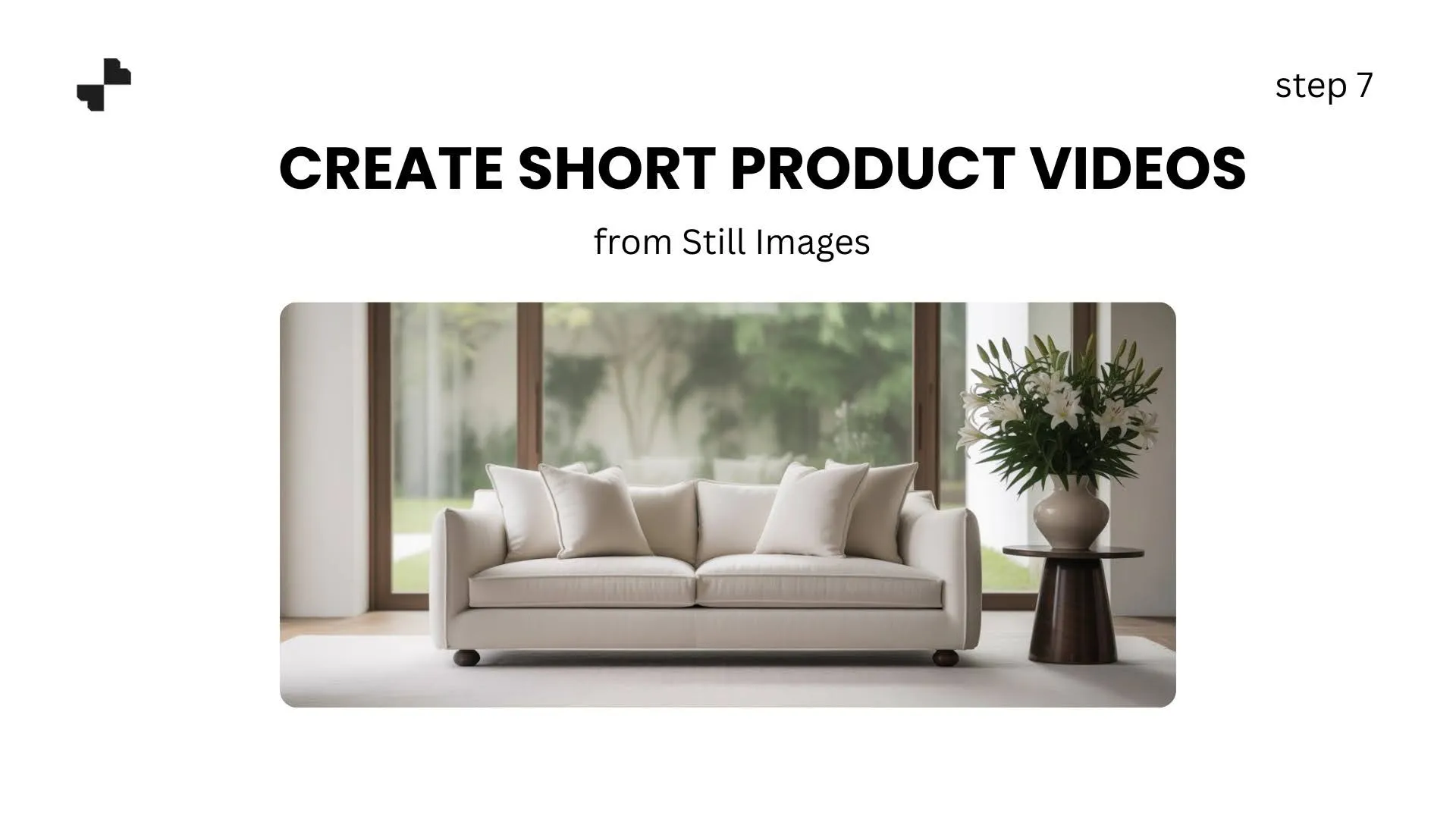
Video content consistently outperforms static images on social platforms and in marketplace ads. A slow pan across a styled room scene, a zoom into wood grain detail, or a rotation showing different angles can be generated from still photos using AI video tools.
For home décor, short videos work well because they give shoppers a sense of scale that still struggles to communicate. A 5-to-10-second clip of a bookshelf in a styled room says more about proportions than any spec sheet.
Step 8. Optimize Images for Every Sales Channel
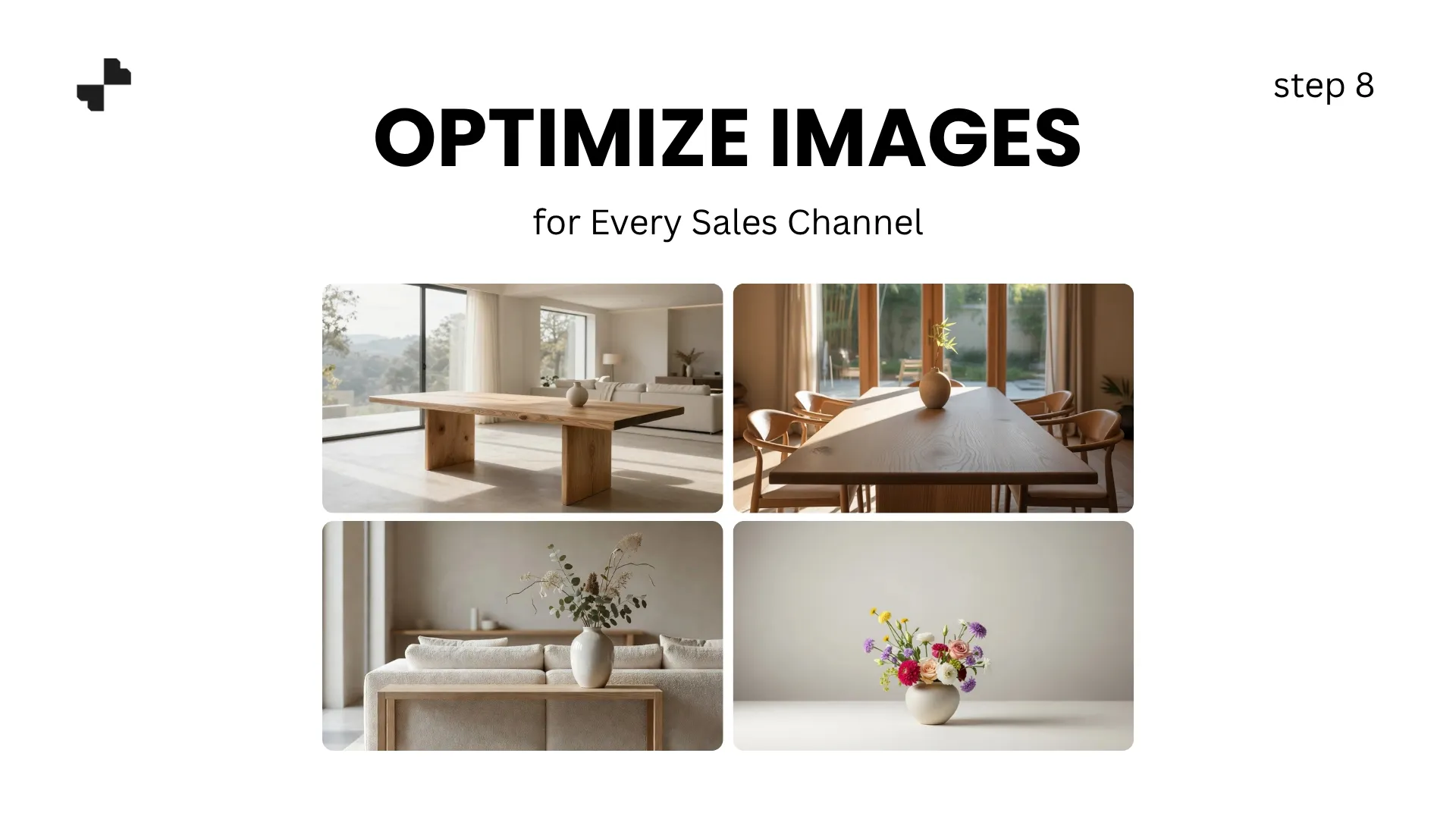
Different platforms require different image specs and styles:
- Amazon and Wayfair: White or neutral background for the main image, lifestyle room scenes for secondary slots
- Shopify and your own site: Hero banners, collection page thumbnails, and product detail images
- Instagram and Pinterest: Square and vertical crops with lifestyle context work best
- Google Shopping: Clean product shots with consistent framing improve click-through rates
Running your full catalog through the same AI editing pipeline keeps your ecommerce product images visually consistent everywhere your customers encounter your brand.
[IMAGE: Grid of four versions of the same table lamp. Top-left: white background studio shot. Top-right: modern living room scene. Bottom-left: cozy bedroom nightstand scene. Bottom-right: cropped square format for Instagram.]
Show Your Furniture in Rooms, Not on White Backgrounds
Shoppers buying home décor need to picture the product in their own space. AI photo editing lets you put every SKU in a styled room, build consistent catalog pages, and create video content, all from a single product photo. Blend handles the full workflow from background removal to room scenes to product video in one platform. Upload your first furniture photo and see it in a room within seconds.
Frequently Asked Questions
Does AI photo editing work well for large furniture items?
Yes. AI background removal and scene generation work well for items of any size. The product stays at its original resolution, and the AI generates the room environment around it.
Can I show the same product in different room styles?
Absolutely. One product photo can be placed in a modern apartment, a farmhouse living room, or a minimalist studio, all from the same upload. Running 2 to 3 variations per product is a good practice.
Will AI alter the color or texture of my furniture?
Good AI tools preserve your product exactly as photographed. Always compare the output against the original, especially for wood tones and fabric colors, where accuracy affects customer expectations.
What type of product photo works best as a starting point?
A well-lit photo on a plain background with visible material texture. Natural light and a clean surface are enough. Make sure the full product is in frame with no parts cut off.
Can I use AI room scenes on Amazon and Wayfair listings?
Yes. Amazon and Wayfair allow lifestyle images in secondary image slots. The main image typically needs a white or neutral background, which AI Studio shot tools also handle.
How many images should I create per furniture product?
Aim for 4 to 6 per SKU. A clean catalog shot, 2 to 3 lifestyle room scenes in different styles, and at least one detail shot showing material texture. More variations give you options for A/B testing across channels.