
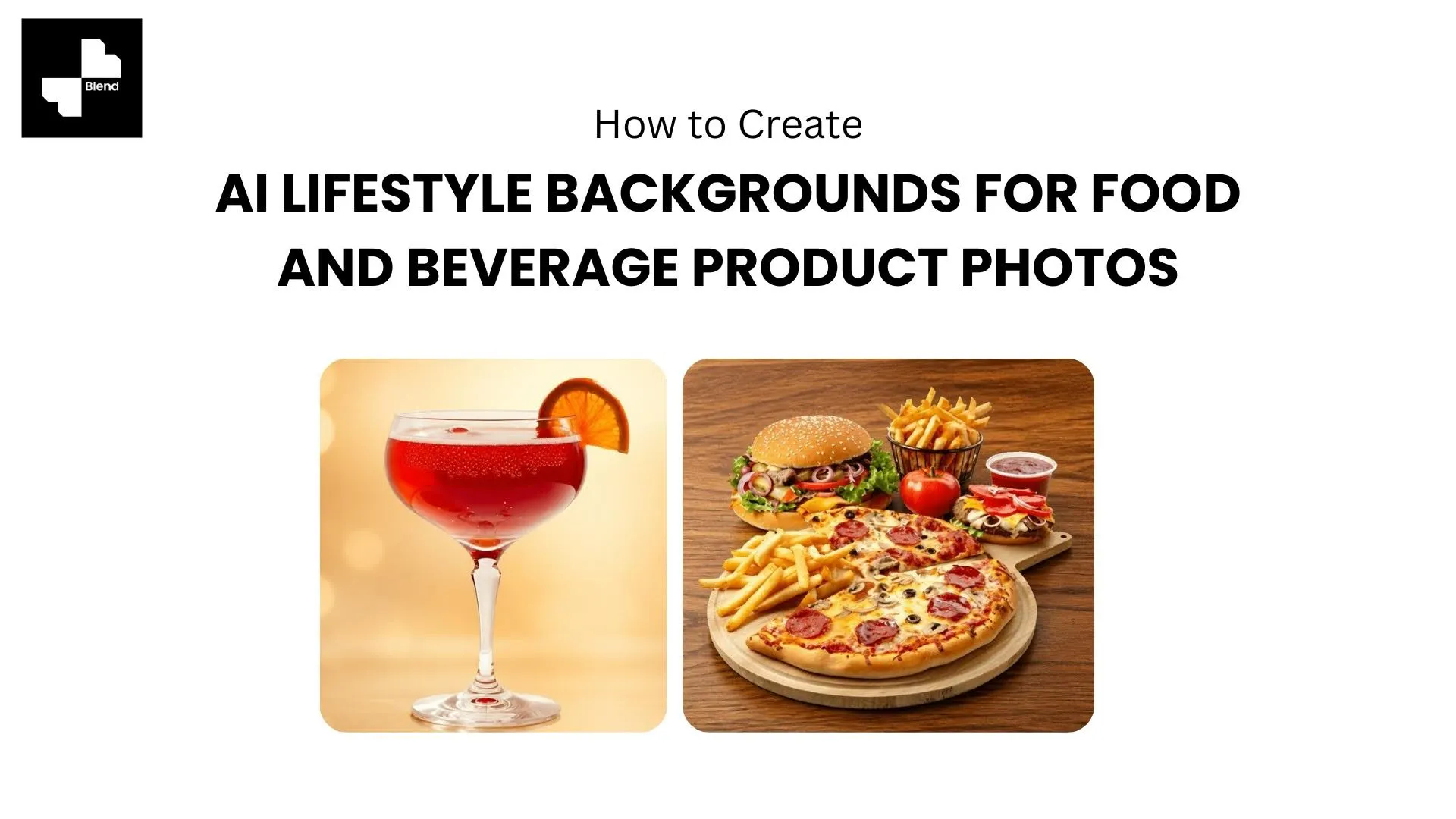



Food and beverage is a visual-first category. A bottle of hot sauce on a white background tells shoppers what the label looks like. The same bottle on a rustic cutting board next to sliced peppers and a cast-iron skillet tells them how it fits into their kitchen. That context turns a scroll into a click.
Traditional lifestyle photography for food products is expensive. Styled sets, food props, professional lighting, and post-production can cost $500 to $2,000 per product. For a small CPG brand with 15 to 30 SKUs, that adds up fast.
AI background generators now let you create those same styled scenes from a single product photo. Upload your bottle, can, or box, describe the scene you want, and the AI builds a realistic lifestyle environment around it. Here is the step-by-step process.
Prep Your Product Photos for Background Generation
The AI generates the background, but your product photo stays untouched. That means the quality of your starting image determines the quality of your final result. A sharp, well-lit product shot gives the AI clean edges to work with.
Step 1. Shoot Your Product on a Clean, Plain Surface
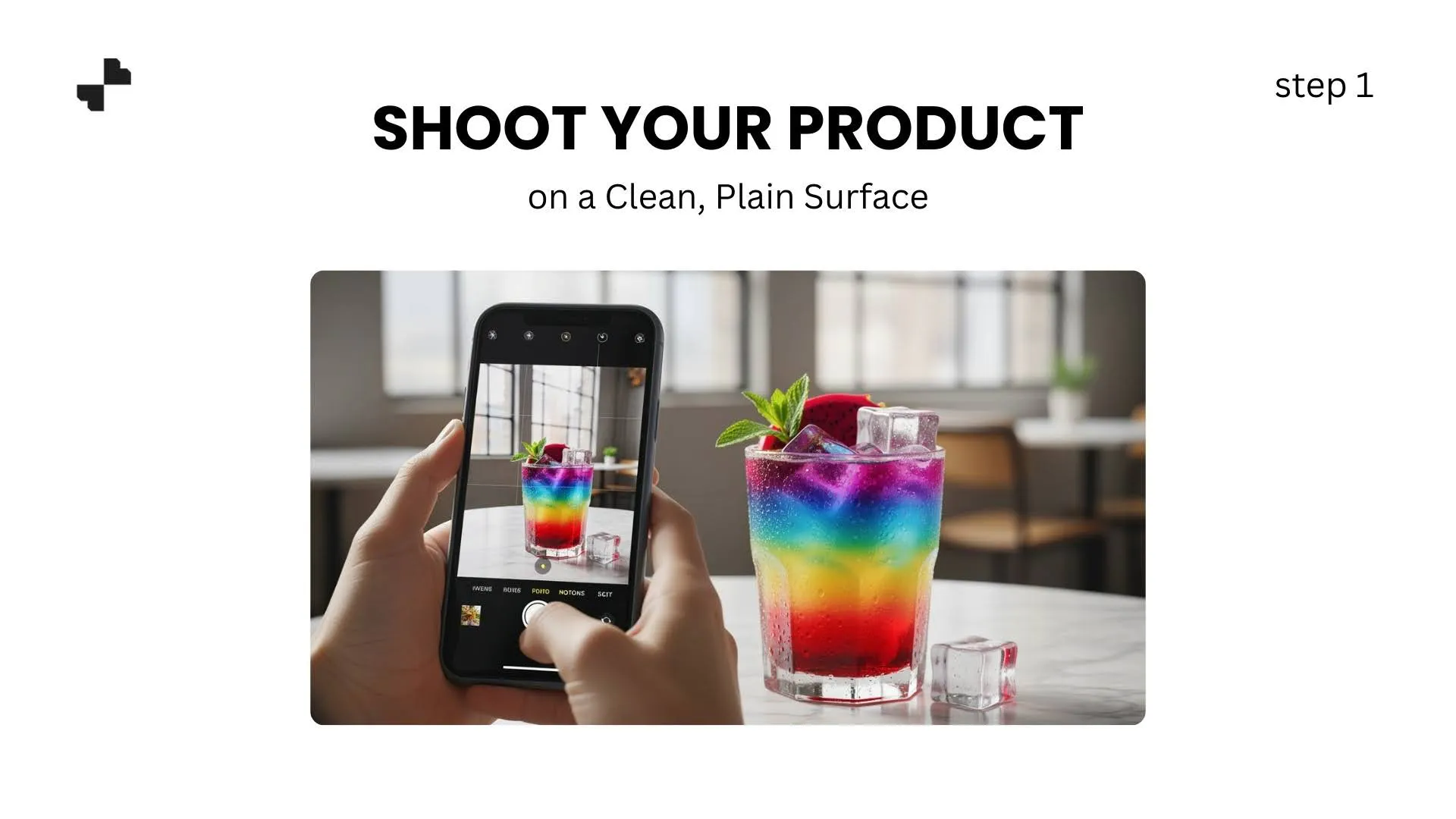
Place your product on a white or light gray surface with even, diffused lighting. Natural window light works well for most packaging types. Avoid harsh overhead lights that create strong shadows on labels or reflections on glass.
A few tips for common food and beverage packaging:
- Glass bottles and jars: Angle slightly to reduce direct reflections. A white paper opposite the light source softens glare.
- Cans and tins: Keep the label facing the camera. Matte finishes are easier than glossy ones.
- Boxes and pouches: Stand upright with the front panel fully visible.
You do not need professional gear. A phone camera, a window, and a clean white surface are enough.
Step 2. Remove the Original Background
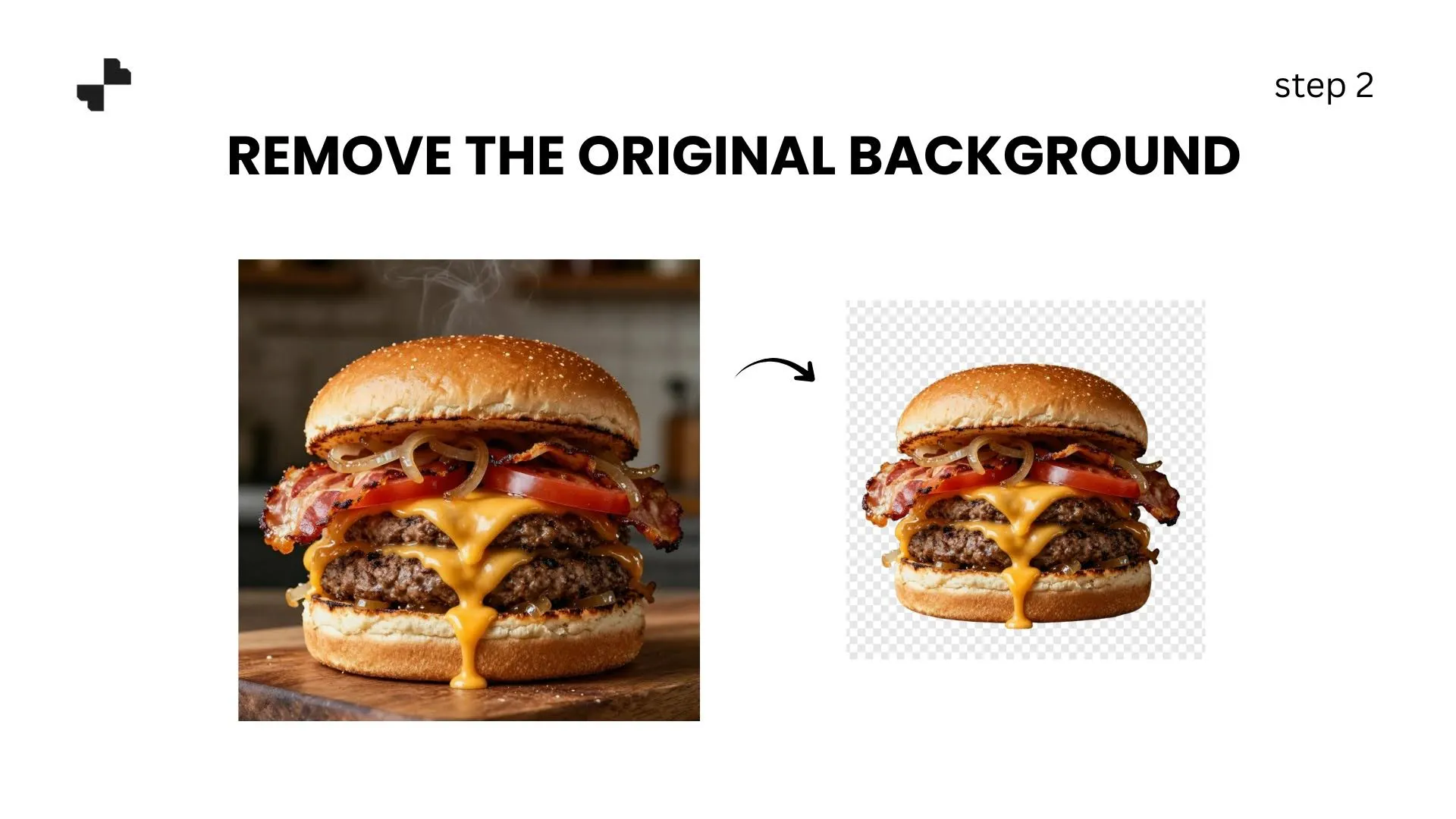
Once you have your product shot, strip the background completely. A transparent cutout gives you maximum flexibility for placing the product into any scene. An AI background generator handles this in one tap, even with tricky packaging like transparent glass or frosted bottles.
If small artifacts remain around caps or edges, a quick pass with an eraser tool cleans those up in seconds.
Choose the Right Scene for Your Product
Not every background works for every product. A craft beer in a tropical beach setting feels wrong. The same beer on a bar counter with warm ambient lighting makes sense. Matching the scene to what you sell separates a convincing lifestyle image from a random stock photo paste job.
Step 3. Match the Background to Your Product Category
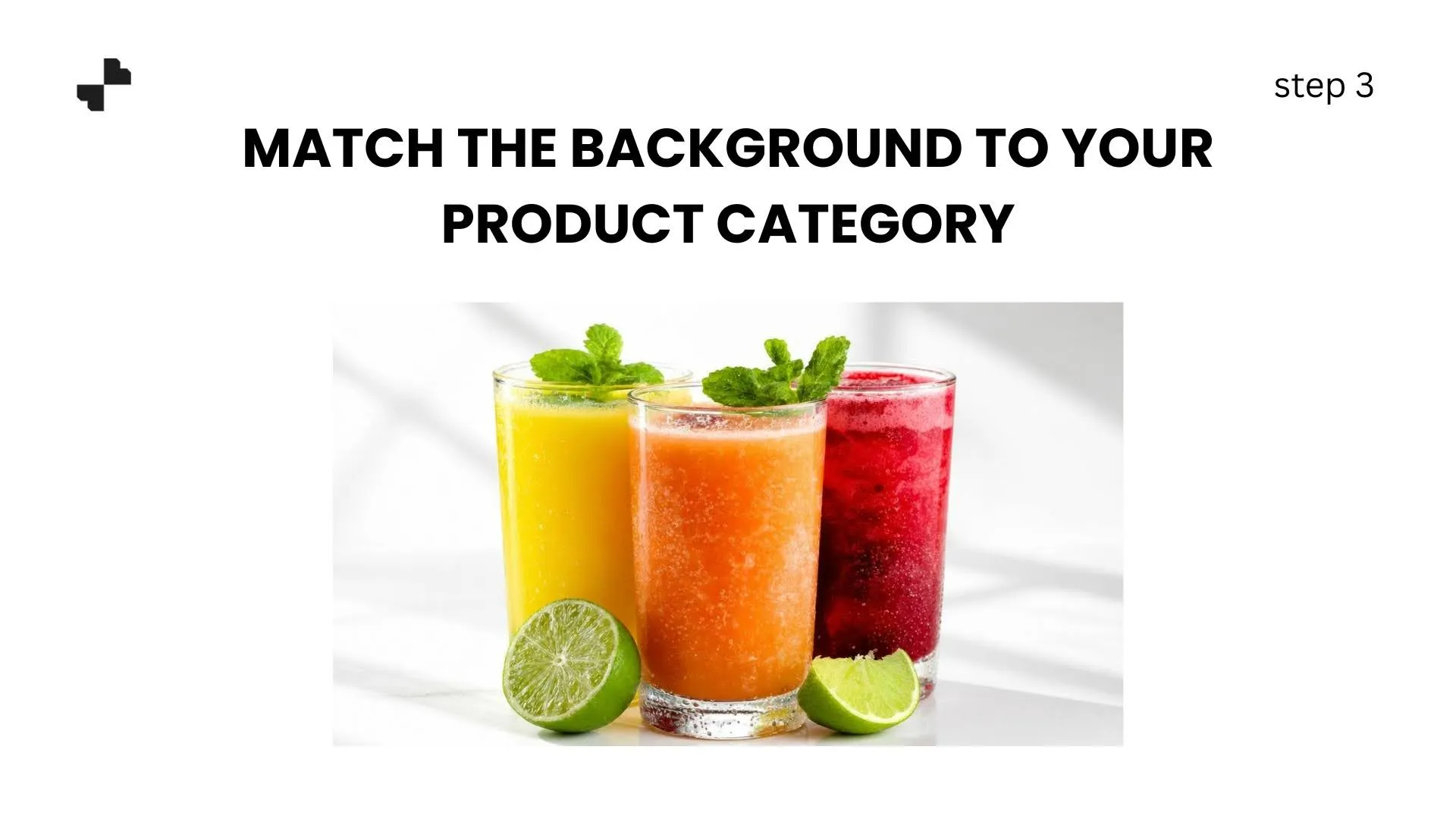
Here are scene ideas that tend to perform well for common food and beverage types:
- Coffee and tea: A morning kitchen counter, a cozy cafe table, or a desk setup with a book and a mug
- Juices and health drinks: A bright outdoor table with fresh fruit, or a clean kitchen with sliced ingredients
- Sauces and condiments: A rustic cutting board with complementary ingredients, or a grill setup for BBQ sauces
- Snacks and packaged foods: A picnic blanket, a movie-night couch setup, or a lunchbox arrangement
- Wine and spirits: A candlelit dinner table, a cheese board, or a bar shelf with warm lighting
The goal is to show the product in a setting where the customer would actually use it. That context helps shoppers picture the product in their own lives, which is exactly what drives the click.
Step 4. Write a Clear, Specific Prompt
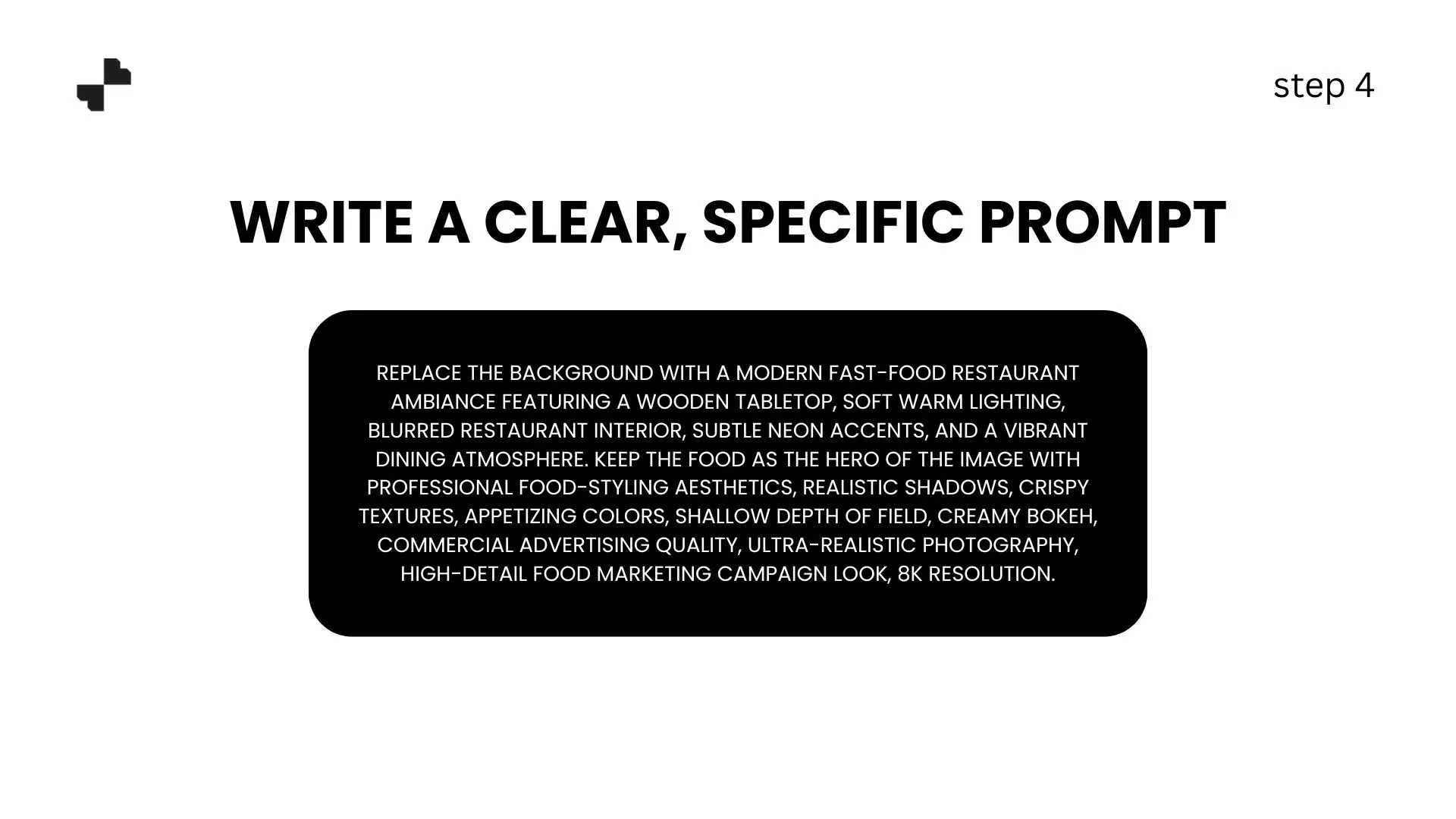
Most AI image generator tools let you describe the scene in plain language. The more specific your prompt, the better the result.
A vague prompt like "nice kitchen background" gives generic output. A specific prompt like "marble kitchen counter, morning sunlight from the left, fresh herbs in a small vase, soft depth of field" gives you something that looks intentionally styled. Focus on three things:
- Surface material: marble, wood, slate, linen, concrete
- Lighting direction and mood: warm morning light, soft diffused glow, dramatic side lighting
- Complementary props: ingredients, utensils, textiles, or seasonal elements
[IMAGE: Before/after. Left: olive oil bottle on transparent background. Right: same bottle placed in an AI-generated scene, a rustic wooden table with fresh rosemary sprigs, a small dish of olives, and warm afternoon light streaming in from the side.]
Generate, Refine, and Scale
Once your product is prepped and your scene is defined, the generation process itself takes seconds. The real value comes from knowing what to look for in the output and how to scale it across your catalog.
Step 5. Generate Multiple Variations and Compare
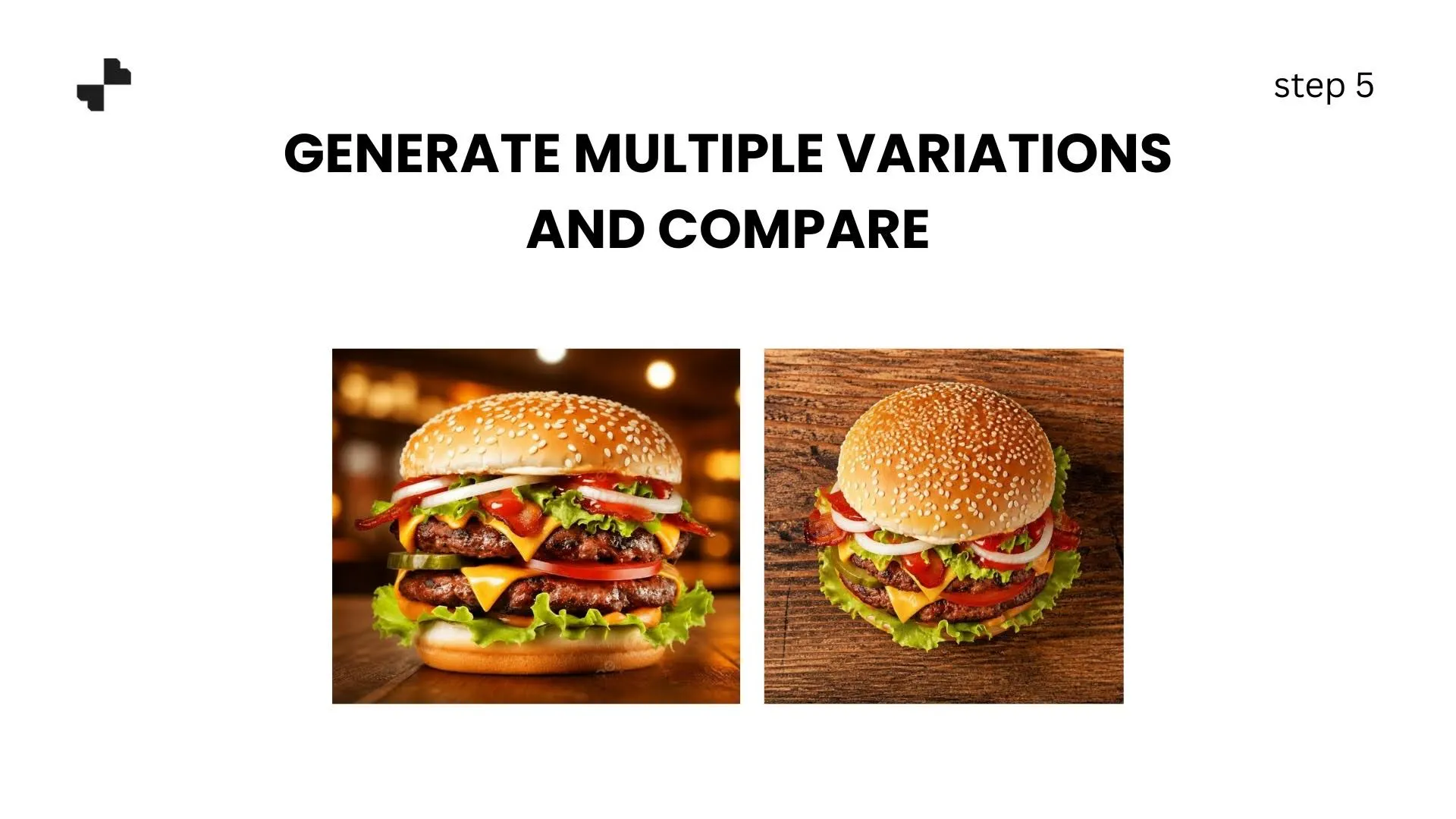
Run 3 to 4 generations per product using the same prompt. AI tools produce slightly different results each time, so a small batch lets you pick the strongest composition. Look for the version where the product sits naturally in the scene, and the colors are accurate.
For e-commerce photography, your product images need labels that stay perfectly readable. Check that the AI has not softened text, shifted colors, or altered packaging details.
Step 6. Check Lighting, Shadows, and Color Accuracy
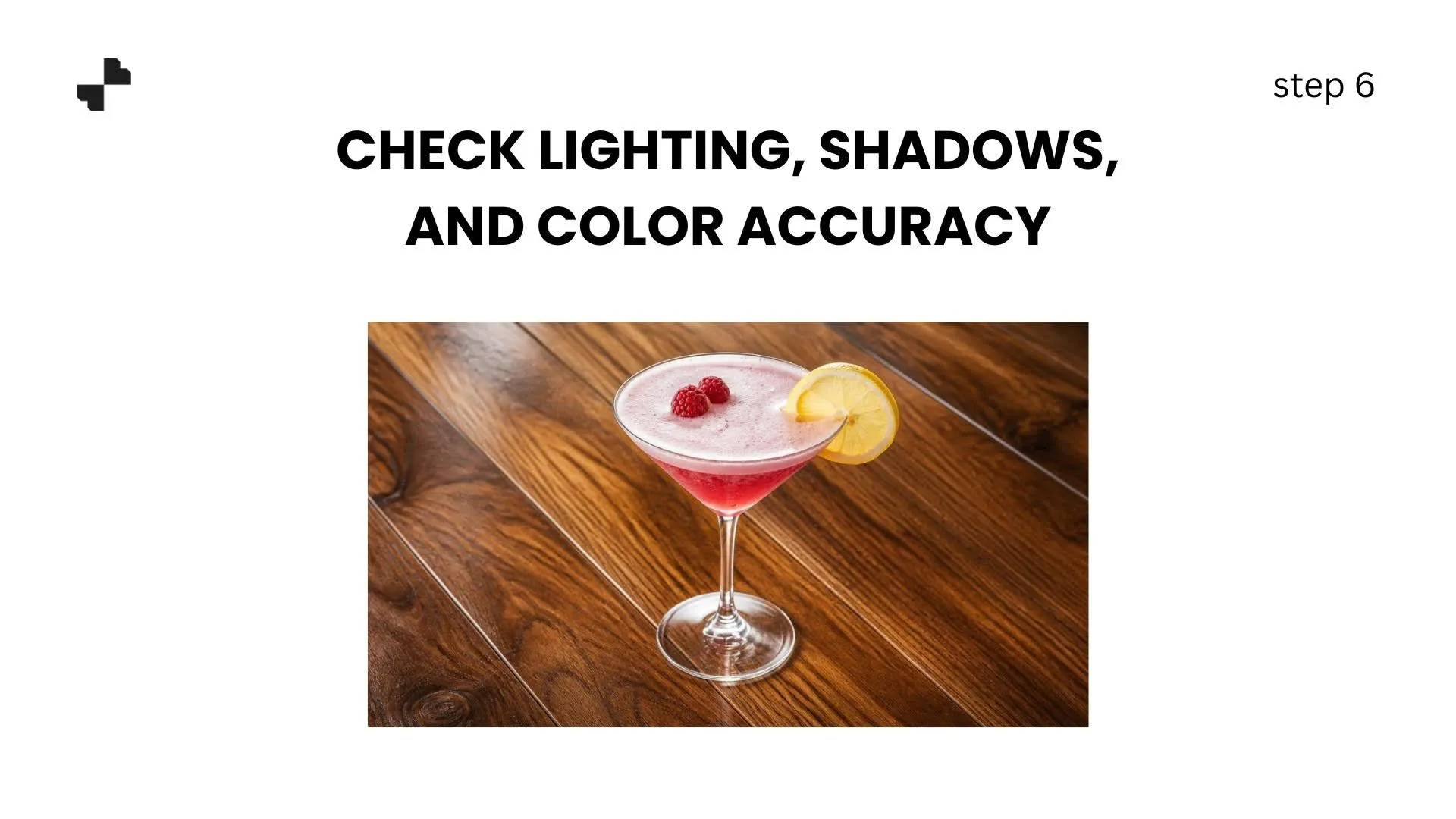
A lifestyle background only works if the lighting on the product matches the scene. If your product was shot with cool, flat light but the background has warm golden-hour tones, the mismatch will feel off. Verify three things:
- Shadow direction: Does the shadow match where the light would come from in the scene?
- Color temperature: Does your product label look natural against the background tones?
- Reflections: For glass bottles, do the reflections make sense in the generated environment?
If something looks off, adjust your prompt or generate from a slightly different product angle. Small tweaks to the lighting description often fix mismatches.
Publish Across Every Channel
Your AI-generated images are ready. Now make sure they work everywhere your customers see your product.
Step 7. Batch-Generate Backgrounds for Your Full Product Line
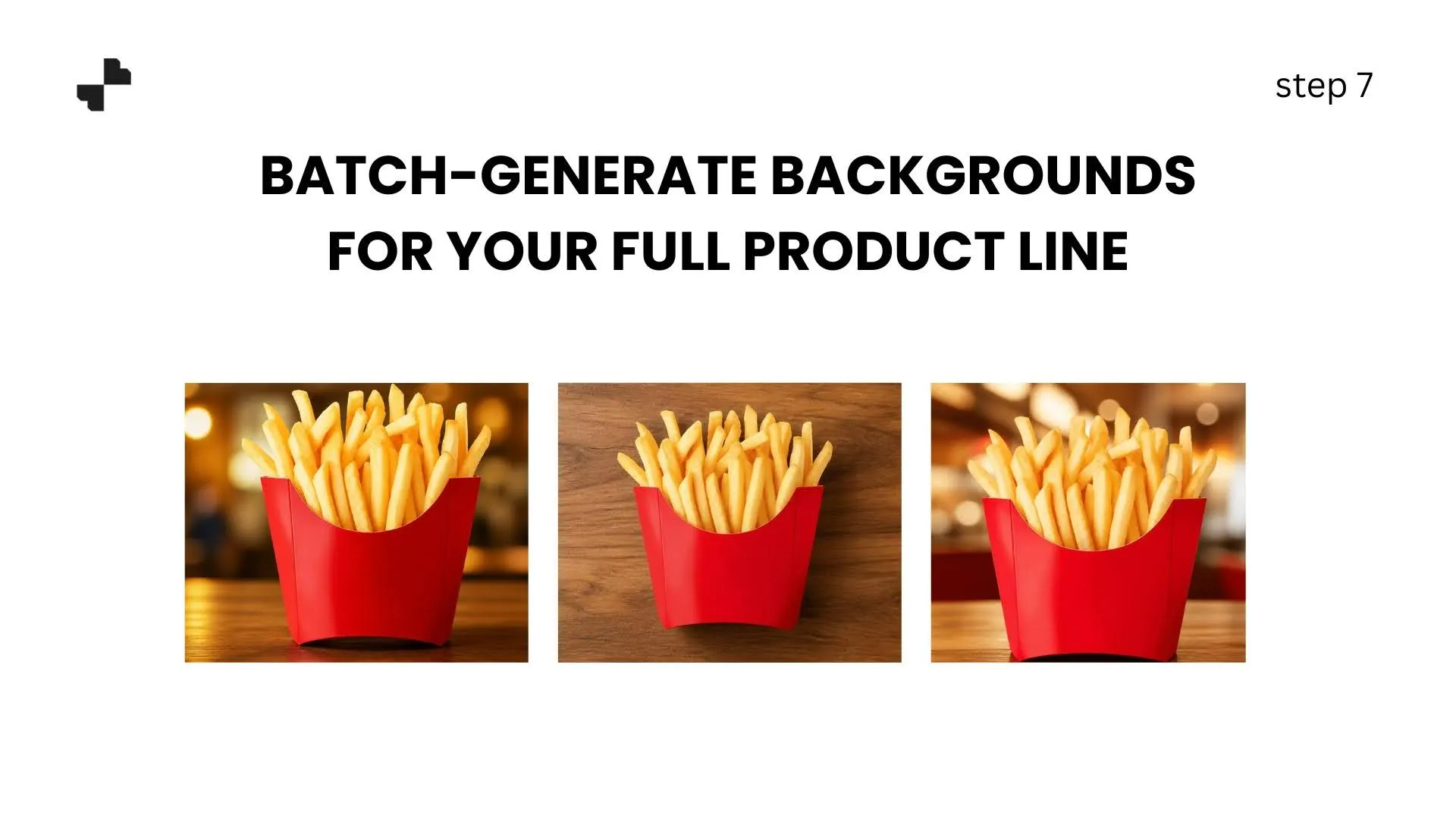
If you sell a range of products, like six hot sauce flavors or a line of sparkling waters, run each variant through the same scene prompt. Using one consistent background across a product line creates a cohesive look on your store page and makes your brand feel polished.
A customer browsing your collection page should feel like every product was shot in the same session, even if each image was generated individually.
[IMAGE: Grid showing four different juice bottle flavors, all placed in the same AI-generated scene, a bright white kitchen counter with a cutting board and sliced citrus. Consistent lighting and styling across all four.]
Step 8. Format for Marketplaces, Social, and Your Store
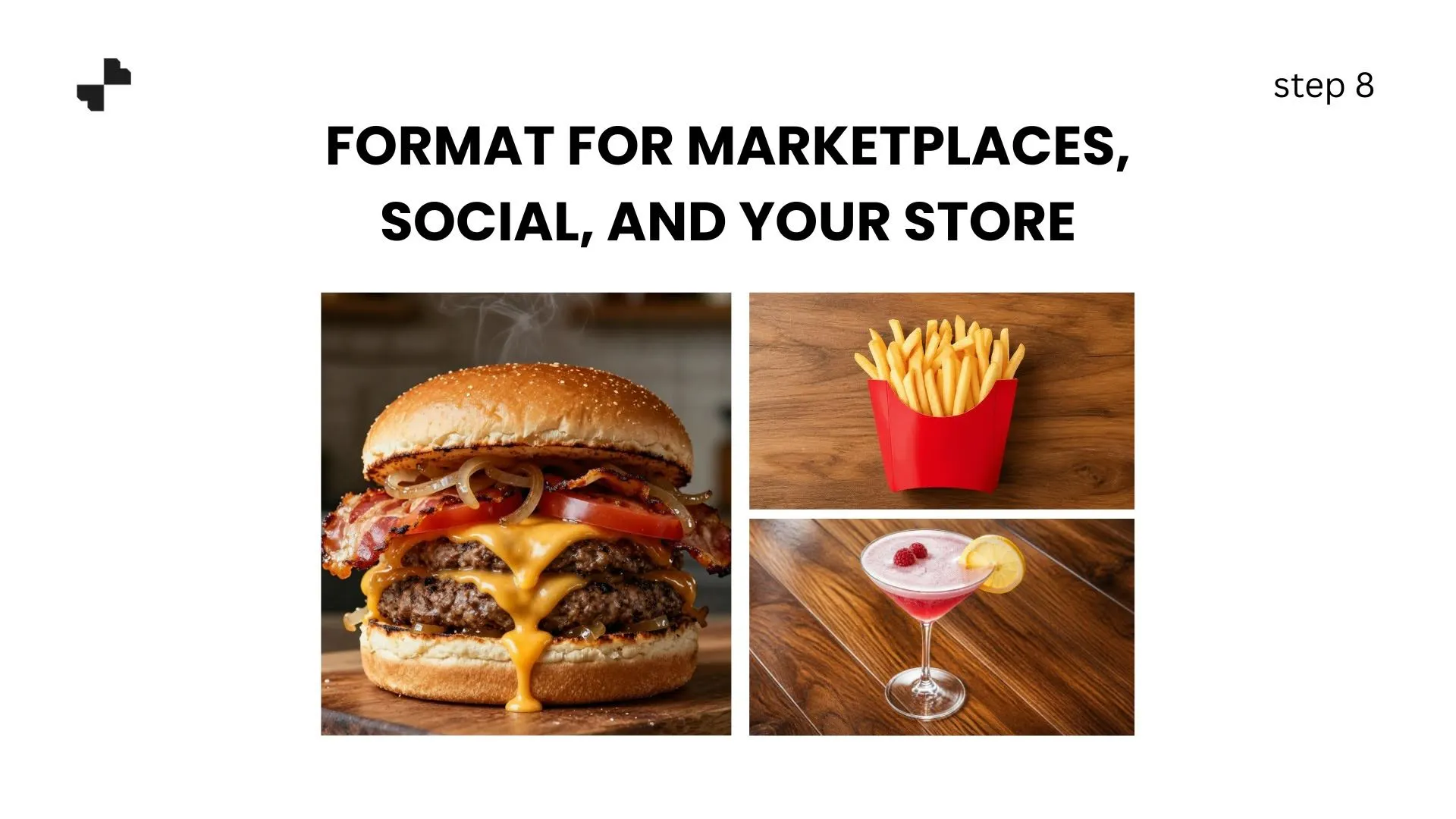
Different platforms need different specs. Amazon's main images require a white background, but secondary image slots (positions 2 through 9) are ideal for online store images with lifestyle backgrounds. Instagram and TikTok favor square and vertical crops. Your own site might need wider hero banners.
Running your full catalog through the same AI product photography pipeline keeps your visual identity consistent across Amazon, Shopify, Instagram, and everywhere else you sell.
From Plain Product Shot to Lifestyle Scene in Minutes
Creating lifestyle backgrounds for food and beverage products used to require a food stylist, a photographer, and a half-day shoot. Now you can do it with a phone photo and an AI tool. Blend lets you handle the full process, from background removal and scene generation to video and catalog-wide consistency, all in one platform. Upload your first product photo and build a scene around it.
Frequently Asked Questions
Does AI work well for glass bottles and transparent packaging?
Opaque packaging like cans, boxes, and pouches works reliably. Glass and transparent bottles are trickier because of refraction and light bleed-through, but the results have improved a lot in 2026. Always check edges and reflections on your generated output.
Can I use the same background across my entire product line?
Yes, and you should. Using one consistent scene across a product range creates a cohesive look on your store page and makes your brand feel more polished.
Should I use AI backgrounds for my Amazon main image?
No. Amazon requires a pure white background for the main product image. AI lifestyle backgrounds work well for secondary image slots (positions 2 through 9), social media, and your own website.
How specific should my prompt be?
Specific enough to define the surface, lighting direction, and general mood. You do not need to describe every prop. Something like "wooden kitchen table, soft morning light, sliced lemons nearby" works well.
Will AI alter my product label or packaging?
Good AI tools preserve your product exactly as uploaded and only generate the background around it. Always zoom in on your label and verify text readability before publishing.
How many lifestyle images should I create per product?
Aim for 2 to 3 lifestyle variations per product. One for your listing's secondary images, one for social media, and one for your website or ads. More variations give you options to A/B test what converts best.