
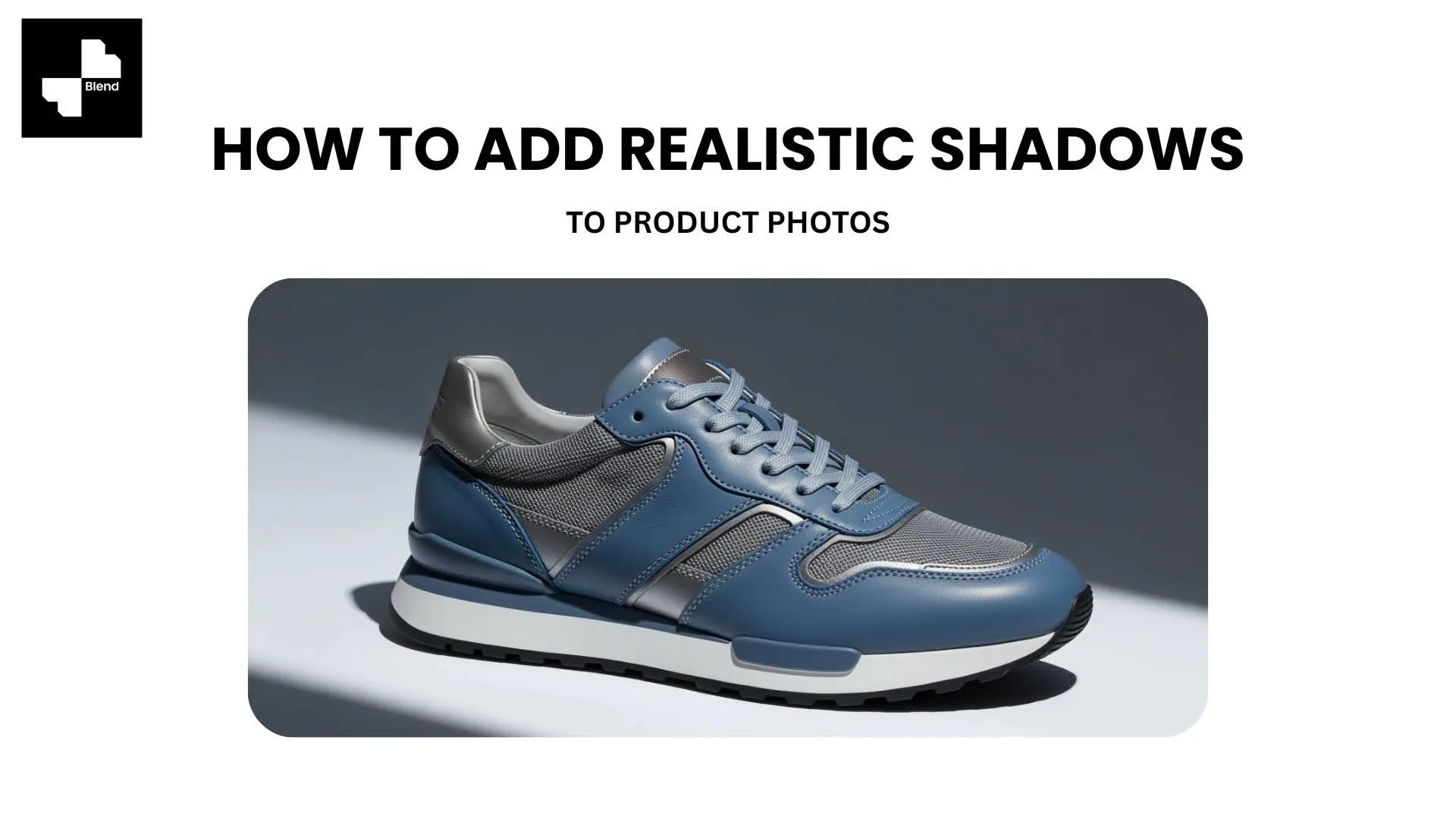



You removed the background from your product photo. The image is clean, the cutout is sharp, and the product looks great, until you drop it onto your listing page and it looks like it is floating in space. No weight, no depth, no sense that the product actually exists in the physical world.
That floating-product problem comes down to one missing element: the shadow. Shadows are what tell a buyer's brain that an object has weight, dimension, and presence. Without them, even a $500 handbag looks like a sticker pasted onto a white screen.
The good news is you do not need Photoshop layer masks or hours of manual editing to fix this. AI tools like Blend handle shadows automatically when you generate studio and lifestyle scenes. Here is how product photography shadows work, the types you should know, and how to add them to your images step by step.
Why Shadows Matter in Product Photography

Before getting into the how-to, it helps to understand why this one small visual detail has such a big impact on whether someone clicks "add to cart" or keeps scrolling.
Flat Photos Erode Buyer Confidence
A product image without a shadow looks unfinished. The item appears detached from its surroundings, which creates a subtle but real sense of distrust. Buyers want to feel like they are looking at a real object, not a digital graphic. Marketplace sellers who switch from flat cutouts to properly shadowed images often see measurable improvements in click-through rates and time spent on the listing page.
The Right Shadow Adds Depth Without Distraction
A well-placed shadow grounds the product on the surface, gives it three-dimensional form, and directs the viewer's eye toward the item rather than away from it. The key is subtlety. A shadow that is too dark or too sharp looks artificial. A soft, directional shadow that matches the scene's lighting feels invisible, which is exactly the point.
Three Types of Product Photography Shadows
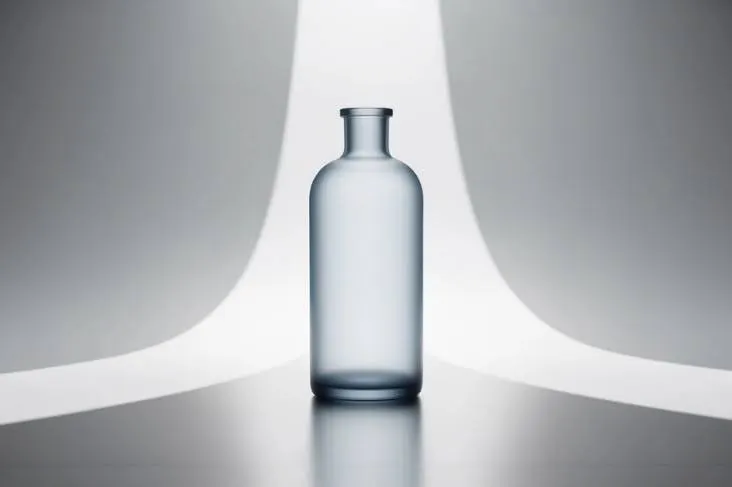
Not every shadow works the same way. The right choice depends on your product, your platform, and the look you want to achieve.
Drop Shadows
A drop shadow sits directly beneath and slightly behind the product, as if a soft light source is shining from above and in front. Drop shadows are the most common type in ecommerce product photography because they work on white backgrounds and keep the focus entirely on the product. Amazon, Shopify, and Etsy listings all benefit from clean drop shadows.
Natural Cast Shadows
A cast shadow extends to one side of the product based on a directional light source. Cast shadows look more realistic than drop shadows because they mimic how light actually falls in a room. Blend's lifestyle product photos feature generates natural cast shadows automatically when placing your product into a styled scene.
Reflection Shadows
A reflection shadow mirrors the product on a glossy or semi-reflective surface, creating a polished, high-end look. Reflection shadows work especially well for watches, sunglasses, electronics, and beauty products. Luxury brands and premium listings use this effect to signal quality.
How to Add Realistic Shadows to Product Photos with Blend
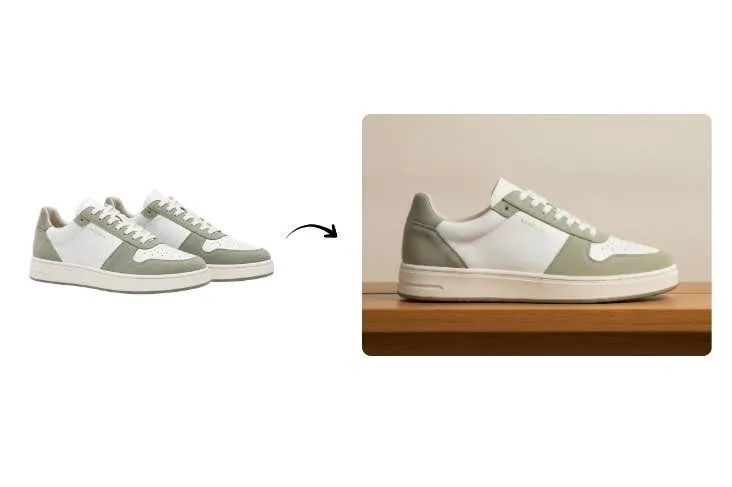
You do not need to manually draw or mask shadows. Blend's AI generates appropriate shadows as part of the scene when you create studio shots and lifestyle visuals. Here is the step-by-step workflow.
Start with a Clean Product Cutout
Upload your product photo to Blend and use background removal to isolate the product. If there are tags, dust, or unwanted objects in the frame, use the magic eraser to clean them up. A sharp, clean cutout gives the AI the best edge data, which directly affects how realistic the generated shadow looks.
Generate a Studio Scene with Built-In Shadows
Once your product is isolated, use Blend's AI product photography tool to generate a studio-style shot. Select a clean background (white, light grey, or gradient), and the AI will automatically place a natural shadow beneath your product based on the lighting direction of the scene. No manual shadow layers, no feathering, no guesswork.
For marketplace listings, a soft drop shadow on white is the safest choice. For brand websites and social media, you can experiment with darker backgrounds and more dramatic cast shadows.
- White background + overhead light = soft drop shadow (ideal for Amazon and Shopify)
- Light grey background + side light = directional cast shadow (great for brand sites)
- Dark or glossy surface = reflection shadow (best for luxury and premium products)
Place Your Product in a Lifestyle Scene
For lifestyle content, use Blend's lifestyle shot feature to place your product into a realistic environment. The AI handles shadows as part of the full scene, matching the light source, surface material, and ambient conditions of the generated room or setting. A coffee mug placed on a wooden table gets a warm, soft shadow that interacts with the wood grain. A sneaker placed on a concrete floor gets a sharper, cooler shadow.
Lifestyle shadows are harder to fake manually because they need to respond to the environment. AI handles this natively, which is one of the biggest advantages of generating scenes rather than compositing them by hand.
Export and Use Across Platforms
Once your shadowed image looks right, export it in the format and aspect ratio your platform requires. You can also turn your best shadowed product shots into short-form product videos for Reels, TikTok, and marketplace listings.
- Square (1:1) for Instagram and marketplace grids
- Vertical (9:16) for Stories and TikTok
- Landscape (16:9) for website banners and Google display
Stop Selling Flat, Floating Product Images
Shadows are not a nice-to-have. For ecommerce product photos, they are the difference between a listing that looks professional and one that looks like a first draft. The right shadow adds dimension, grounds the product on the page, and builds the kind of visual trust that leads to clicks and conversions.
Upload your product photo to Blend, remove the background, and generate studio or lifestyle scenes where realistic shadows are built into every image. No Photoshop. No manual layers. No floating products.
Ready to add depth to your product photos? Start creating for free with Blend and see the difference a shadow makes.
Frequently Asked Questions
How do I add a realistic shadow to a product image?
Upload your product photo to an AI tool like Blend, remove the background for a clean cutout, then generate a studio or lifestyle scene. The AI places a natural shadow based on the scene's lighting direction and surface.
What is the best shadow type for e-commerce product photos?
A soft drop shadow on a white background is the most versatile choice for marketplace listings. For brand websites and social content, natural cast shadows in lifestyle scenes tend to drive higher engagement.
Can AI shadow generators match shadows to different backgrounds?
Yes. AI tools analyze the lighting and surface of the generated scene and create a shadow that matches the environment. A product on marble gets a different shadow than the same product on wood or fabric.
Why do my product photos look like they are floating?
The background removal process strips out the original shadow along with the background. Adding a new shadow, either through AI scene generation or a dedicated shadow tool, restores the sense of depth and weight.
Do Amazon and Shopify require shadows on product images?
Neither platform requires shadows, but both recommend clean, professional imagery. A subtle drop shadow on a white background meets all marketplace guidelines and makes the product look more polished than a flat cutout.
What resolution should my shadowed product photos be?
Most marketplaces recommend at least 1000x1000 pixels for zoom functionality. Export at the highest resolution available and compress for the web without visible quality loss.