


Let’s say a confused buyer is browsing your watch product page but the product photography is putting them off. The watch looks good on its own and your product is great, yet something feels missing. They can’t quite picture how it sits on a wrist, or how big the dial feels in real life, or whether it matches their style. Perhaps your product photography isn’t catching their eye.
This is where AI model photos for watches make a real difference. When you place your watch on realistic models, you instantly give shoppers the visual reassurance that they are looking for. Instead of imagining the fit, they can see it. Instead of guessing the style, they get to experience it.
With AI watch photography, you can create professional watches on model images without organizing a traditional photoshoot. Let’s take a look at how you can create stunning photos of AI models wearing your product:
How to Put Watches on AI Models Without a Photoshoot
If you take a look at all the high-converting watch brand pages, they will all have one thing in common: clear, on-model visuals. That’s because shoppers want to see fit, proportion, and presence. They aren’t satisfied with just a floating product image. Scroll down and find out how you can use Blend’s AI Model feature to showcase your watches:
1. Upload your product picture
The first step is to upload a clear product image where the dial, strap, and details are visible. Sharp images help the AI create more realistic AI watch model photos. Metal finishes, leather textures, and dial depth are especially important for accuracy.
If you do not have a clear product image, then you can click one right away and use Blend’s “Remove Background” feature to create a polished picture of your product.
Once your product picture has a clean background, select the “Jewellery” option, as you can see in the picture below. Select the “Watches” option from the right side.
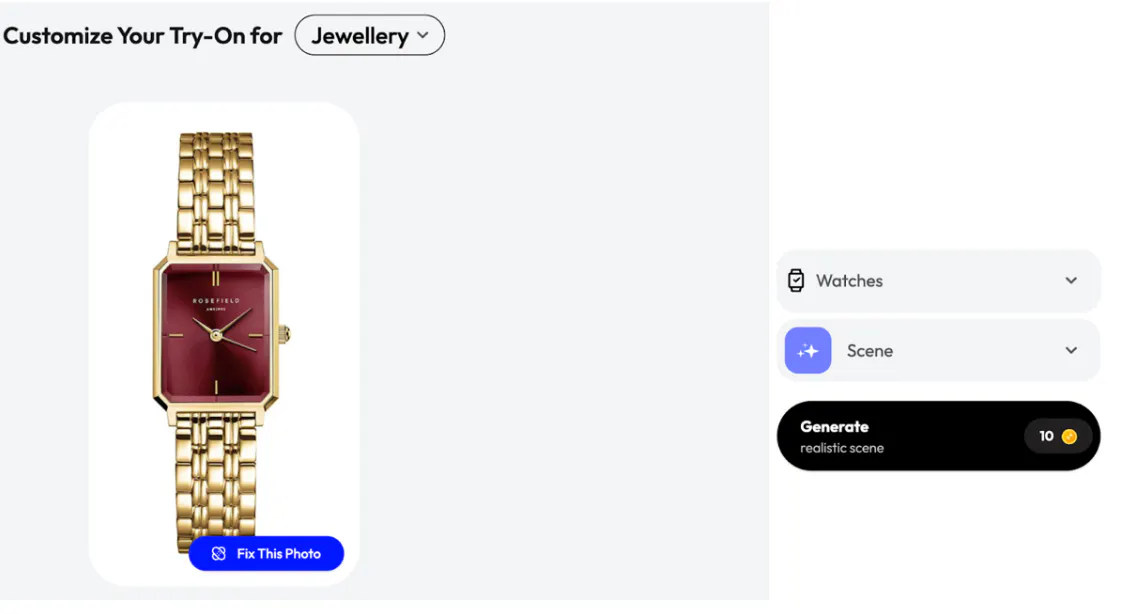
2. Choose Scene
This is a very interesting feature where you can select the type of model you want:
- Male or female wrist
- Different skin tones
- With or without face
- Casual, professional, or athletic look
Using multiple wrist styles helps you create a diverse watch on model images that appeal to different buyers. If you are confused, you can select the option “Surprise Me” and let Blend do the magic for you.
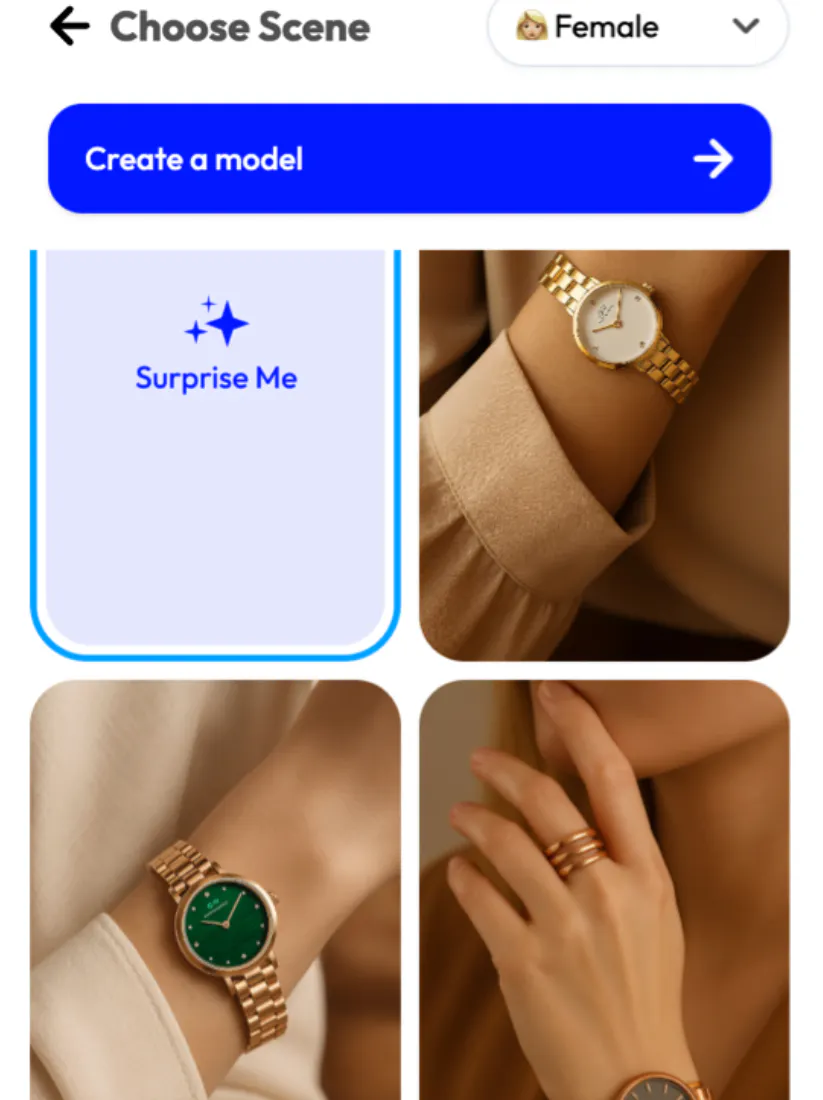
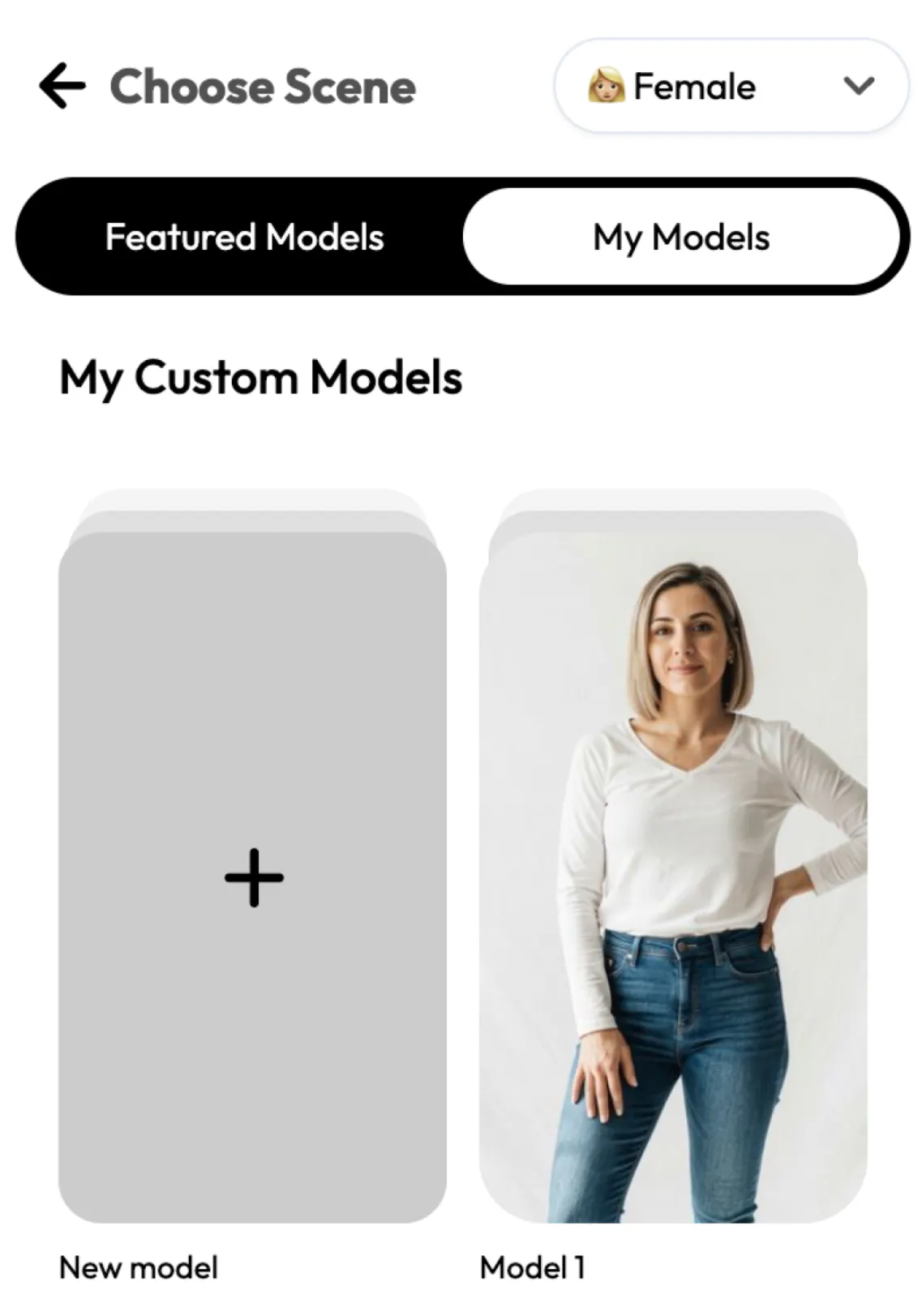
3. Create a Model
If you don’t like any of these models, you can create one on your own. Select the “Make your own model” and choose who’s trying the outfit. You have four options:
- Female
- Male
- Boy
- Girl
After this, you have various options to create your own model. From choosing ethnicity to picking a hair type, skin tone, age group, and even the perfect body shape.
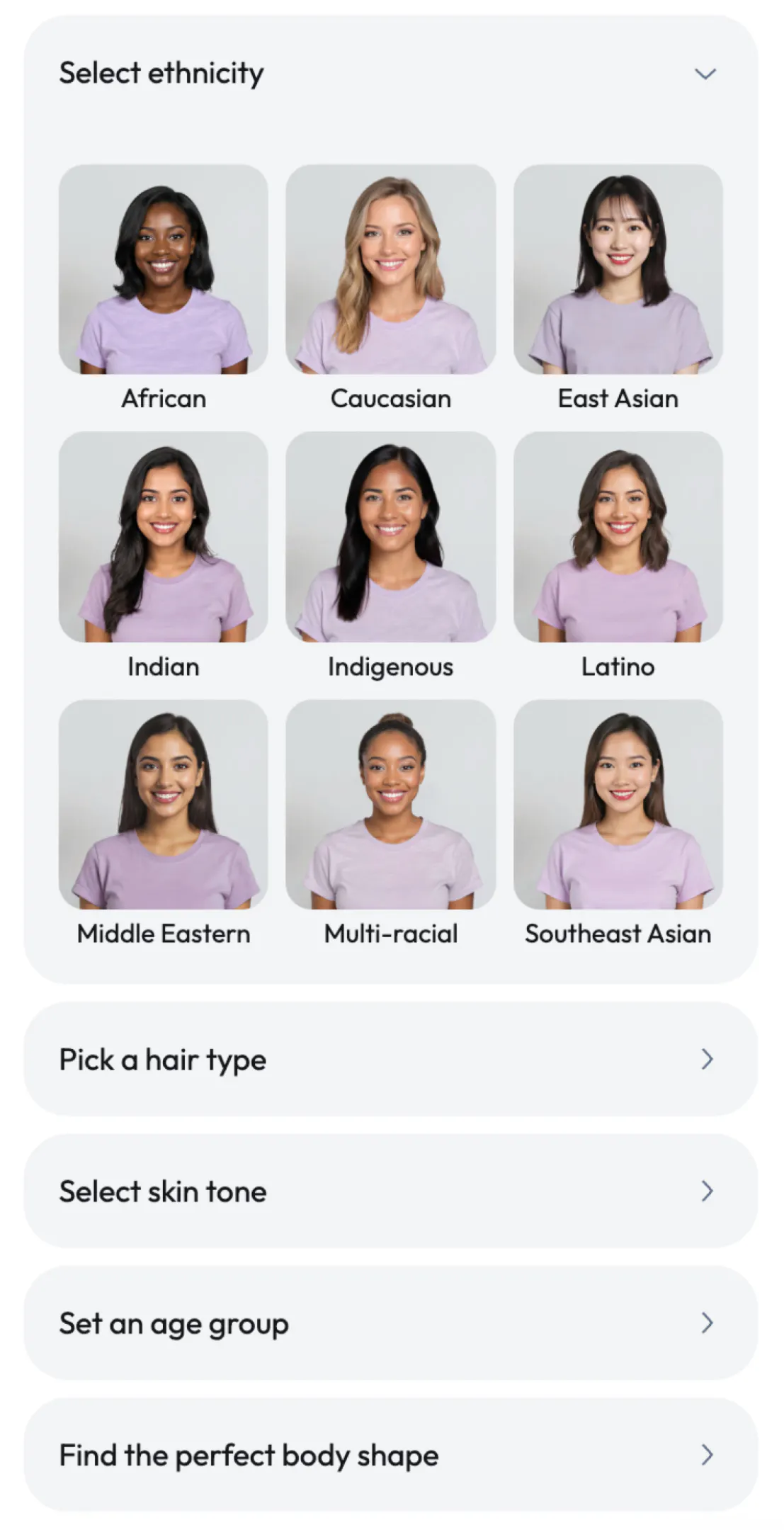
Then, click whichever one fits your description better. Just select and save the one you like the most.
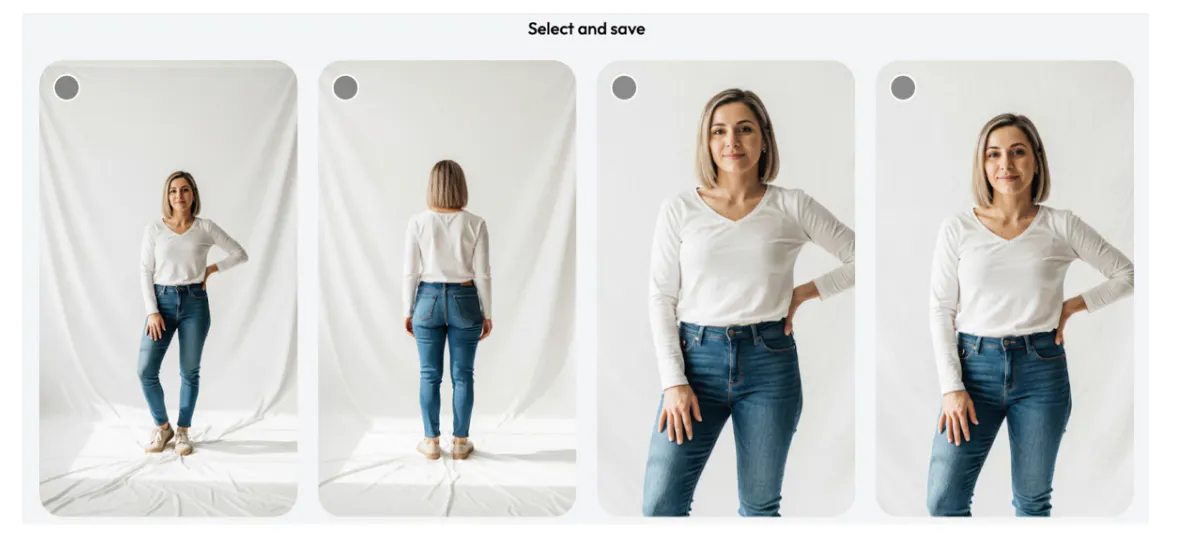
Your model is ready to display your product in the “My Models” section.
4. View the Before and After
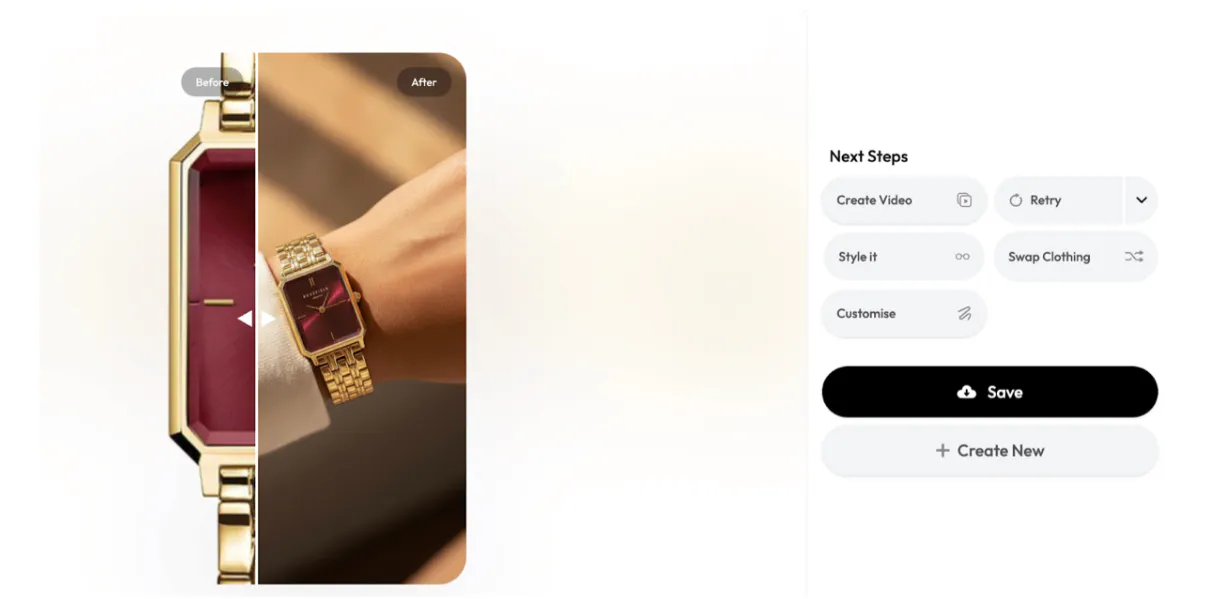
Once your image is generated, you can easily compare the original product photo with the AI-enhanced result. This makes it simple to evaluate placement, realism, and overall quality before exporting or regenerating.
View Before and After Together: To see both images side by side, switch to Compare View. This displays the original image next to the AI-generated version. This lets you quickly spot the differences in fit, lighting, and positioning. It’s the fastest way to review changes at a glance and decide if any adjustments are needed.
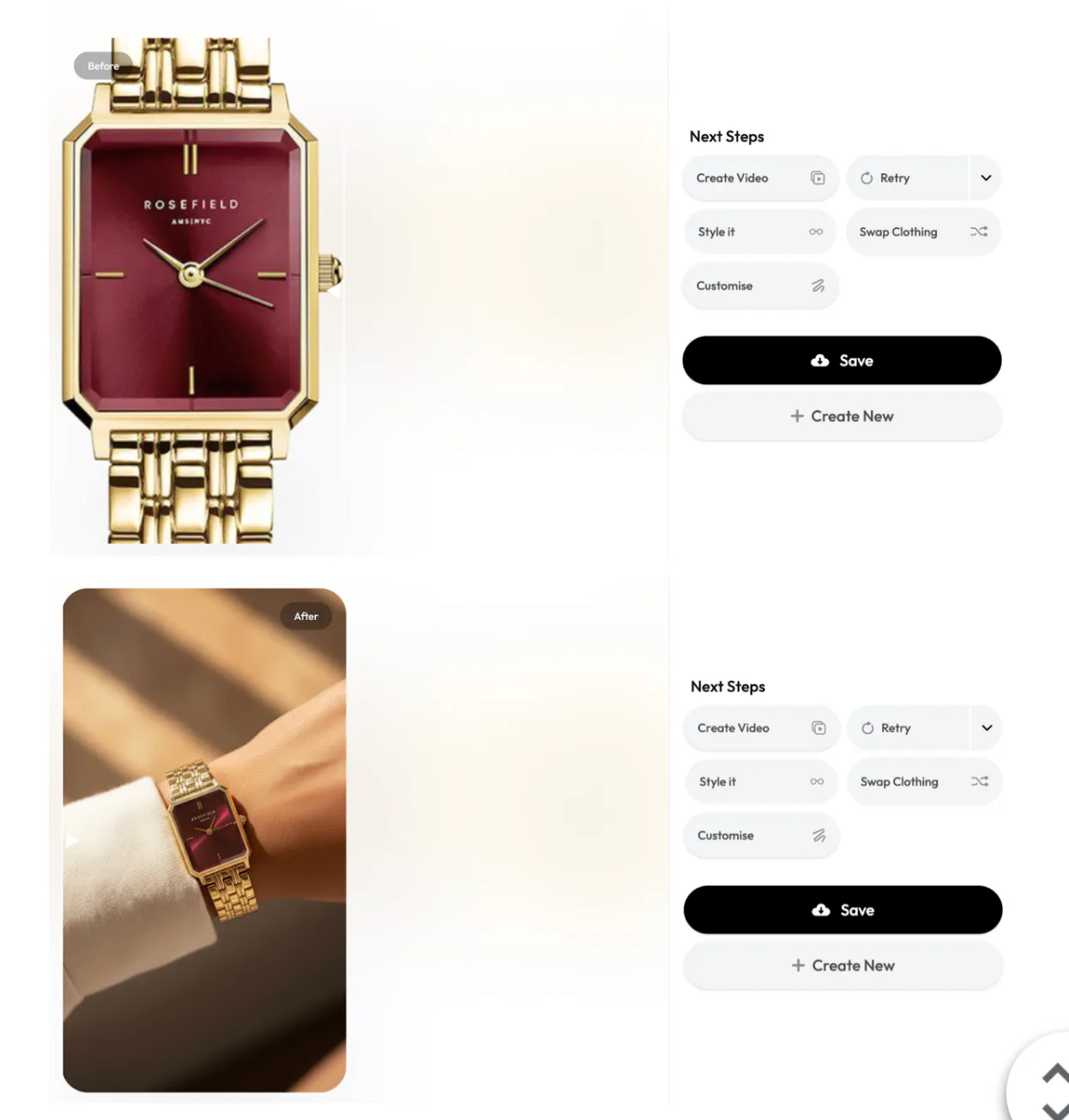
View Before and After Separately: On the other hand, if you prefer to inspect each image on its own, you can toggle between Before and After views. This is especially useful when zooming in on details like edges, alignment, or texture. When you view images separately, it helps you focus on precision without visual distraction.
5. Create Video
If you are happy with your final image, you can turn it into a short, engaging video to bring your product to life. This will be very helpful to promote your product on social media platforms. You can also swap the model if you want.
6. Style It
The Style It option gives you creative control over the final look of your image. Instead of starting from scratch, you can refine and enhance your existing visual with a few simple adjustments.
- Change Background
- Add other accessories to the model, such as handbag, sunglasses, cap, scarf, and jacket
- Update the color of the watch or the image to your liking
If you have something more specific in mind, you can also describe your requirements in your own words. Simply type what you want to change, and let Blend handle the rest. From styling details to final refinements, Blend can do it all.
This flexibility makes it easy to experiment with different looks while keeping your product consistent and on-brand.
Apart from this, there are also other options like “Customise” and “Swap Clothing” which allow you to fine-tune the model’s appearance even further. You can adjust styling details, experiment with different outfits, or completely change what the model is wearing. Whatever you do, nothing will affect the product itself. Blend uploads the product just as it is.
7. Save It
When you are satisfied with the final result, you can save your image or video with a single click. Create variations of the product so you can use them as many times as you want without appearing boring or repetitive.
You can download the file in high resolution for use across product pages, ads, social media, or marketing campaigns.
Beautiful Watch Photos on AI Models
Here are some watch photos that I generated with Blend using their AI Model feature:

What Type of Watch Images Should You Use and Avoid?
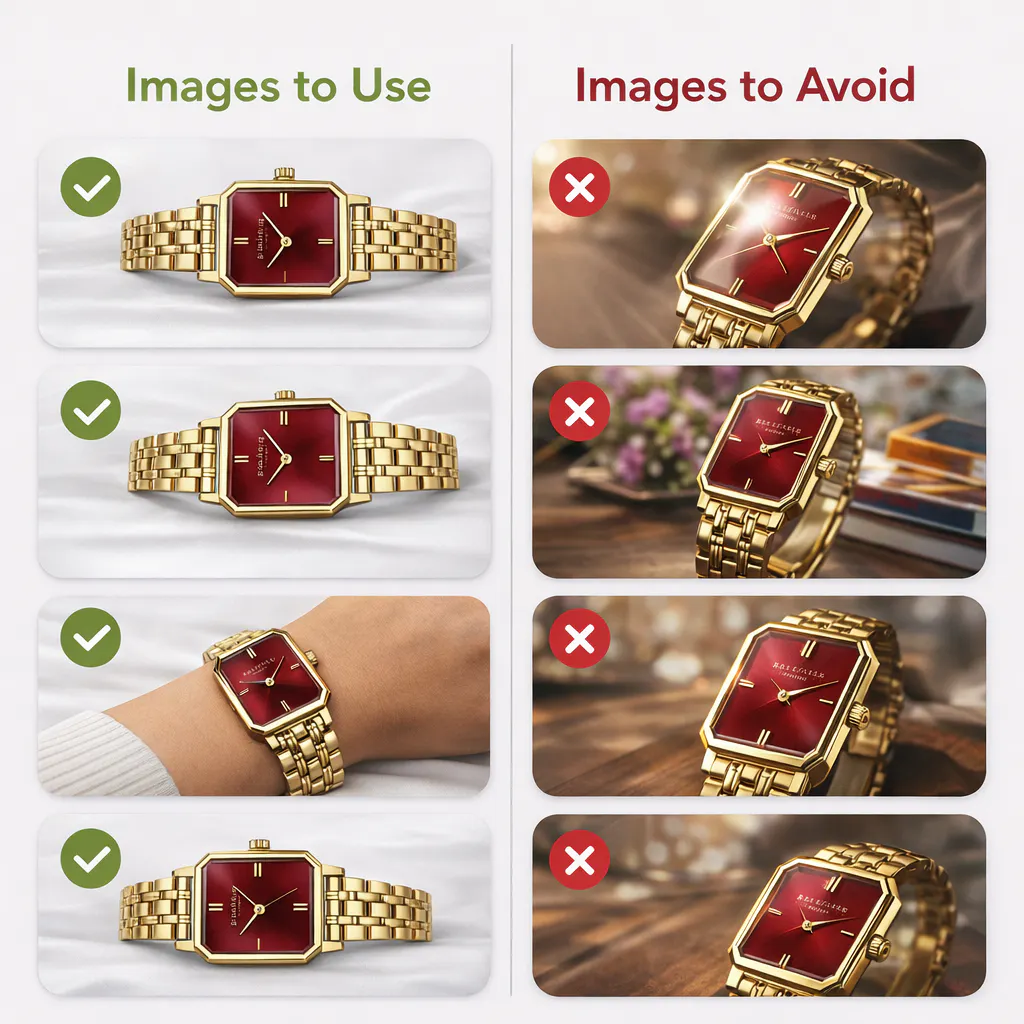
Not every watch image works well for AI styling or on-model placement. If you use the wrong kind of source image, then it can lead to unrealistic results, distorted proportions, or extra manual fixes. This will only consume your time and you will be stuck editing pictures all day long. Knowing what to avoid upfront saves time and helps you get cleaner, more accurate outputs.
Images you should use:
- Clear, front-facing or even slightly angled watches where the dial is fully visible
- Minimal reflections on the glass so markers and hands are easy to read
- Neutral or simple backgrounds that separate the watch from distractions
- Complete products in frame, including the full case and strap
- Natural strap positioning that resembles how a watch would sit on a wrist
These images translate cleanly when placed on models and maintain realism.
Images you should avoid:
- Heavy glare or reflections that hide the dial or distort details
- Extreme angles that warp proportions and confuse placement
- Busy or cluttered backgrounds that blend into the watch
- Cropped or partially hidden watches, especially missing straps or lugs
- Overly stylized lighting that creates harsh shadows or color casts
Conclusion
When you produce high-quality images on your website, it builds the user’s trust and it removes authenticity doubts from their mind. In the end, the strongest product images are the ones that feel effortless. With the help of Blend, you can enhance your product images in minutes. All you have to do is start with clarity, keep the focus on the watch, and let Blend’s AI Model feature do the work for you.