


When you hear a brand’s name, the first thing that pops in your mind is their beautiful logo. From big brands like Chanel and Gucci to emerging small online businesses on Instagram, a logo is more than a symbol. It is your brand’s identity, credibility, and recognition in a single mark. No logo is equal to no trace of ownership. Yes, it’s that serious.
If you are starting a new business, building a personal brand, or refreshing your visual identity, learning how to design a logo and how to create a logo that truly represents your brand is essential.
Read this complete step-by-step guide that will walk you through the process of logo design using Blend. It is fast, intuitive, and a must-have AI-powered app for every business owner.
What Makes a Great Logo?
Before diving into the process, it’s important to understand what separates an average logo from a strong one.
A successful logo should be:
- Memorable and easy to recognize
- Relevant to your industry and audience
- Simple and uncluttered
- Scalable across platforms
- Timeless rather than trend-dependent
These principles form the foundation of professional logo design and guide every step of the process. Here are some famous logos that have all the pointers that I have mentioned above:
Define Your Brand Identity
Every strong logo begins with clarity. Before opening Blend’s Logo Maker feature, ask yourself the following questions:
- What does your business offer?
- Who is your target audience?
- What values define your brand?
- What emotions should your logo communicate?
- How would you describe your brand in three to five adjectives (modern, bold, elegant, playful, minimalist, etc.)?
Sit and think about this for a few minutes and then write your answers down. The clearer you are, the better your logo results will be. Your logo should not just look attractive. It should reflect what you are offering as a brand.
How to Design a Logo Using Blend in 5 Simple Steps
Below is a structured, practical approach to designing and creating a logo using Blend’s AI-powered tools.
1. Create with Blend
Once you’ve clicked the Logo Maker feature on Blend, it will ask you your business name. Once you type that in, you need to describe your business.
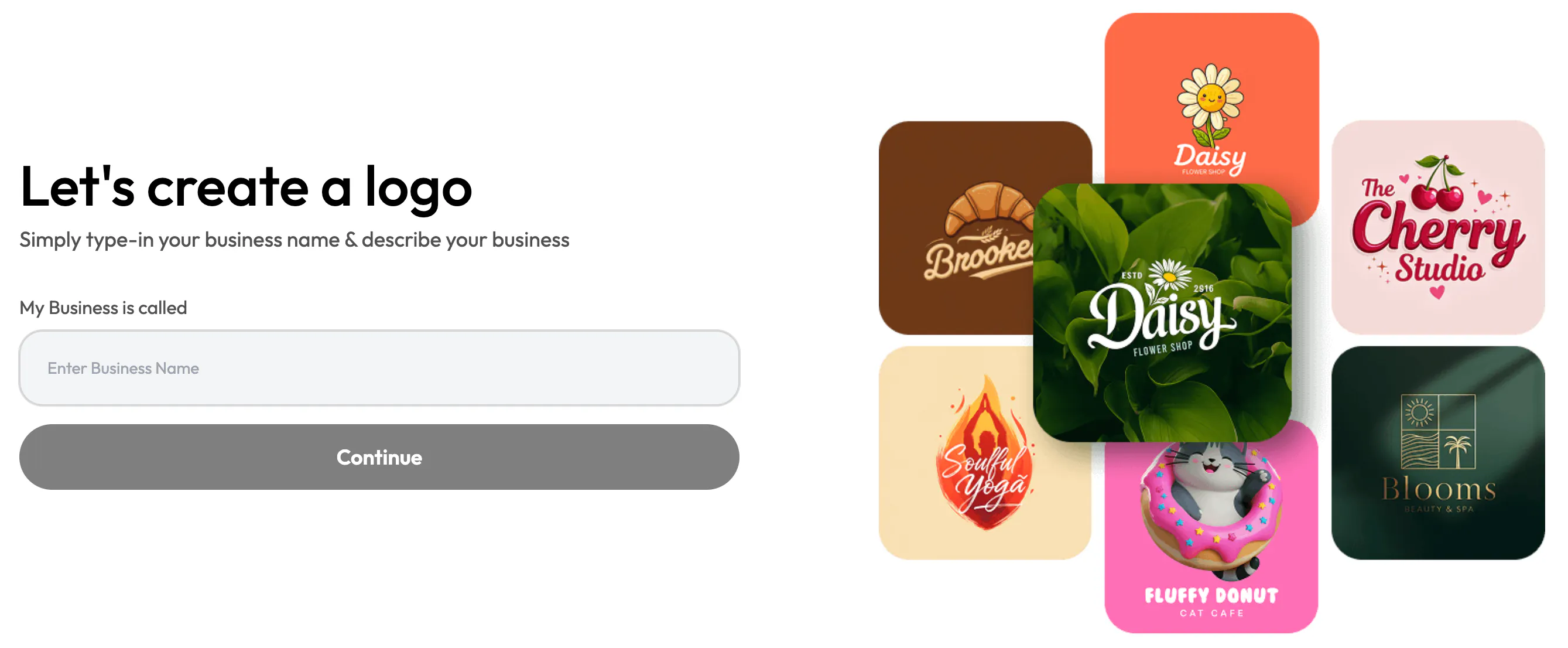
Here’s what I tried with Blend’s Logo Maker for a brand called Lunara Skin. I described my business as “Lunara Skin offers organic, plant-based skincare products focused on hydration, glow, and long-term skin health. Women and men aged 22–40 who care about clean beauty, sustainability, and premium-quality skincare.”
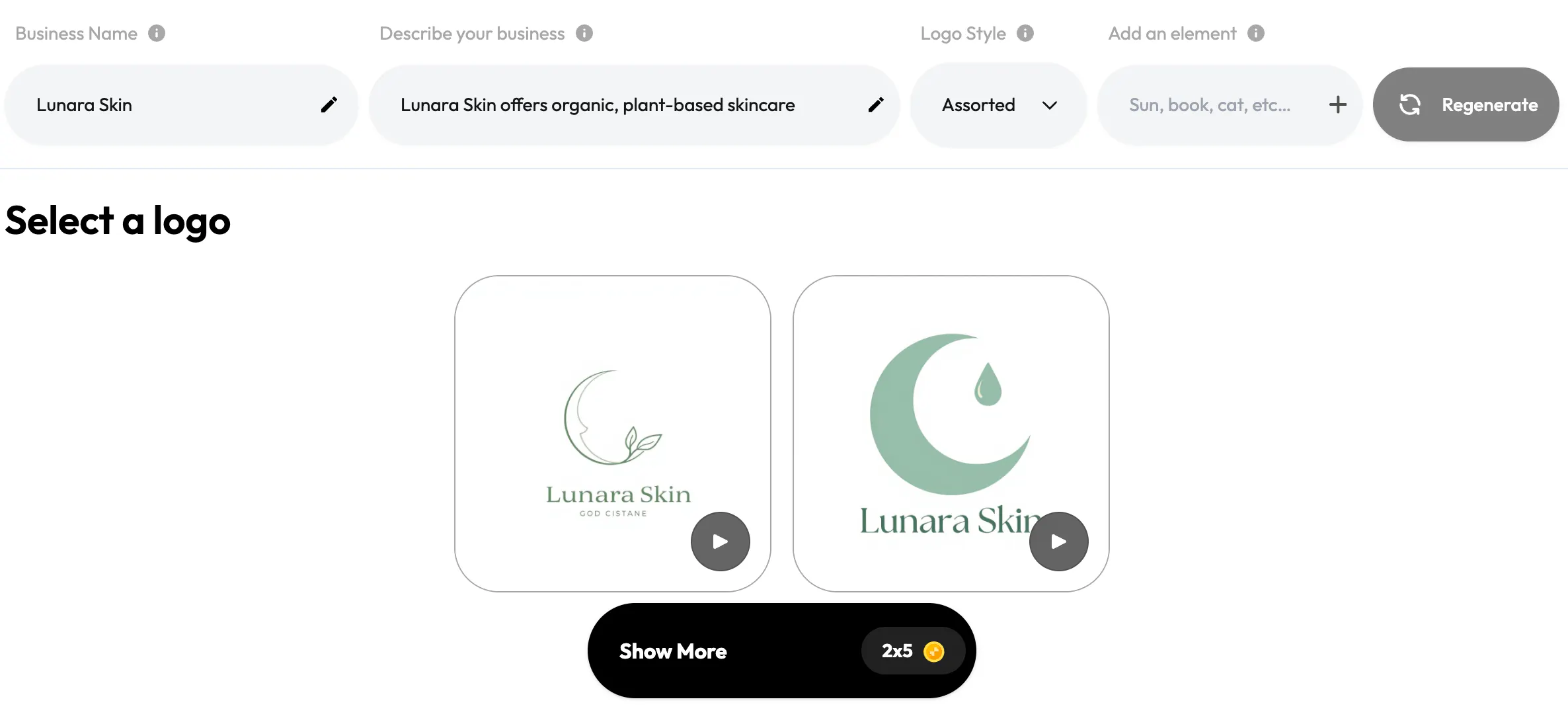
See how Blend’s AI has generated two logo concepts that are tailored specifically to my inputs. This definitely has eliminated my need to start from a blank canvas. Blend’s Logo Maker has designed two logos that reflect Lunara’s identity as a modern, clean, and premium skincare brand.
The subtle crescent moon element reinforces the brand name “Lunara,” symbolizing renewal, glow, and natural cycles. This is exactly what I was hoping for.
2. Select a Logo Style
Now that you’ve entered your brand details, Blend lets you choose the visual direction of your logo. This is a crucial step because the style you select is going to determine how your brand is perceived at first glance. And you know what they say. First impression is the best impression.
Blend offers multiple professionally structured style categories:
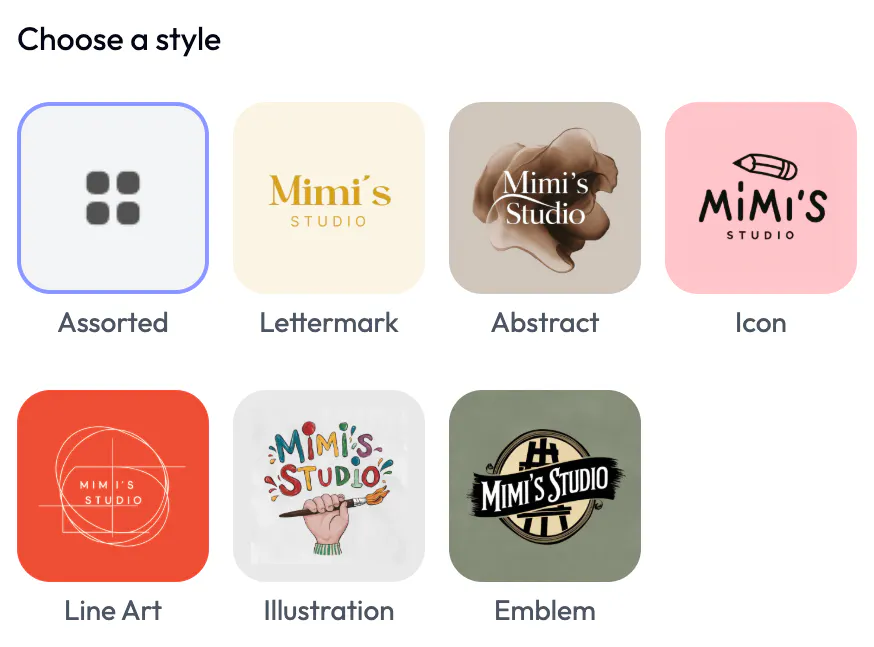
- Assorted: A mix of different logo types to explore varied creative directions.
- Lettermark: Clean, typography-focused logos that emphasize your brand name.
- Abstract: Modern, conceptual marks that create a unique brand symbol.
- Icon: Symbol-based logos paired with your business name.
- Line Art: Minimal, fine-line designs for a refined aesthetic.
- Illustration: Creative, character-driven or artistic logo styles.
- Emblem: Badge-style logos that feel classic and established.
This step ensures your logo isn’t random. It gives the viewers an idea that you have put in time and effort into making your logo.
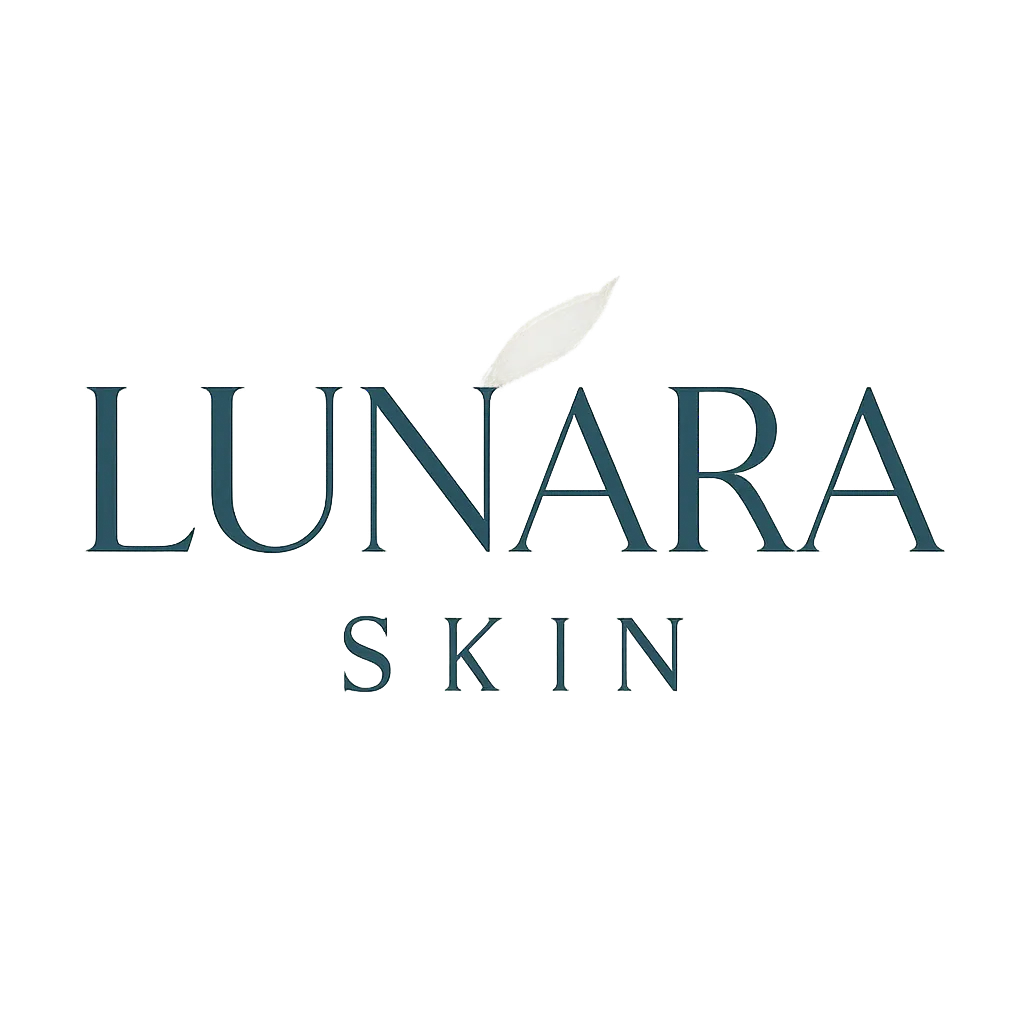
For Lunara Skin, I tried to experiment with both Lettermark and Line Art styles that support a minimal, premium skincare identity.
These are the options Blend gave me:
Lettermark:
Line Art:
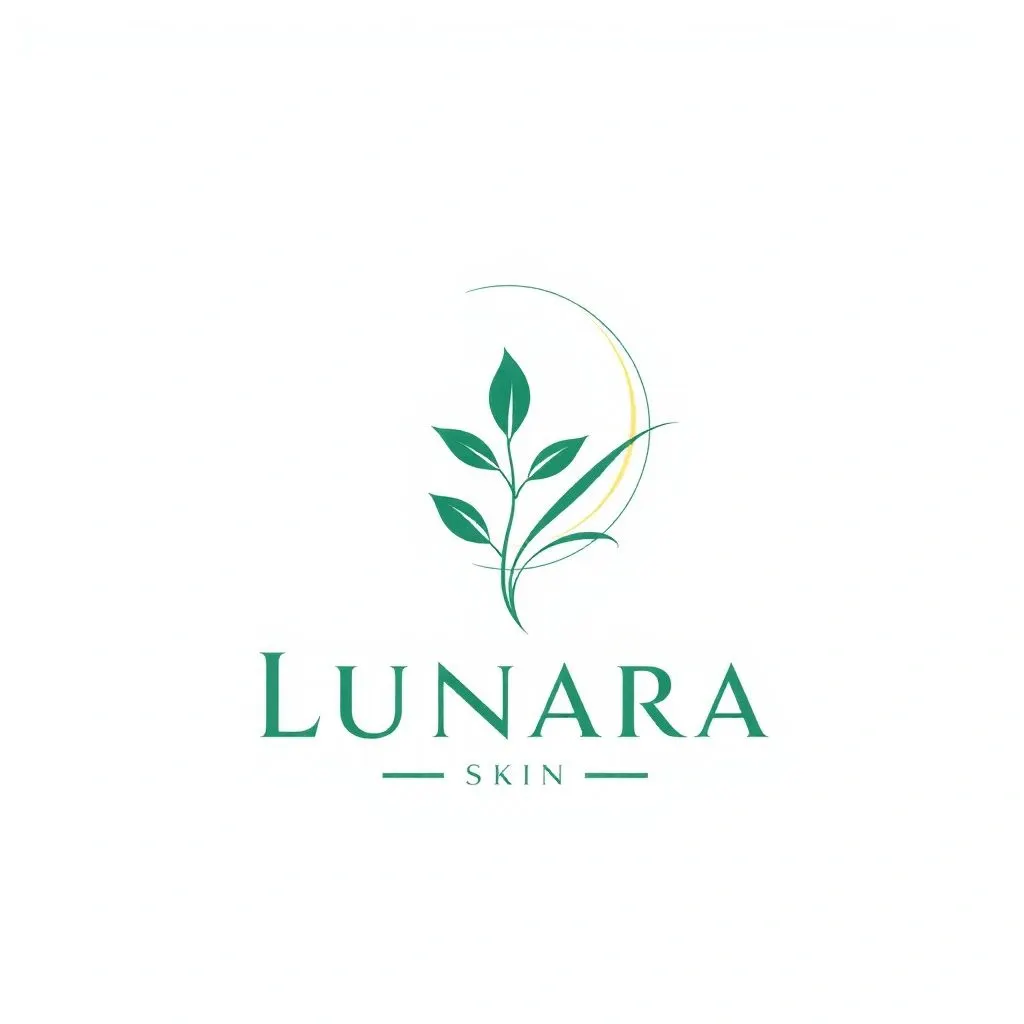
I personally love the Line Art logo because it reflects the natural and clean beauty of Lunara Skin and it also has a crescent moon that ties directly to the brand name.
3. Customize Colors, Typography, and Layout
Once you’ve selected a promising concept, Blend provides various options to refine the logo.
- Color: Adjust the color palette to match your brand identity. Test different combinations to ensure the logo communicates the right tone and emotion.
- Upscale: Increase the resolution and enhance your image by 4X to ensure your logo remains sharp and professional across digital and print formats.
- Video: Create an animated version of your logo for websites, social media, and marketing materials to enhance brand presence.
- Customize: Fine-tune fonts, spacing, layout, and overall balance to align the design perfectly with your brand.
- Save: Download your final logo and it is ready for immediate use across all platforms.
This is my final logo that Blend helped me generate:
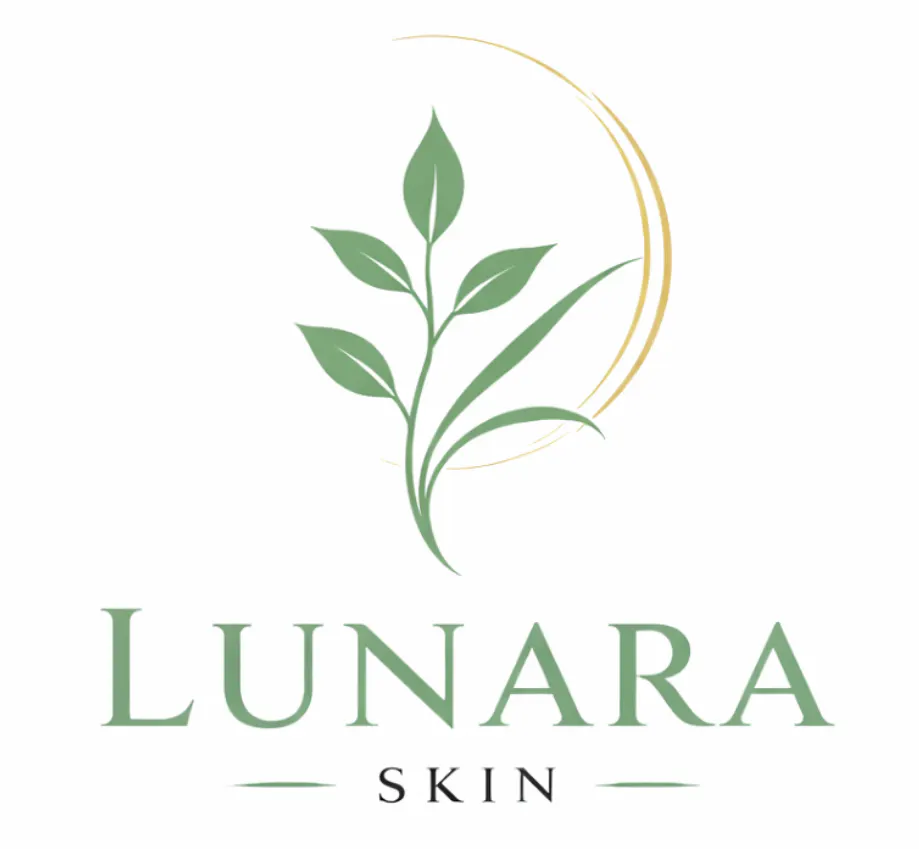
Here’s what I did and refined my logo: Firstly, I used the Change Color feature to soften the green into a more premium sage tone and added a subtle gold crescent to highlight the lunar meaning. Then, I used the Customize option to clean up the plant icon, improve spacing, and balance the text with the symbol.
After that, I used Upscale to make sure the logo looks sharp and professional in high resolution. Lastly, I saved the refined version for use across all platforms. I saved it in both JPG and PNG formats and in both HD and Lower Resolution.
Why Use Blend to Create a Logo?
Even though there are many ways to create a logo online, but Blend simplifies the process by combining AI-powered generation with intuitive customization tools. Blend’s Logo Maker offers:
- Brand-specific AI-generated logo concepts
- Multiple style variations instantly
- Beginner-friendly editing tools
- Professional-quality export formats
- Fast turnaround without design expertise
These features make it ideal for entrepreneurs, small businesses, startups, and creators who need a polished logo without hiring a designer.
Take a look at some of the logos I created instantly using Blend:

Conclusion
A logo is often the first introduction people have to your brand. It appears before your products are experienced, before your services are tested, and before your story is fully told. That is why it deserves thoughtful attention. Blend simplifies this journey. It helps you move from idea to execution quickly, while still giving you control over style, color, and refinement.